
Written by Giovanni
Edited on
29 August 2024
·
13:18
How do you connect your headset to the PS4?
In this article, we'll tell you exactly how to connect your wired or wireless gaming headset to the PlayStation 4. That way, you can easily connect your PS4 headset and get started with your favorite games.
How do you connect a gaming headset to your PlayStation 4?
You can connect a PS4 headset in various ways.
- Via a wired connection
- Via a base station
- Via a USB dongle
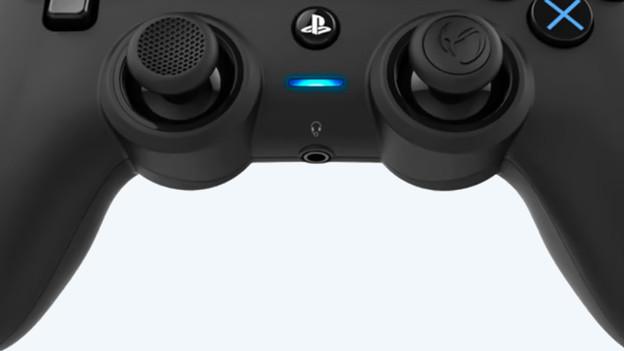
Connect wired
Do you have a wired headset for the PS4? You can connect it multiple ways. Most headsets have a 3.5mm connector that you plug into your PS4 controller. Your headset is then ready for use. Does your headset have a USB-A cable? Plug it into the USB-A port in the front of your PlayStation 4.
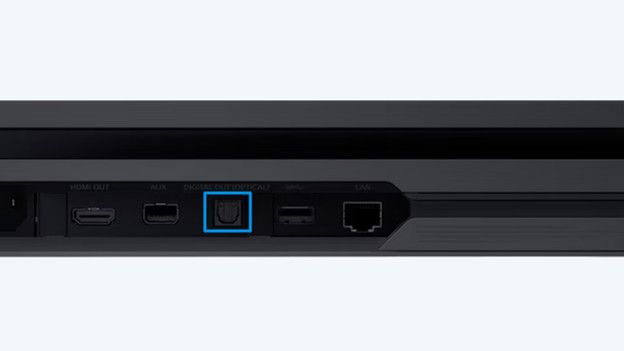
Via a base station
You connect some gaming headsets via a base station with an optical cable. Follow the steps below and connect your gaming headset.
- Connect the base station to your PS4 via the USB cable and plug the optical cable in the back of the PS4.
- Go to the PS4 settings and choose 'Sound and Screen' and then choose 'Audio Output Settings'.
- Select 'Primary Output Port' and choose 'Digital Out (Optical)'.
- Choose 'Dolby Digital 5.1' as the input format and choose 'Bitstream' for 'Audio Format (Priority)'.
- Go to 'Audio Devices' in the PlayStation settings and adjust the input and output to your headset.

Via a USB dongle
You can connect most wireless headsets with a USB-A dongle. You can easily plug these into the USB port on the front of your PlayStation. After that, you can turn on your headset and it'll connect to your PS4 right away.
Article by Giovanni
Gaming Expert.
