Written by Jorn
Edited on
27 January 2025
·
13:10
How do you download Netflix on the XGIMI projector?
You want to turn on Netflix on your XGIMI smart projector, but it doesn't have the app. Don't worry, we know a way to download Netflix on your XGIMI projector. We'll explain it to you with 6 easy steps.
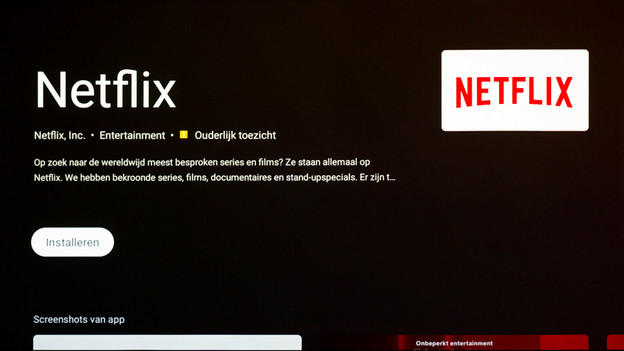
Get started with Netflix on your XGIMI smart projector
You can download the Netflix app on your XGIMI projector via the DesktopManager app. Follow these easy steps to do that.
Step 1. Go to the Google Play Store.
Step 2. Find the DesktopManager app.
Step 3. Download the DesktopManager app.
Step 4. Download the Netflix app.
Step 5. Check the DesktopManager box.
Step 6. Add Netflix to the home menu.

Step 1: go to the Google Play store
As soon as the XGIMI switches on, you'll see an overview with various apps. Navigate to 'Google Play Store'. open the 'Google Play Store'.
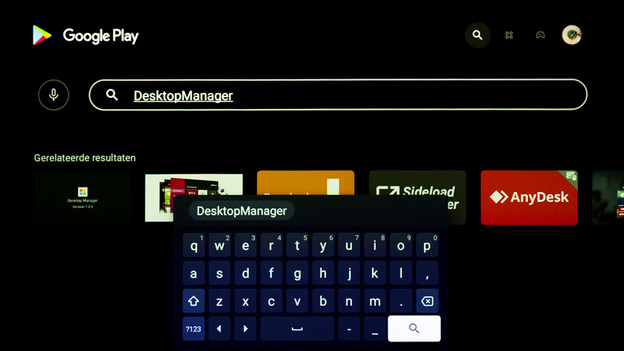
Step 2: find the DesktopManager app
In the Google Play Store, you'll see a button with a magnifier icon at the top right on the screen. Click on that button. Then, click the search bar. A keyboard appears, which is how you can enter 'DesktopManager'.

Step 3: install the DesktopManager app
If you see the app on the screen, click on it. Click the 'Open' button and it'll start the download automatically. Once the download is done, the 'Open' button appears on the screen. Click on it.
You may see the following notification during your download: 'Give DesktopManager access to photos, media, and files on your device'. This isn't an issue. Select 'Allow'.

Step 4: install the Netflix app
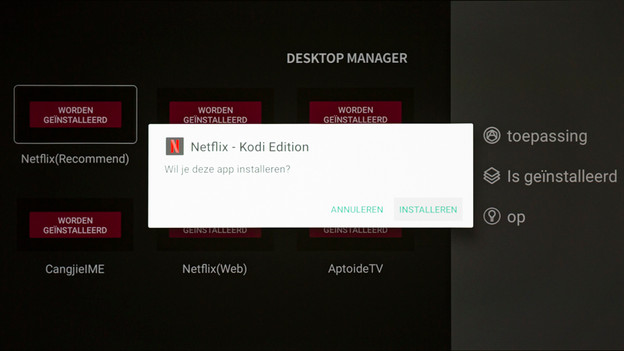
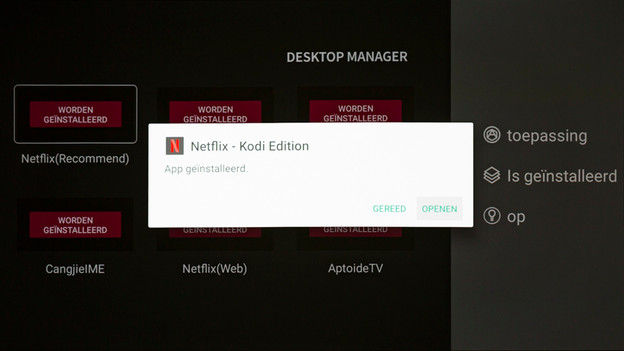
If you open the app, you'll see various app options. Find 'Netflix (recommended)', select it with your remote and click.
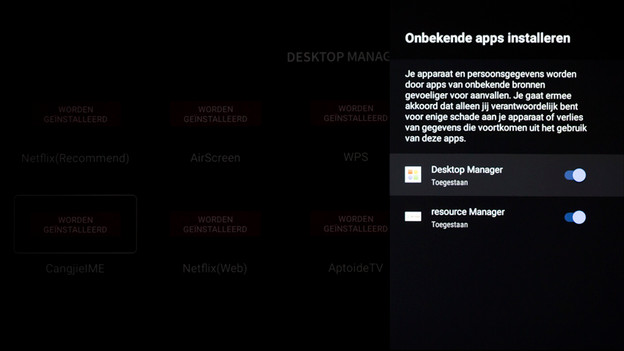
You may get a notification about downloading unknown apps. Make sure you've given DesktopManager access. You can continue with the download after that.
Step 5: check DesktopManager
You'll get a warning that a download may damage your projector. If you've read this and accepted the terms, check the 'DesktopManager' box. The download will continue. Want to watch movies right away? Click 'Open'.
Check the DesktopManager box
Select 'Download'
Select 'Open'
Step 6: add Netflix to the main menu again
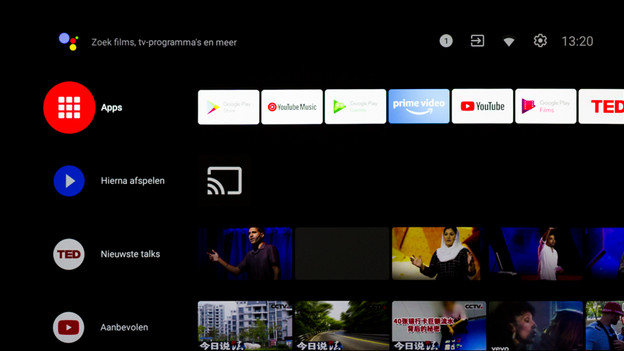
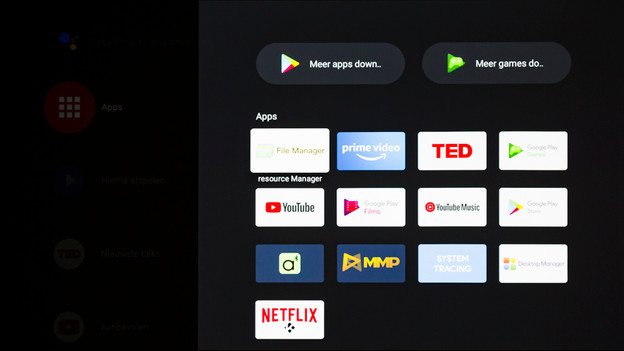
Choose 'Apps' in the top left corner in the home menu. A new window will open on the right side, where you'll see the Netflix application. You can start binging!
Open 'Apps' at the top left
Netflix is at the bottom
Article by Jorn
Projector Expert.