
Written by Linde
Edited on
15 October 2024
·
07:59
How do you connect multiple UE BOOM speakers to each other?
With multiple Ultimate Ears speakers, you can create a more powerful sound. Thanks to this, you can make a party of every situation or everyone can clearly hear the music in the park, for example. We'll explain in 4 steps how to easily connect multiple Ultimate Ears speakers to each other.
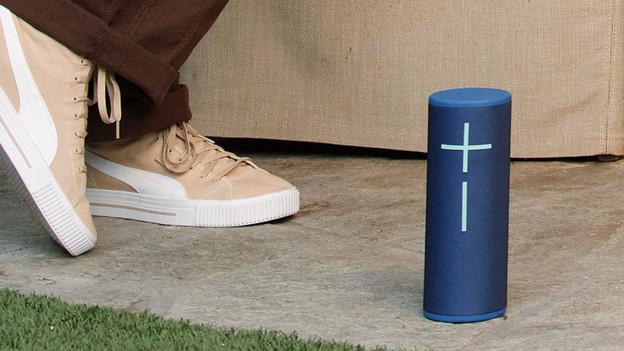
Get started with connecting
You can connect more than 150 Ultimate Ears speakers to each other for a powerful sound. This way, even in large spaces everyone can enjoy music. We'll explain how to do this in 4 steps.
- Step 1: connect all speakers to your smartphone
- Step 2: download the UE BOOM app
- Step 3: open the app and press the PartyUp icon
- Step 4: add the speaker(s) that you want to connect with

What do you need?
You need 2 or more Ultimate Ears BOOM speakers. With the PartyUp function in the app, you can connect all speakers to each other. You can only use PartyUp with these models: BOOM 3, BOOM 4, MEGABOOM 3, MEGABOOM 4, EVERBOOM, EPICBOOM, and HYPERBOOM. You also need the Ultimate Ears BOOM app on your smartphone.
Step 1: connect all speakers to your smartphone
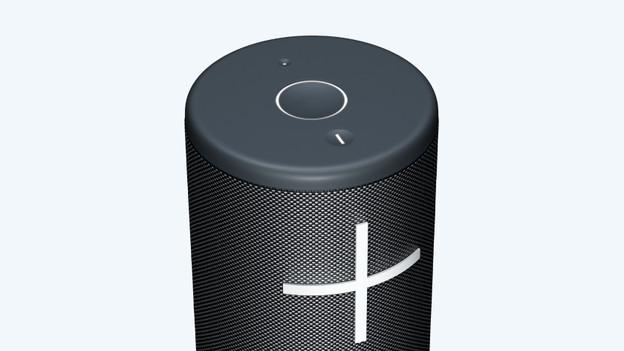
You can connect all speakers you want to listen to music on with your smartphone. Turn on every speaker for this and keep the Bluetooth button pressed for a long time. Let go of the button when you see the light blinking. On your smartphone, go to Bluetooth in the settings. The name of the speaker appears, click it. After a few seconds, the speaker is connected.
Step 2: download the UE BOOM app
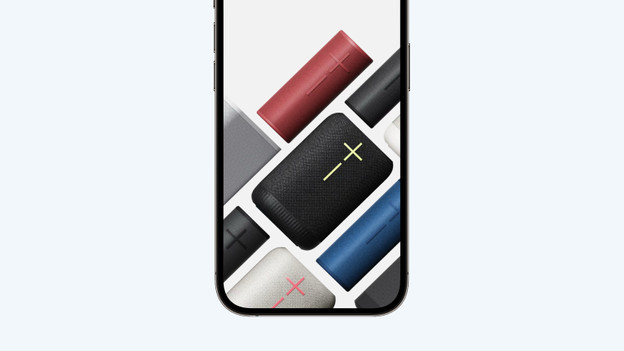
You need the Ultimate Ears BOOM app, so download this in the app store. If you already have the app and need to update it, you see a blue screen. Tap ' Let's do this' and keep the app open while it's updating. After this, you return to the home screen.
Step 3: open the app and press the PartyUp icon
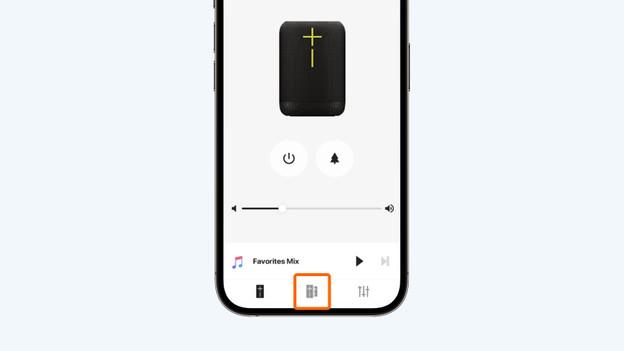
In the app, you see the speaker that was connected first. Below, you see the PartyUp icon. You can recognize this logo by the 2 speakers next to each other. Tap this.
Step 4: add the speaker(s) that you want to connect
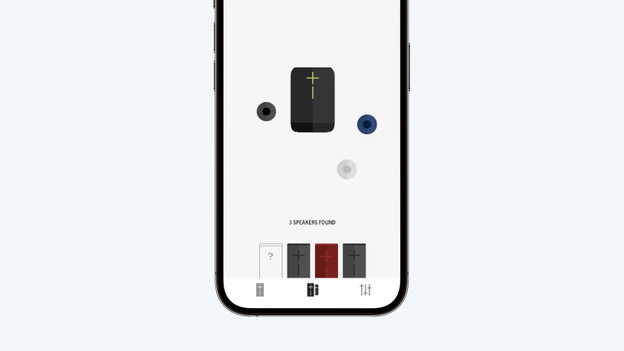
You now see the speaker that was connected first in the middle. At the bottom, you see the other speakers that are already connected via Bluetooth. Click on a speaker, keep pressing it, and slide it towards the middle. After letting go, you see that the second speaker loads for a bit. After a few seconds, it's connected. Repeat this for the other speakers you want to connect.
Disconnect
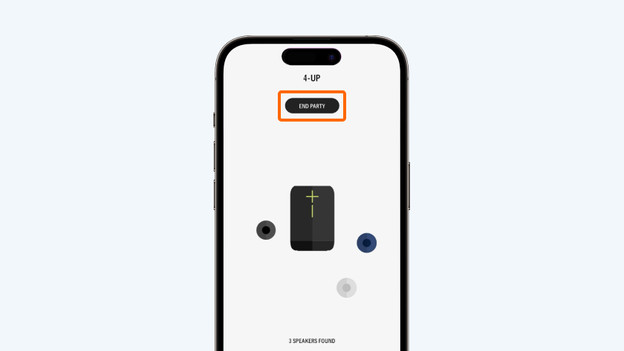
You can easily disconnect all speakers by clicking ' End Party'. Press 'OK' and the music keeps playing on the speaker that was connected first.