
Written by Jan
Edited on
27 February 2025
·
15:40
How do you install an M.2 SSD in a laptop?
You bought a M.2 SSD so you can boot your PC and programs every fast. But how do you install a such a storage module? In this article, we'll explain how to install a M.2 SSD in a laptop.

Summary
In this article, we'll talk about these steps:
- Turn off your laptop.
- Avoid static shocks.
- Open your laptop.
- Locate the SSD connector.
- Remove the current SSD.
- Install the new SSD.
- Restart the laptop.

What do you need?
- Tools to unscrew the casing of the laptop
- An antistatic wrist strap
- Your laptop
- An M.2 SSD
Tip: leave your new SSD in the antistatic bag as long as possible. This minimizes the risk of damage caused by a static charge or dust.
Step 1: turn off the laptop
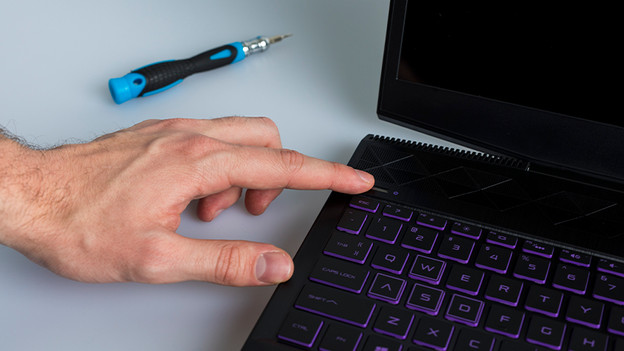
Turn off your laptop completely, don't leave it on standby. Are there any cables plugged in? Remove them all, starting with the power cable. When you've done this, turn on the laptop once, so all of the left-over power will be drained from the power supply.

Step 2: avoid static shocks
If you're going to tinker with a laptop, it's important that you're not statically charged. A static shock, no matter how small, can be disastrous for the components in your laptop. That's why I recommend that you to always wear an antistatic wrist strap.

Step 3: open your laptop
Put your laptop on the table with the bottom up. You can use a towel to protect your laptop from scratches. Unscrew the 8 to 10 screws on the bottom of your laptop and remove the base plate.
Step 4: locate the SSD slot
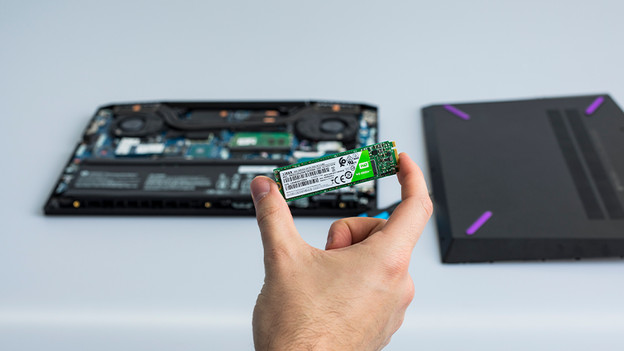
It depends on the motherboard of the laptop where you can find the slot for the M.2 SSD. You can use the manual if you can't find the slot for the M.2 SSD.
Step 5: remove the current M.2 module
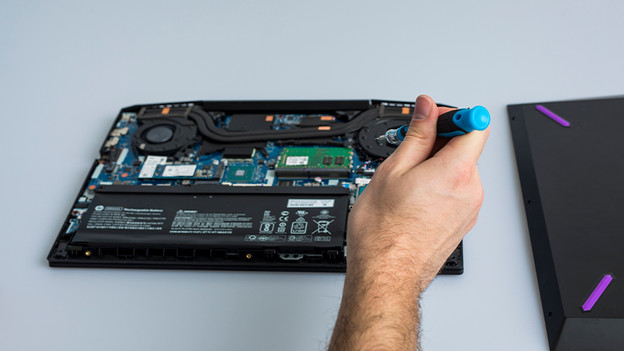
Remove the screw that holds theM.2 SSD in place and carefully slide the module towards the screw you just removed. Don't loose the screw, because you need it to install the new M.2.
Step 6: install the new M.2 SSD
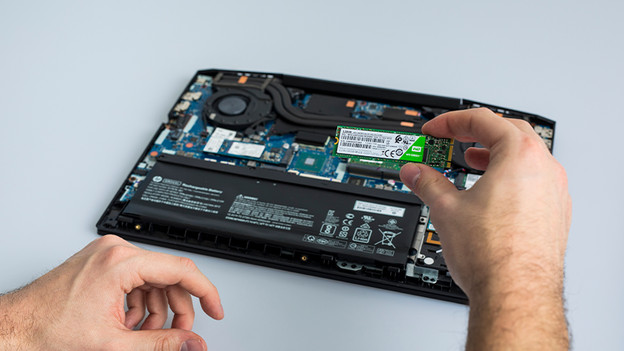
Slide the M.2 SSD into the slot. Make sure the cutout is on the right side. Usually, that means the memory chips are facing up. If you're not sure, check the manual of your laptop. Screw the M.2 SSD in place with the screw you removed during step 5.

Step 7: use the laptop
Place the base plate back onto the laptop and screw it in place. If you used to boot your laptop from a different drive, it'll now boot in the usual way. You can copy all your data to the new M.2 SSD later. If you installed an empty SSD, you can reinstall your operating system.
Article by Jan
Storage Expert.
