Dell Ultrasharp U3415W
Never available again
View alternatives in the sidebar
View alternatives in the sidebar
Sharpness | Quad HD (1440p) | |
|---|---|---|
Curved | ||
Aspect ratio | Ultrawide (21:9) | |
Refresh rate | 60 Hz | |
Response time | 5 ms | |
Panel type | IPS panel | |
Color depth | 17 million colors (8-bit) | |
Built-in speakers |
According to our monitor expert
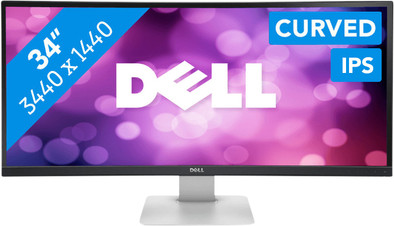
The Dell UltraSharp U3415W is made for multitasking. This curved monitor features a 34-inch widescreen Quad-HD screen with a resolution of 3440x1440. Curved means that the screen is slightly curved so that it looks like you have a wider surface area. In addition, the Picture-in-Picture technology ensures that you can work on two computers simultaneously using one screen.
Thanks to IPS technology, this screen has better viewing angles and displays sharper images. Combine this with 4 USB 3.0 ports for your peripherals, and you have a true multitasking beast.
5 stars
22
4 stars
10
3 stars
1
2 stars
0
1 star
0
Owned the Dell U3415W since 16-03 (if I can believe Coolbleu as one of the first in the Netherlands)
I've been looking for a new setup for my screen for some time, initially I looked at a setup of two screens that was also applicable before purchasing the U3415W. I preferred to look at the following screens with as small a list as possible:
The Dell UltraSharp U2913WM appealed to me from the beginning, a screen that was nicely organized, until I accidentally came across the Dell U3415W, this was a new and therefore reasonable IPS screen from Dell, also with a curve and a bit larger. The range of reviews on the internet (Youtube) is limited, there are a number of them and I have looked at all of them.
The IPS panel is used by different brands because of the good experiences with the Dell brand chosen for Dell.
After the monitor was delivered, it was unpacked, Dell packed the monitor neatly (more and more manufacturers are doing this). It is very easy to remove the monitor from the box and place it on the adjustable foot. Connecting the (extra ordered) DP cable gave some “problems” you have to press the cable firmly before it is recognized by the monitor.
When turning on the monitor for the first time, I immediately noticed the black lightning in the corners that I had already read about on the internet, but after the panel is fully operational, this completely disappears and since I've been working with it, this has happened to me. no longer noticed. Not even when watching movies or dark documents.
The included software from Dell is fine, the display manager is nice and actually works fine. I haven't tested the sound yet, I use external speakers and don't think it's necessary to use the built-in ones.
The screen can be adjusted in height with a finger, Dell uses a counterweight in the leg and this works amazingly well. The software will have to be updated here and there, so new films cannot be viewed completely on the screen and there will be a black border around the film. I expect this will be fixed by Dell in a future software update.
Gaming is fine on the screen, I'm not a hardcore gamer but the games I play flash across the screen and make you feel even more in the game.
I myself use a fairly new PC (core i7 GTX970 and 16gb) I can imagine that older systems have a hard time with this screen, something to take into account in advance.
Despite the fact that I have had the screen for less than a week, I am very positive and I would recommend the screen to everyone despite its price.
Leo
18 March 2015
Automatically translated from Dutch
Specifically not for a 4K but for a 34 inch 21:9 monitor chosen:
that mainly for the programs not provided by the operating system. It will be a while before most scale programs as it should.
lots of screen space - without having to click away screens.
Why for the Dell and not for one of the other brands with 34" chosen with 21:9 ?
have got,
rotates and is adjustable in height (90° pivoting not possible)
is equipped with HDMI 2.0 (can you play 4k content at 60Hz, HDMI 1.4b only goes up to 30 Hz), i.e. future-oriented
in the box), 4 USB 3.0 downstream connections.
Have 2 PCs connected to the screen continuously. From every PC there goes an upstream cable to the screen (if there are more than 2 PCs, you can set which upstream USB cable is connected to which PC in the menu). Every device that you connect to one of the 4 downstream USB 3.0 ports is shared by the PCs that are connected with an upstream USB 3.0. The keyboard and wireless mouse are in two of the USB 3.0 ports and are used by both PCs (simultaneously). In this case, the monitor USB hub works as a KVM switch. You can also connect external hard drives to the USB 3.0 ports (not tested yet)
My previous monitor was a 23" and is now about the same distance from the screen about 60 to 70 cm. The print is only slightly smaller than my 23", but much brighter.
The monitor's natural colors only really come into its own when you play an 8K (youtube) movie. However, via displayport, otherwise you have a chance of a black screen.
Fortunately, the screen is matte, because a curved screen gives even more chance of reflection from sun, lamps, etc. Plug in as many cables as possible during installation, even if you don't use that cable every day. Afterwards you don't pick up the screen (due to weight and 84 cm wide) to plug in a cable. Tried multiple Displayport cables (presumably all of them version 1.1), but these all gave errors (flickering) on the screen. You can of course change the settings of the menu via the menu roll back from version 1.2 to 1.1 but then you don't have to use 8K play videos. The mini to full displayport cable supplied by Dell works well.
With the OSD (On Screen Display) menu you'll be pressing ON the screen instead of the buttons below it before you know it. When switching between 2 PCs and a laptop connected to the screen, the OSD menu is insufficient. A remote control would make operation much smoother.
If you are playing PBP (Picture By Picture) on two PCs, i.e. one PC on the left and the other PC on one screen on the right, you will need to temporarily adjust the screen ratio of 21:9 to get a decent ratio.
I only notice the dreaded Black lightning in the top left and right corners during the BIOS startup (pitch black screen with only white letters). Once Windows is running, you won't notice it much.
When you play 21:9 movies, the bars are no longer above and below the movie, they are now to the left and right of it.
On VLC use option F (Full), with Arcsoft TotalMedia Theater 6 you have 3 options to fill the image.
Connected my 3 year old Egreat Mediaplayer to the HDMI, the colors were fantastic, but the hardware media player does not have 21:9 , but only full HD, i.e. black bars.
Use the screen with the following graphics cards (tested with displayport and HDMI (1.4):
(no display port)
Der Rudi
17 July 2015
Automatically translated from Dutch
Very nice screen, many connections, ultrawide is good for games and the like. Curved is nice, but a straight line is harder to judge. Better gamma and color rendering after calibration. Backlight bleeding, but I had already seen that in the countless reviews, so no surprise, just like IPS glow. It's not that bad, but I don't use the screen for movies, where it might be more disturbing.
BV1979
13 January 2016
Automatically translated from Dutch
Product number | 552908 | |
|---|---|---|
Manufacturer code | 210-ADYS | |
Brand | Dell | |
Processing of your defect | Carry-in warranty | |
Old product returned for free |
Recommended display resolution | 3440x1440 | |
|---|---|---|
Sharpness | Quad HD (1440p) | |
Aspect ratio | Ultrawide (21:9) | |
Refresh rate | 60 Hz | |
Response time | 5 ms | |
Panel type | IPS panel | |
Brightness | 300 cd/m2 | |
Local dimming | ||
HDR support | ||
Contrast ratio | 5000000 | |
Touchscreen | ||
Screen reflection | Anti-glare | |
Blue light filter | ||
Flicker-free technology | ||
Color space | sRGB | |
sRGB color coverage percentage | 99 % | |
Color depth | 17 million colors (8-bit) | |
Adaptive Sync | ||
Resolution width | 3440 pixels | |
Resolution height | 1440 pixels | |
Anti-reflection type | Anti glare | |
Horizontal viewing angle | 172 ° |
Height | 40,87 cm | |
|---|---|---|
Width | 82,47 cm | |
Depth | 21,6 cm | |
Weight | 8,44 kg | |
Color | Black, Silver | |
Including stand | ||
Material | Plastic | |
Cable management | ||
Appearance | Neutral | |
Curved |
Number of HDMI connectors | 2 | |
|---|---|---|
Number of Female HDMI type A 1.4 ports | 2 | |
Number of headphone jacks | 1 | |
Type of headphone connection | 3.5mm (TRRS) | |
Protocol mini DisplayPort port | DisplayPort | |
Number of female mini DisplayPort 1.2 ports | 1 | |
Number of Female Standard DisplayPort 1.2 ports | 2 | |
Number of female standard USB-A ports | 3 | |
Female standard USB-A port version | 3.0 | |
Number of female standard USB-B (3.0 form) ports | 2 | |
Number of female 3.5mm TS Audio Jack ports | 1 | |
Number of female 3.5mm TRRS Audio Jack ports | 1 | |
Type of USB port | Standard USB-A | |
Number of USB ports | 4 |
Adjustable in height | ||
|---|---|---|
Tiltable | ||
Pivotable stand | ||
Pivot function | ||
VESA mount option | ||
VESA mount | 100x100mm |
Energy consumption standby | 0,5 W | |
|---|---|---|
Energy consumption active | 55 W |
Built-in speakers | ||
|---|---|---|
Sound system | Stereo | |
Split screen | ||
Kensington lock | ||
Best tested |
Image quality according to customers | Very good | |
|---|---|---|
Design according to customers | Nice | |
Recommended for use | Image editing and graphic design |
Coolblue takes care of everything, from taking out an insurance to repairs
For almost all accidents
More coverage in case of damage than your standard warranty
No deductible
First, add your monitor to your shopping cart. On the next page, choose the Protection Plan below. You always have a 30-day return window and pay no deductible in case of damage.
3-year Protection Plan
111,-
one-time5-year Protection Plan
195,-
one-time