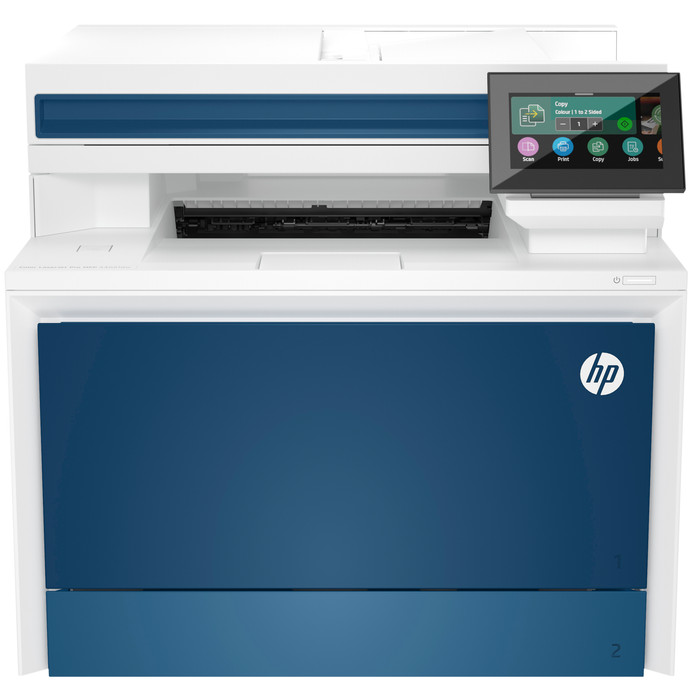
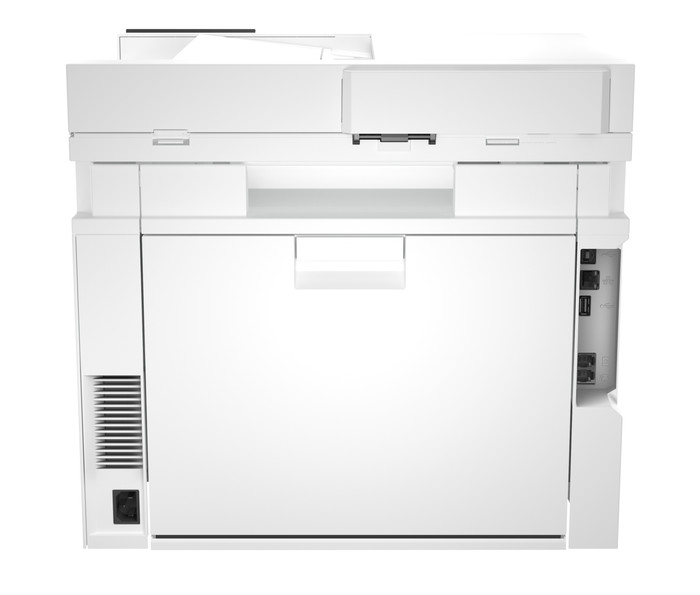
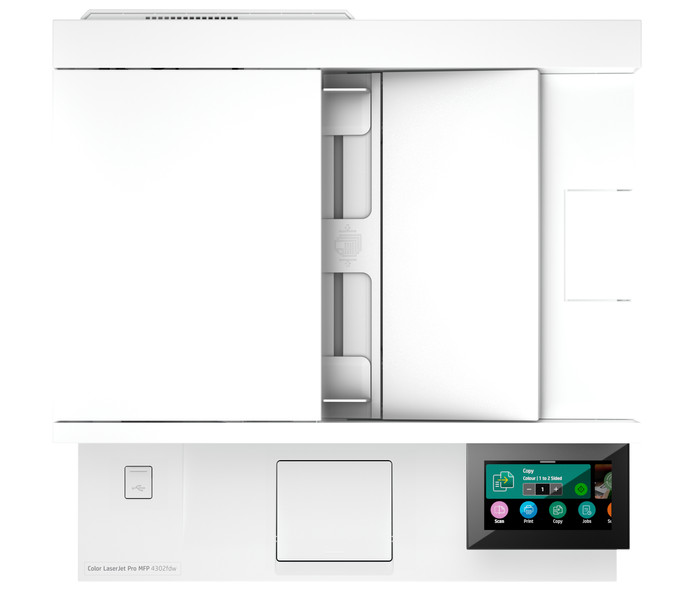
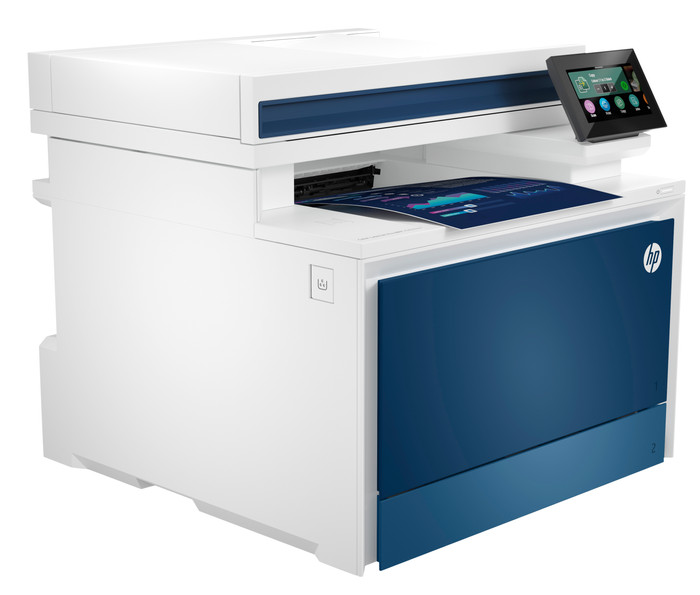
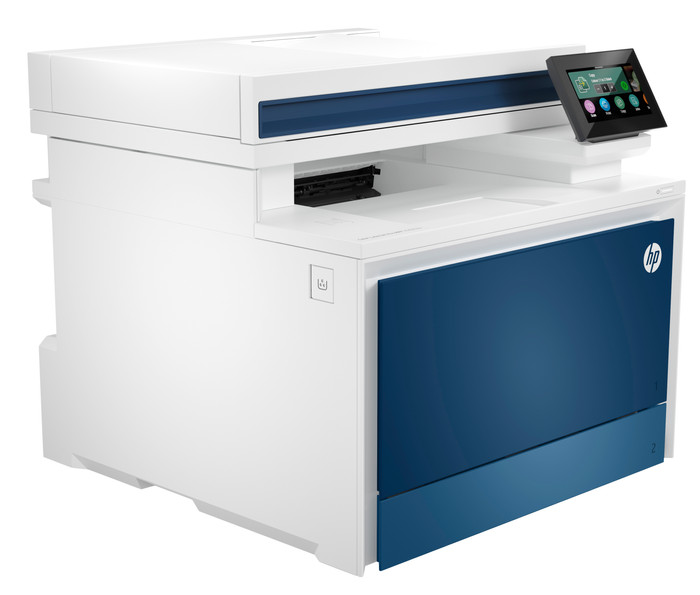
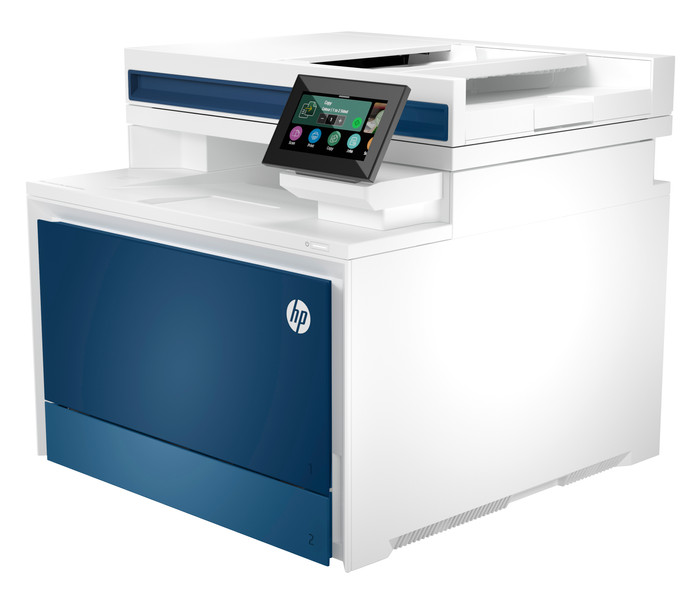
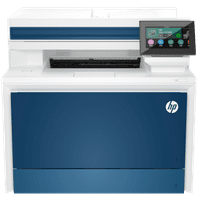
The HP Color LaserJet Pro 4302fdw prints my documents quickly and colorfully and scans, copies or faxes. Due to the large size, I prefer to place the printer on a separate table and not on my desk.
Pre-installed toners and easy connection
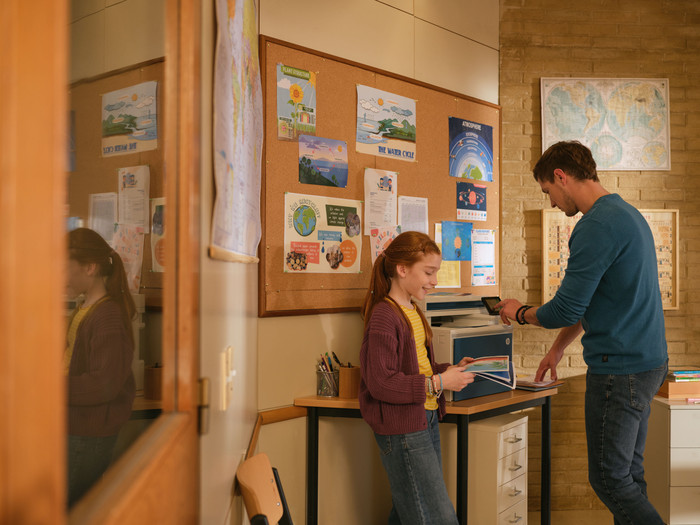
The first thing I notice is that the toners are already in the printer. This saves me a lot of time during installation. I also receive a USB cable, so I can start printing immediately. I prefer to connect via WiFi, so that I can send my print jobs from a distance. I also connect my laptop directly to the printer's network via WiFi direct. Very useful if the internet at the office fails. Because the printer is quite large, I place it on a table or cupboard instead of on my desk.
Sharp prints and high printing speed
I first print a number of color documents. The printer has a print resolution of 1,200 by 1,200 dpi, so my documents come out sharp. I notice that the colors are very vibrant, which makes colorful graphs really stand out in my work documents. I also test the printer's printing speed. The printer takes just over a minute to print a 35-page document, so I can have large files ready in no time. When printing automatically on both sides, the printer takes a little longer, but I hardly notice this.
Automatic document feeder and duplex scanning
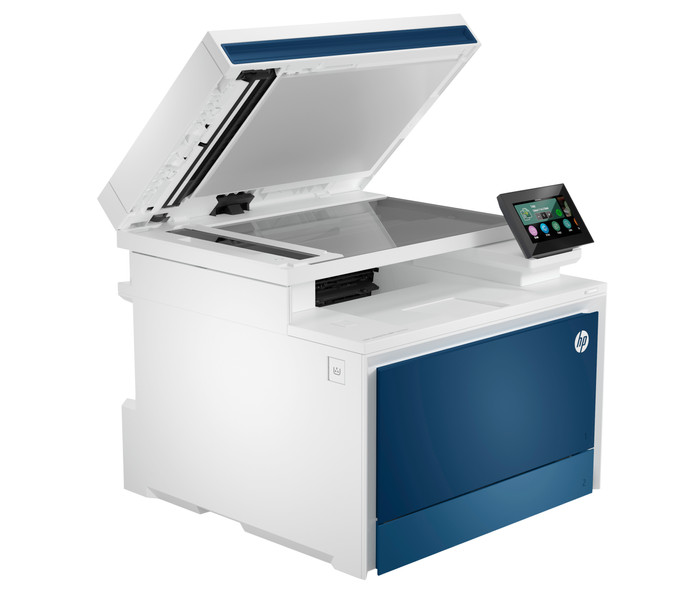
The Color LaserJet Pro 4302fdw has an automatic document feeder. This allows the printer to automatically scan a document of up to 50 pages. Instead of placing each A4 sheet separately on the scanner, I feed my entire report directly into the automatic document feeder. This way I save time and let the printer do the work. The advantage of this automatic document feeder is that it also scans on both sides. Because of this, I also scan or copy documents that are printed on both sides.
Additional security options
This printer has some useful security options. I set an access list and administrator password. I need this administrator password when I adjust certain settings. This means that colleagues cannot simply adjust the printer settings. In addition, the printer also has several energy saving options, such as a sleep mode and automatic shutdown. This means I use less electricity.