Written by Steven
Edited on
3 September 2024
·
07:25
How do you print from your smartphone with an Epson printer?
Printing from your smartphone is simple and fast. You don't need to install any drivers or other software. All you need is a WiFi connection and the Epson SmartPanel app. Your print will roll out of the printer within a few seconds. We'll explain how to do this.
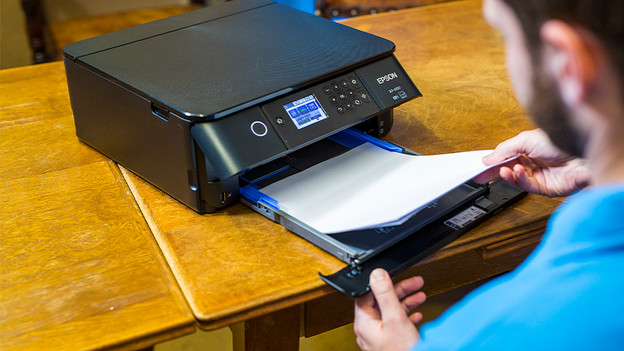
Prepare the printer
Is your printer still in the box or haven't you set it up yet? Install it first, before you start printing. Have you already done this? Go to Step 3. Set up the printer as follows:
- Unpack the printer and remove all stickers and blue adhesive tapes.
- Fill the paper tray with paper.
- Connect the power cord to the back of the printer.
- Select a language on the printer display.
- Install all included cartridges into the cartridge holder.
- The printer will now initialize and make a test print.

Step 1: connect your printer to the WiFi network
Look for the WiFi icon. It's probably located at the top of the screen. Select WiFi and go to the WiFi settings. Choose the network you want to connect to. Enter the password if required, and your printer is connected to the internet. Doesn't your printer have a screen or want to connect via WiFi Direct? You can read how to do that in the following article.

Step 2: download the app
If you want to print from your smartphone, you don't need any drivers or other software. You can get started right away. Download the Epson SmartPanel app in the Google Play Store or Apple App Store to get started. Open the app once it's finished downloading. Make sure your phone is connected to the same WiFi network as your printer, otherwise the app can't find the printer.
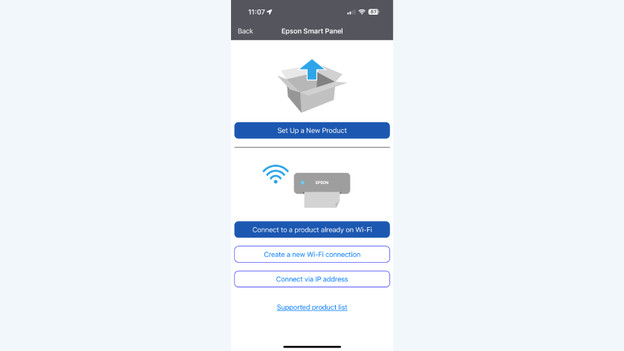
Step 3: connect to the printer
If you agree, accept the terms and conditions. You'll receive a short explanation about what you can do with the app, after which you'll be redirected to the home screen. Here, you'll see Printer not selected, click on this. Choose the printer you want to set up a connection with. You can also connect the smartphone to the printer via the display, but this isn't the easiest way.
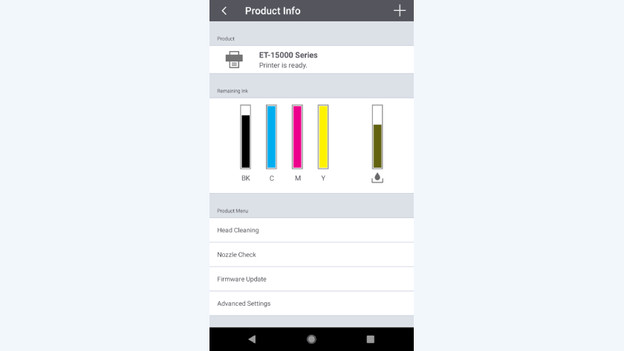
Step 4: get to know the app
After adding the printer, you'll see the status of your device right away. You'll see the remaining ink and the lifespan of your maintenance cassette, for example. You can also clean the printhead, check the nozzles, and order new ink. You can also print and scan via this app. To do this, go back to the home page with the arrow. You can scan, print photos, and print documents here. You can also print directly from social media or from the cloud.

Step 5: print files and photos
Printing a file or photo is easy. In the home screen, go to Print photos or Print documents. Select the files you want to print and adjust them on the next page. Make sure you select the correct paper size. This is often A4 for documents and 10x15cm for photos. Tap 'Print' and your photo will appear in your output tray.

Step 6: scan files and photos
To scan, go to Scan. Place your document or photo on the glass plate and tap the scan button at the bottom right of your screen. You can now save it on your phone, share it with others, or email it to an email address of your choice.
Article by Steven
Printer Expert.