Written by Laurence
Edited on
27 February 2025
·
15:40
How can I virtually place a TV in my room?
A TV has caught your eye, but you're not sure whether it fits your room. In this case, the Coolblue app offers a useful solution. With the augmented reality function, you can see each screen size in your room virtually. On this page, you can read exactly how this function works.
How can I help you?
Our digital expert will help you, but it can sometimes make mistakes, like humans do.
When do you use the app?
When you're checking out TVs online, it's difficult to think of how they might look in your room. The app will help you make the right choice in size. After completing a few simple steps, you can see the TV in your room virtually. You can see the size TV at full scale and in any desired space, such as on your cabinet or on the wall. Made up your mind? You can easily order the television via the same app. Scan the QR code on the right with your phone to download the app.

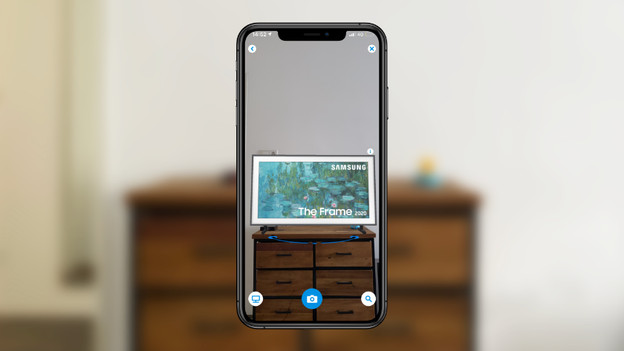
View the latest Samsung TVs
Do you want to see what the Samsung The Frame looks like on your wall? You can find 3D models of this TV and other new Samsung TVs in the app. This way, you'll see the exact design of the TV in your living room, in addition to the correct size.
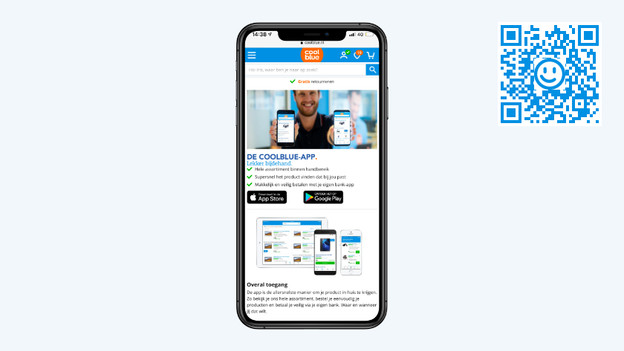
Step 1: download the app
To gain access to the augmented reality function, you need the Coolblue app. If this app isn't on your phone yet, you have to download it first. Scan the QR code in the image on the right.
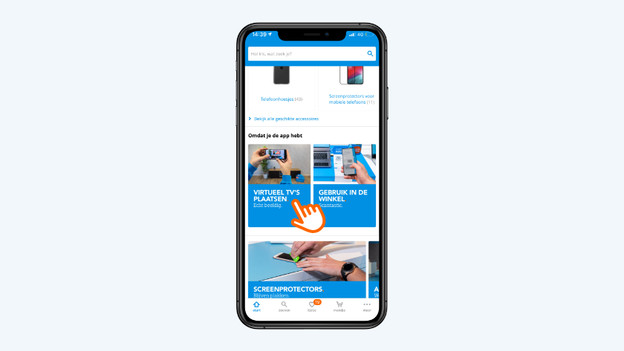
Step 2: open the app
Go to the button with which you open the virtual surroundings via the Coolblue homepage or the product page of a television.
Note: the function is available for:
- iPhones and iPads with at least iOS 11.0 and with an A9 chip or a newer chip.
- Android phones with at least Oreo 8.0 operating system that support ARCore.
Don't you see the function in the app? In that case, your device probably doesn't support augmented reality.
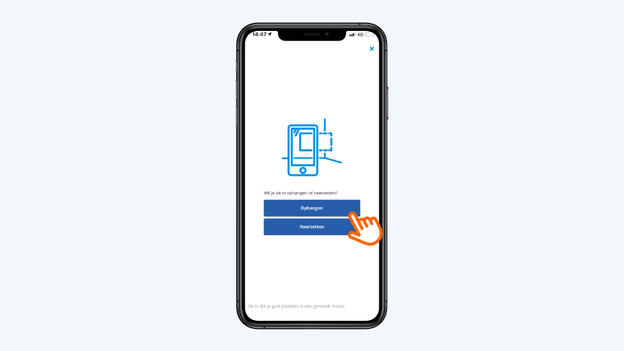
Step 3: select Hang or Place
If you open the augmented reality function, you can choose between Hang and Place. do you want to mount the new television on the wall? Choose Hang. Do you want to put the TV on a cabinet? Choose Place.
Step 4: move your phone
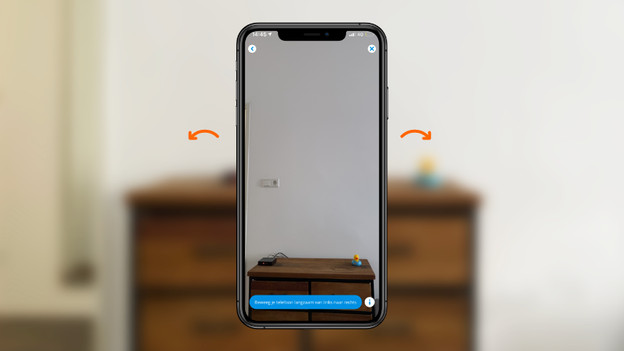
You'll now see your room on the screen of your phone. The app will ask you to slowly move the phone from left to right. This way, you can scan the surface of your room.
Tips for a good scan:
- Make sure the surface, whether it is your cabinet or wall, isn't empty.
- Make a wide scan movement from left to right.
- When you're scanning the wall, it's useful to stand at a 1.5 to 2m distance from the wall.
- If you want to put the TV on the ground, you should point your phone at the surface on which you want to place the leg stand.
Step 5: place the TV
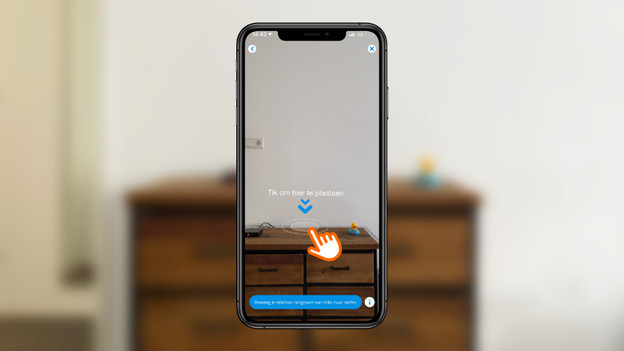
As soon as your room has been successfully scanned, use your finger to tap the place you want to put the TV.
Step 6: view the TV you placed
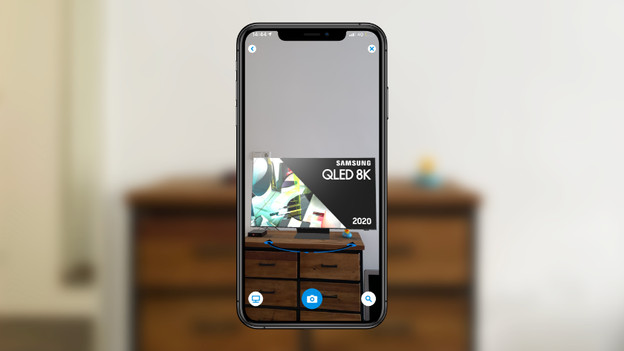
You can now see the television you chose in your living room. With the blue arrow underneath the TV, you can rotate the television in the app. When you tap the blue button at the bottom of the screen, you can take a photo of the TV in your room. This way, you can always check which TV size is best for you afterwards.
Step 7: change the size
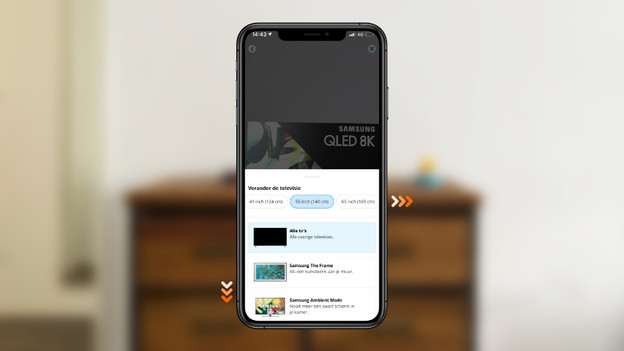
Done! You will now see the TV in your room virtually. Walk around it and take a look at it from all angles. At the bottom of the phone screen, you can select various sizes. This way, you immediately find out which size looks best in your room.