Written by Uhro
Edited on
14 October 2025
·
11:16
How do you install a motherboard?
You've purchased a new or replacement motherboard or want to install a new PC. Fitting a motherboard in your housing is not difficult, but you must know how to do it. In this article I will explain that to you.
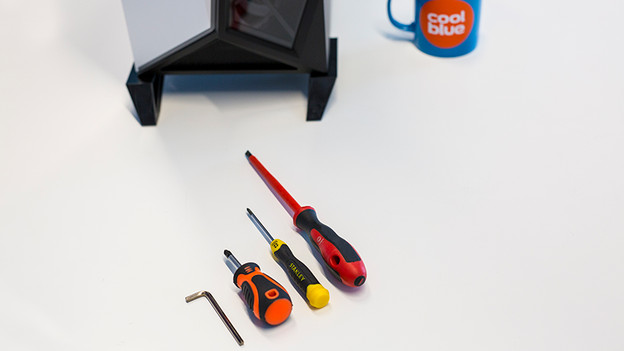
What do you need?
- Tool to open the computer case
- An antistatic wrist strap
- A desktop computer
- A motherboard
- A processor that fits on this motherboard
- A cup of coffee

1. The basics
Turn off your computer completely and don't put it on standby. Next, remove all cables, starting with the power cable. Are all cables disconnected from your PC? Press the power button once more so that all the power remaining in the circuit also disappears.
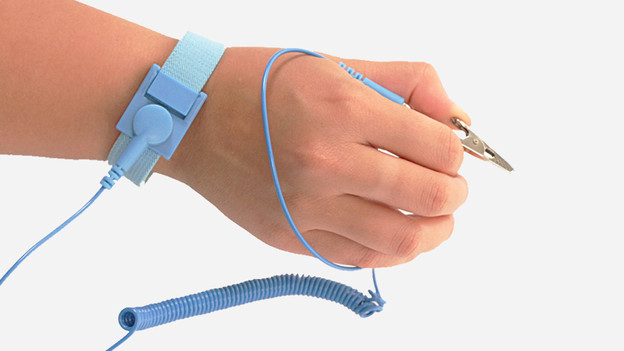
2. Avoid a static shock
When you're replacing a computer component, it's important you're not statically charged. Since a power supply converts power, the risk is even greater. An electrostatic shock, no matter how small, can be disastrous for the components in your PC. That's why it's best to always wear an antistatic wrist strap. You can also discharge yourself by regularly holding your hands against the radiator, for example.

3. Open your computer case
Place the computer case on a table with the right side down. If necessary, use a cotton towel to protect the side and prevent the cabinet from sliding. Turn the back of the computer case towards you. You can see 2 or 3 large screws there. Remove this and slide the side of your PC backwards. Are you going to replace your motherboard? You will now see the current motherboard and all other components.
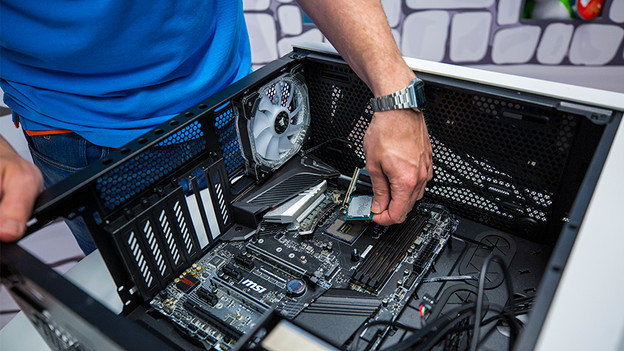
4. Prepare to replace a motherboard
If you're building a new computer, go directly to step 6
If you're going to replace the current motherboard, you must first remove all components. Start by disconnecting the wide plug from your power supply. Then also disconnect the cabling to your other components. Have you mounted plug-in cards on your motherboard? Loosen the screw and remove it from the expansion slot and click the buttons on either side of the memory bank for the RAMmemory. Place the components in a safe place, preferably in an anti-static package. You remove the processor last, but if you replace it and you don't have a good place to temporarily store it, you better leave it in the old motherboard until your new motherboard is mounted.

5. Disassemble the old motherboard
Now that you've made the right preparations, it isn't difficult to disassemble your current motherboard. You can do this by loosening the 4 screws that you find on the corners. Keep these well, because you'll need them again soon. After the screws have been loosened, carefully lift the motherboard out of the housing.

6. Install the new motherboard and your CPU
Position the motherboard in your computer case so that the connections on the left align with the notch in your case. Also make sure that you can tighten all 4 screws. Did this happen? Then first place the processor on your board. To do this, raise the lever and place the processor loosely on your motherboard. Make sure that the CPU is in place, otherwise the connection points may bend. You often see how you place it on the corner or arrow on the socket and the processor. Loosely place the processor in the socket in this way and close the lever again.
7. Connect the other components
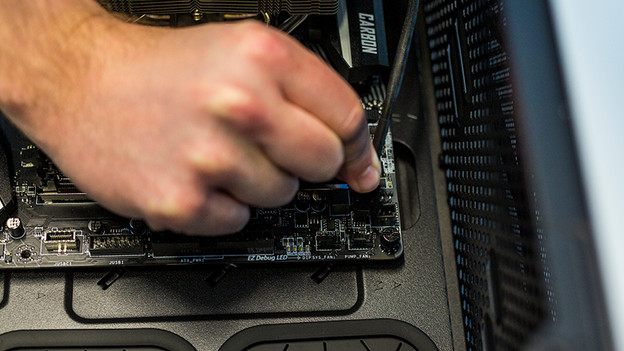
After inserting your CPU, you can also reinsert other components such as the main memory and your video card. You can install RAM by correctly placing the module on the couch and gently pushing it. Push a video card or other PCI card firmly into the slot and then tighten the screw. Then reconnect all cables and end with the wide plug for your power supply.
Note: it's important that you connect all cables in the correct way and that you lock them properly. Cables that are connected incorrectly can cause a short circuit.

8. Use it
Slide the side back onto your computer case and reconnect it immediately. Normally your computer should now start normally. If so, your motherboard will work correctly. Is nothing happening? Then check the cabling, main memory and the processor. You may have to install some drivers in your operating system due to other components on your motherboard, such as the network connection, WiFi or sound chip.
Article by Uhro
Components Expert.