
Written by Megan
Edited on
7 April 2023
·
07:14
How do you connect your Android tablet to a screen?
You can connect your Android tablet to various devices. That way, you can watch something on a large screen or use your tablet as a desktop. You can show your holiday photos on a large screen or work on a document with a keyboard and mouse, for example. In this article, we'll give you some tips on how to do that.
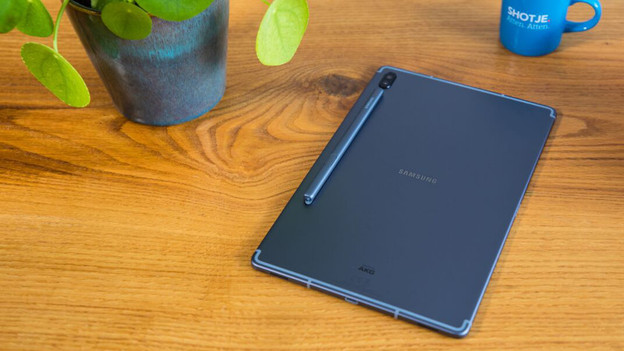
Get started with your tablet and a screen
Use the following tips to connect your tablet to an external screen.
- Via a docking station
- Via an HDMI cable
- Via a Chromecast
- Via a smart TV
- Via Samsung DeX
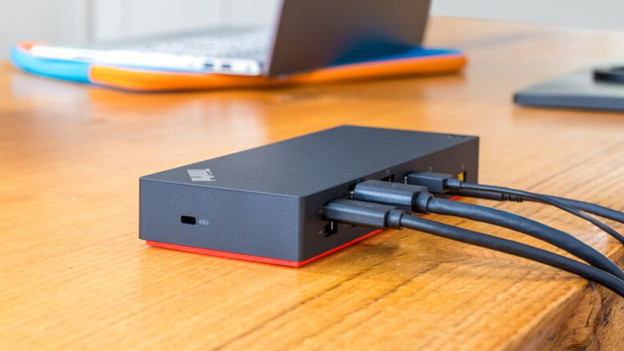
Tip 1: connect via a docking station
If you want to work with a keyboard, mouse, and larger screen, you can connect your tablet to a docking station. You can do this easily and fast with tablets with a USB-C port.
- Connect your tablet to the docking station with a USB-C cable.
- Your tablet is now connected and the monitor displays the current screen of your tablet. This is called screen mirroring.
Note: if you have a Samsung tablet, you can also use your tablet as a second screen. To do this, open your Samsung DeX via the Quick Panel of your tablet.
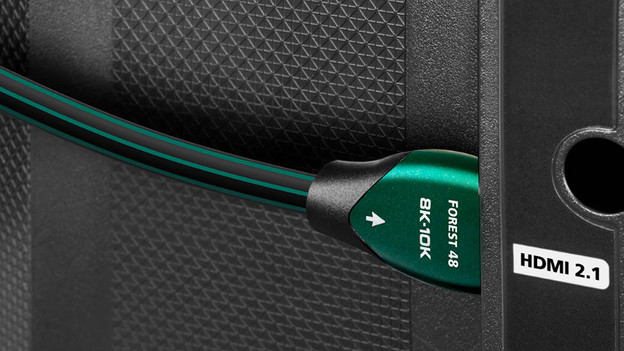
Tip 2: connect tablet to your TV via an HDMI cable
Want to display the screen of your tablet on a larger screen? Use a cable to connect your tablet to your TV. You need an HDMI to USB-C cable for this. First, check if your tablet has a USB-C port. Also make sure that the cable is long enough so you have freedom of movement and can use the tablet without any problems.

Tip 3: connect to your TV via a Chromecast
If you have a Chromecast, you can easily stream the screen of your tablet to your TV.
- Plug the Chromecast into the HDMI port of your TV. If you haven't set up your Chromecast yet, do that first.
- Download the Google Home app on your tablet.
- Open the app. Your Chromecast will be listed among the devices. Click on it.
- At the bottom of the screen, you'll see 'Cast my screen'. If you click that, you'll see the screen of your tablet on the screen of your TV.
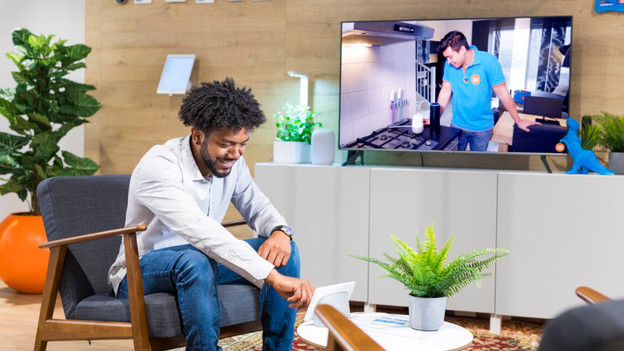
Tip 4: stream to your TV
If you have a smart TV, you can also stream image and sound to your TV. You can do this with apps like Spotify, Netflix, and YouTube. Simply open the app and click the streaming icon. Your TV will then display the media you play.
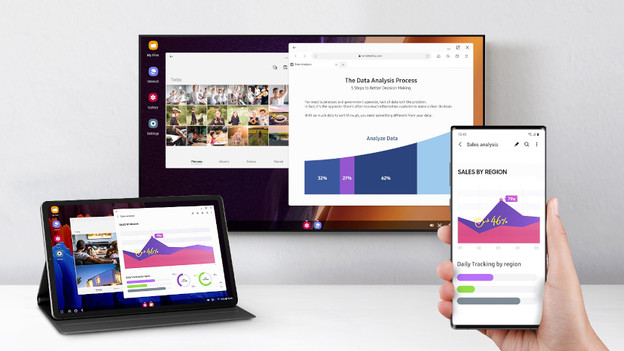
Tip 5: connect to a computer via Samsung DeX
If you have a Samsung tablet, you can easily connect it to your Windows computer with Samsung DeX. Do you want to wirelessly connect your Samsung tablet to your Windows computer? Use the Samsung DeX app.
- Download the app via the link at the bottom of this text. Note: there's only an app for Windows computers. Do you have a Mac? Unfortunately, there's no software for that.
- Open the DeX for PC app on your desktop or laptop.
- Connect your tablet via a USB cable.
- Your tablet will now connect to your computer.
