Written by Laurence
Edited on
21 March 2025
·
16:32
How does the remote of my Samsung TV work?
The remote of a Samsung TV has many different buttons. There are different abbreviations and icons on each button, and these aren't always very clear. On this page, you'll learn the function of these buttons. It's not a problem if your Samsung remote looks different from the photos. Usually, the buttons still work the same way.
Different Samsung remotes
The remote we discuss in this article is included by default with most basic Samsung TVs. Most new Samsung televisions include the Samsung One Remote. With this remote, you can control both your Samsung TV and other devices. But the One Remote works differently and looks different as well.
Source, Pre-ch and Ch list, Home
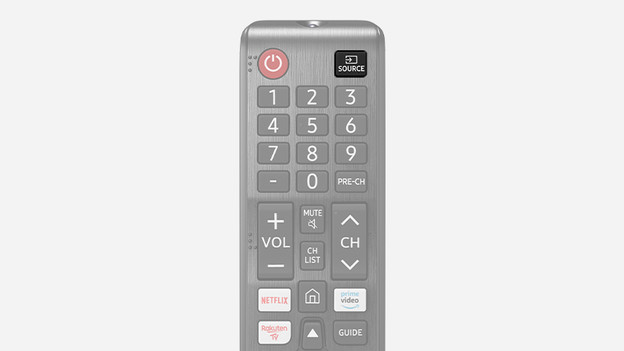
Source
With this button, you open an overview of all connected sources. You can easily switch from live TV to an HMDI source like your gaming console or Blu-ray player, for example.
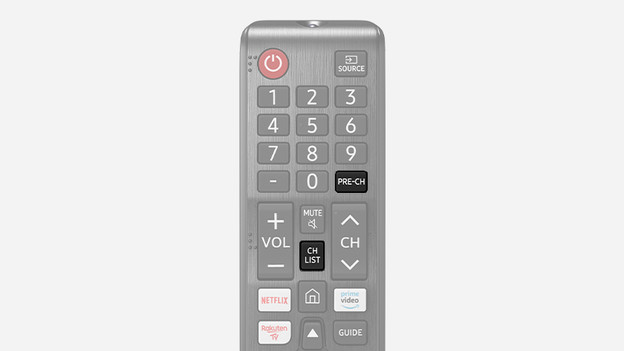
Pre-ch, Ch list
When you press the Pre-ch button, you'll return to the channel you were watching most recently right away. With the Ch list button, you pull up a list of television channels, so you can switch channels in no time.
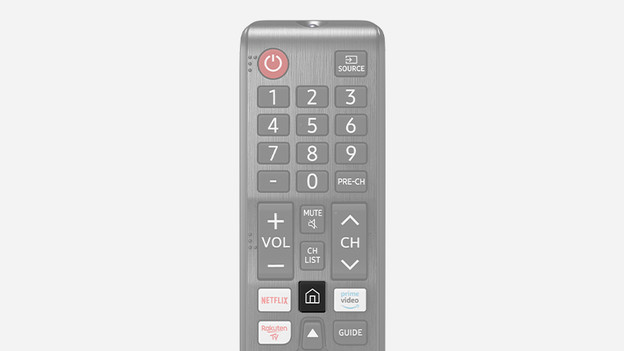
Home
This takes you the the Smart Hub. This is the main menu for Samsung smart TVs, which gives you an overview of smart TV functions, apps, and live TV.
Video services, Guide, Return

Shortcuts to video services
With these buttons, you have fast access to the streaming services Netflix, Amazon Prime Video and Rakuten TV to stream movies and series on your smart TV.

Guide
When you press this button, you open the guide with channels. This way, you can quickly check the broadcast schedule and find programs you want to watch later on. You can also use the guide to easily switch channels.

Return
With this button, you return to the page, menu, or channel you looked at previously.
Exit, Colored buttons, Video functions

Exit
With this button, you close the menu and return to the home screen, where you watch live TV right away.

Colored buttons
These buttons have different functions. What these functions are differs for each menu. If these buttons are available for use, it will be indicated on the screen.
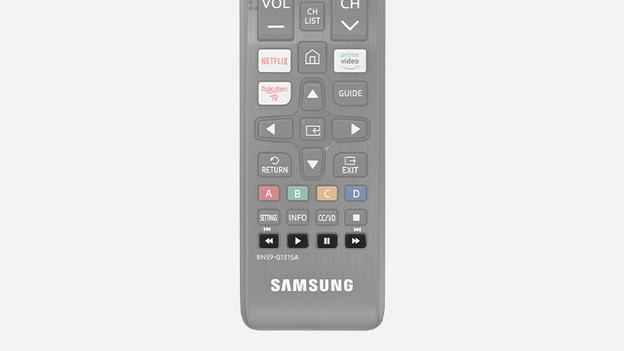
Video functions
With these buttons, you operate the video functions. These let you pause, stop, play, and rewind or fast forward. If these functions are available, it will be indicated on the screen.
Settings, Info, CC/VD
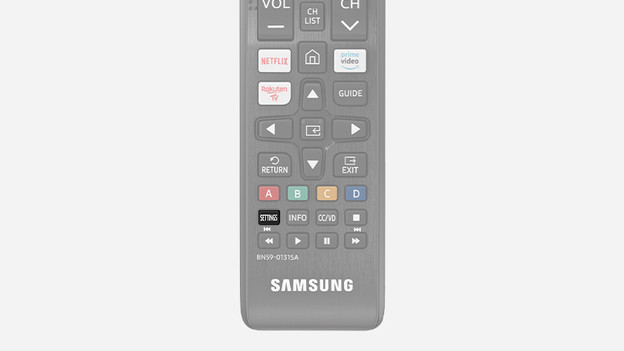
Settings
This brings you to the settings menu with the push of a button. You can adjust the sound and image settings in this menu, for example.
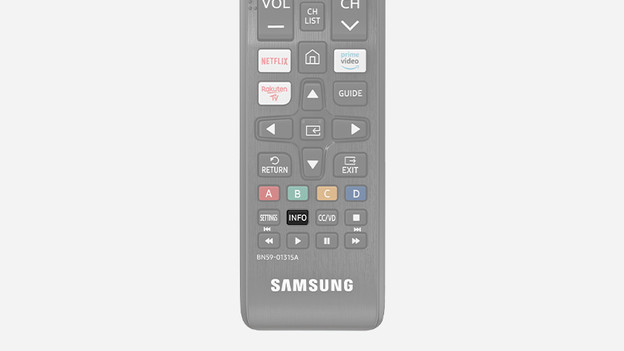
Info
When you press this button, information about the channel and the program you're watching appears on the screen. This way, you can quickly see which program you're watching and when it ends.
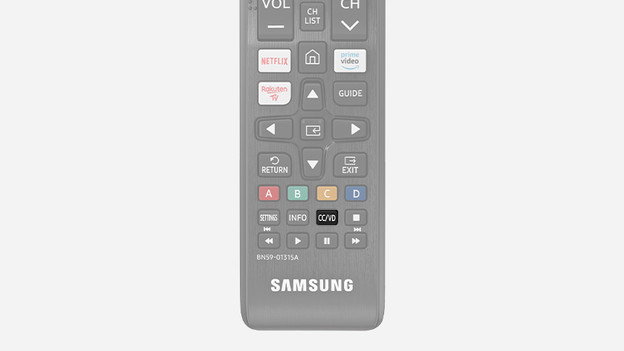
CC/VD
With this button, you can turn on the subtitles. Whether there are subtitles available depends on the images you're watching and the image source you're using.
Article by Laurence
Television Expert.