Written by Giorgos
Edited on
2 November 2023
·
16:40
How do you adjust the refresh rate of your monitor in Windows?
The minimum number of hertz required for smooth images differs per game. You need at least 144Hz for a shooter, but not for an open world game, for example. And when your refresh rate is too high, you'll experience ghosting. In this article, we'll explain how to adjust the refresh rate via the settings menu of Windows 10 and 11.
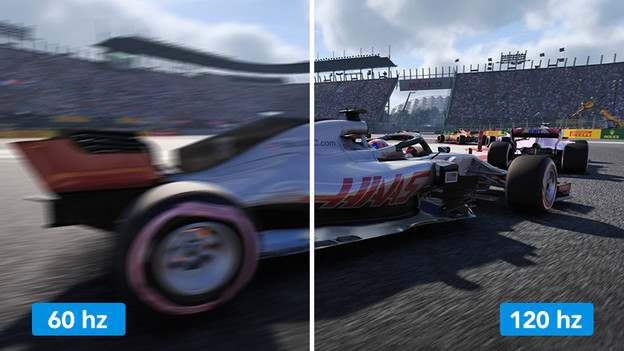
Adjust the refresh rate in 4 steps
Adjusting the refresh rate isn't difficult. We've listed all the steps here:
- Step 1. Check the cables and connectors.
- Step 2. Go to 'Display Settings'.
- Step 3. Select the refresh rate.
- Step 4. Set up G-Sync or FreeSync.
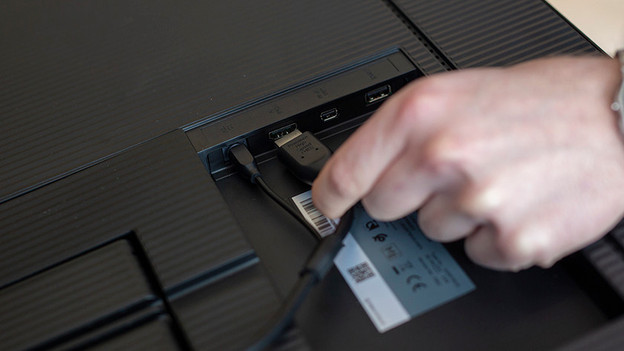
Step 1: check the cables and connectors
The cables and connectors have a big effect on the maximum refresh rate of your monitor. For example, a DisplayPort connector often has a higher maximum speed than an HDMI port. Unfortunately, you won't find this on your monitor. Check the specifications of your monitor on our website or that of the supplier. We've listed the maximum refresh rate per HDMI or DisplayPort version below.
- HDMI 1.4: 144Hz at 1080p, 85Hz at 1440p, 30Hz at 2160p
- HDMI 2.0: 240Hz at 1080p, 144Hz at 1440p, 60 Hz at 2160p
- HDMI 2.1: 360Hz at 1080p, 240Hz at 1440p, 144Hz at 2160, 30Hz at 4320p *DisplayPort 1.2: 240Hz at 1080p, 144Hz at 1440p, 75Hz at 2160p *DisplayPort 1.3: 360Hz at 1080p, 240Hz at 1440p, 120Hz at 2160p *DisplayPort 1.4: 360Hz at 1080p, 240Hz at 1440p, 120Hz at 2160p

Step 2: go to 'Display Settings'
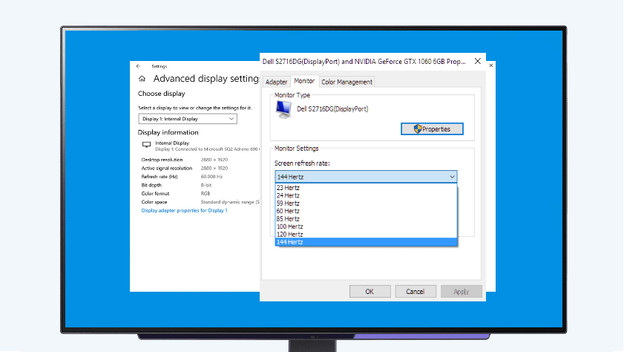
Right-click on the desktop and go to 'Display settings'. Scroll all the way to the bottom and click 'Advanced display settings'. You'll find a 'Refresh rate' option here, which allows you to quickly adjust the refresh rate. Prefer a detailed option? Click 'Display adapter properties for display' below 'Display information'. Do you work with 2 or more screens and want to adjust the refresh rate for another screen? Select the correct screen in the overview of 'Display settings' and go through the same steps.
Step 3: select the refresh rate
When you click 'Display adapter properties for display', you get a pop-up screen. Go to the 'Monitor' or 'Screen' tab and set the correct refresh rate under 'Refresh rate'. Your monitor will turn off for a moment and then turns back on. Your new refresh rate is now set. Move your cursor up and down quickly and see if you see the difference. Not satisfied? Select a different refresh rate and repeat these steps.
Step 4: set up G-Sync or FreeSync
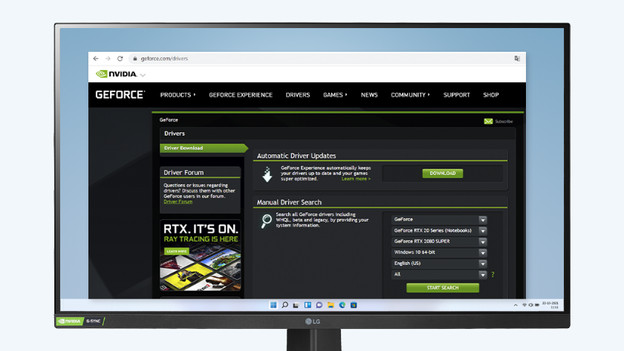
G-Sync
When you play with a video card, there's a chance that the refresh rate doesn't match that of the monitor. Do you play with an NVIDIA video card? Enable NVIDIA G-Sync G-Sync Compatibility. Install and update drivers for your video card and set up G-Sync. We'll help you get started with this advice article.
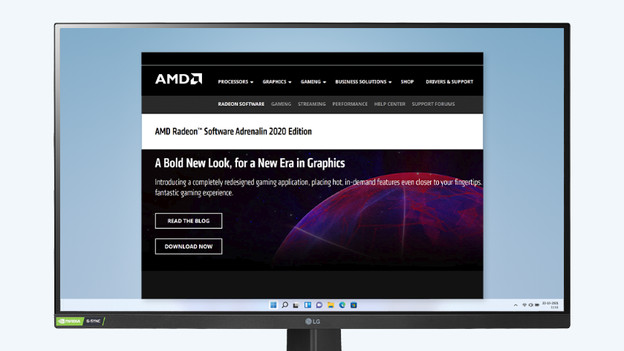
FreeSync
AMD video cards have the same problem. For this brand, you can set up FreeSync. Just like with NVIDIA, update and download the AMD drivers and then set up FreeSync. Go to the following advice article for a step-by-step plan.
Questions
Is it possible to use a higher refresh rate than my monitor supports?
No, that's not possible. The maximum refresh rate of a monitor is fixed, so you can't exceed this number.
Is it possible to overclock my monitor
Yes, you can do this via the overdrive settings of your monitor. This function resolves motion blur in fast-moving images. This prevents it from slowing down and prevents screen tearing and ghosting. In the following advice article, we'll explain where you can find these settings.
I see stripes and blurry movements on my monitor, how do I solve this?
This is most likely ghosting. Ghosting happens when the response time is too low for your refresh rate. We'll explain how to solve this in 4 steps in the following advice article.