Written by Deanne
Edited on
7 October 2025
·
08:37
What's the difference between a Chromebook and other laptops?
A Chromebook is a laptop that works with a different operating system than a Windows laptop or MacBook. Chromebook models run on ChromeOS, the operating system by Google. You can only download apps from the Play Store onto a Chromebook, you can't install programs from the internet. Not all programs by Windows or macOS work on a Chromebook. Luckily, a Chromebook has many other advantages. We're happy to explain more on the differences.
Chromebook vs laptop or MacBook
| Chromebook | Laptop | |
|---|---|---|
| Recommended for... | From browsing the internet to graphic design editing | From browsing the internet to gaming |
| Operating system | ChromeOS | Windows, macOS |
| Web browser | Google Chrome | All browsers |
| Storage | Online in the cloud or offline on a drive | Online in the cloud or offline on a drive |
| Apps | Internet applications from the Chrome Web Store and programs from the Google Play Store | Almost all programs |
| Protected from viruses | Automatically protected via Google | Antivirus software necessary |
| Battery | Energy-efficient | Differs per model |
What do you use what for?

Chromebook: apps for different purposes
You can use a Chromebook for browsing the internet and watching movies, but also for gaming and photo or video editing. You can work directly from the Chrome browser or install apps from the Google Play Store. You can only download apps from the Play Store, not from the internet. Thanks to this, you're better protected from viruses. There are thousands of apps available in the Play Store, so you'll be able to find an app for all your work.
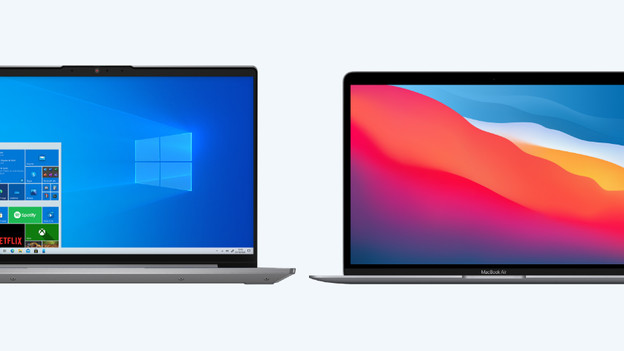
Laptop or MacBook: from browsing the internet to gaming
Windows laptops and MacBook models are suitable for all usage situations. You can send emails, process texts, create graphic designs, and play games. Depending on the processor and RAM, you can work in light or more demanding programs. Do you want to play games? You need a laptop with a dedicated video card. MacBook models are less suitable for gaming, because not many games are being released for macOS.
Operating system: ChromeOS, Windows, and macOS
Chromebook: ChromeOS
ChromeOS is based on the Google web browser: Chrome. In ChromeOS, you also perform many tasks online. You can work directly from the internet browser, but you can also install Android applications. ChromeOS is an energy-efficient and safe operating system. It's very fast and you're less dependent on the specifications of your laptop for speed and performance.
Laptop or MacBook: Windows or macOS
The speed at which Windows and macOS run depends on the specifications of your laptop or MacBook. The more powerful the processor and RAM, the faster your can work in programs. Unlike ChromeOS, you can download programs from the internet with Windows or macOS. As a result, you're less dependent on apps and you can install almost any available software.
Apps and programs
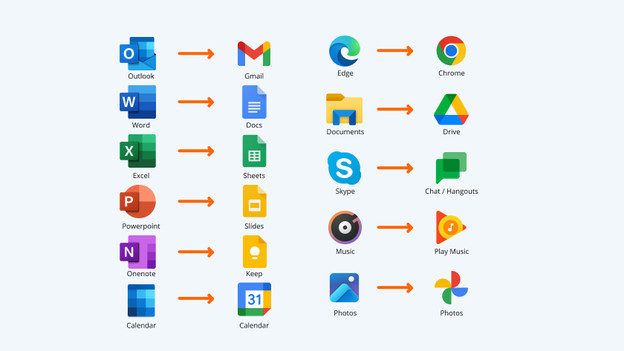
Chromebook: Play Store apps
On a laptop or a MacBook, you can download and install just about any application you want. If you need particular applications for work or school, a laptop or a MacBook is the best choice. When it comes to downloading apps from a store, you use the Microsoft Store on a Windows laptop and the App Store on a MacBook. You can also install apps and programs via the internet or other sources, which offers more freedom.
Laptop or MacBook: almost all apps and programs
On a laptop or a MacBook, you can download and install just about any application you want. If you need particular applications for work or school, a laptop or a MacBook is the best choice. When it comes to downloading apps from a store, you use the Windows Store on a Windows laptop and the App Store on a MacBook. Or install software from other sources.
Storage
Chromebook: Google Drive and other cloud storage
On a Chromebook, you automatically save documents, photos, and videos to Google Drive. Since ChromeOS is specifically laid out for this, Chromebook models often have less offline storage space than other laptops. That's why you receive 100GB of free online storage when you buy a Chromebook. Do you need more space? You'll always have the option to buy extra storage or use other storage services on your Chromebook, like DropBox. Chromebook models have offline storage, but this is often less than that of a Windows laptop or MacBook.
Laptop or MacBook: online and offline
A laptop or Macbook has a hard drive or SSD to physically store your files. In addition, a Windows laptop or MacBook allows you to store your files online in the cloud. You can save files online on Google Drive for example, but you can also choose an alternative such as Dropbox or OneDrive.
Virus protection

Chromebook: automatically protected
A Chromebook is protected from viruses by default and doesn't require a separate virus scanner. Google protects your stored files, so threats and viruses have little effect on the operating system. The chance on viruses is even smaller, because you only download apps safely from the Play Store. That way, you can be sure a Chromebook is always secure.
Laptop or MacBook: antivirus program
On a Windows laptop, you need an antivirus program or virus scanner to protect you from viruses, malware, and spyware. At Coolblue, you get a free year of Norton antivirus if you buy a Windows laptop. MacBook models are less sensitive to viruses, but it's a good idea to install an antivirus program. As MacBook models are becoming increasingly popular, the number of threats is also increasing. Apple's built-in security doesn't always protect from this.
Battery and battery life
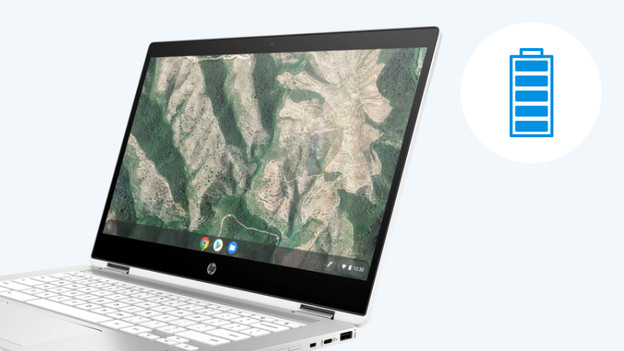
Chromebook: energy-efficient
A Chromebook doesn't need a powerful processor, video card, or hard drive that uses a lot of energy. The operating system ChromeOS is light and requires little of the Chromebook itself, including the battery. That's why a Chromebook lasts a whole working day, without you having to charge it in between.
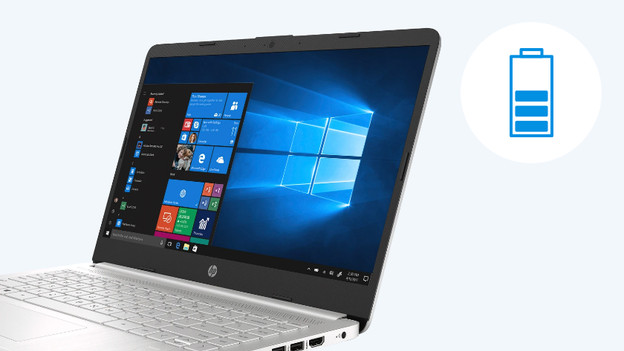
Laptop or MacBook: not always energy-efficient
With a Windows laptop or MacBook, the battery life depends on the tasks you perform. If you perform demanding tasks like photo editing or gaming, your laptop will be empty sooner. The more powerful hardware of Windows laptops and MacBook models and the less energy-efficient operating systems require more energy than Chromebook models. That's why you have to charge these laptops sooner. MacBook models often have a longer battery life than the average Windows laptop.
Our advice for a Chromebook
- You can flip the touchscreen 360 degrees and use the Chromebook as a tablet, so you can watch movies and series comfortably.
- Thanks to HP Fast Charge technology, you can quickly charge your Chromebook.
- ChromeOS is less susceptible to viruses and lasts a working day without charging.
- Not all programs work on a Chromebook.
Our advice for a Windows laptop
- This laptop is powerful enough for photo editing and switching between programs.
- You can store all your files on the 512GB SSD.
- Thanks to the anti-glare screen, you won't be bothered by light reflections.
- Windows is more susceptible to viruses than ChromeOS.

738,-
Article by Deanne
Laptop Expert.