
Written by Deanne
Edited on
17 June 2024
·
14:01
How do you activate 100GB of free Google One storage on your Chromebook?
You just bought your new Chromebook. That means you get 1 year of 100GB of storage space in Google Drive for free. That's useful as you mostly work online on a Chromebook. In this article, we'll explain how to activate the free storage.
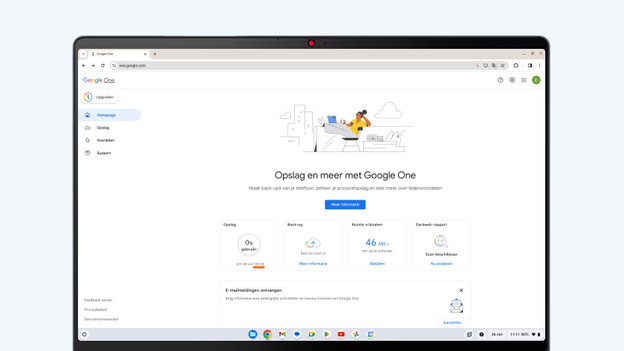
Get started with activating your free 100GB Google Drive storage
When you buy a Chromebook, you get 1 year of 100GB Google Drive storage for free. That way, you have enough space to store all your photos and files.
- Step 1: go to the website
- Step 2: activate the Google One storage
Step 1: go to the website
After unpacking your new Chromebook, activate your free 100GB Google Drive storage.
- Go to the Google promotional website on your Chromebook: google.com/chromebook/perks/.
- Scroll to Google One storage and select 'Get perk'.
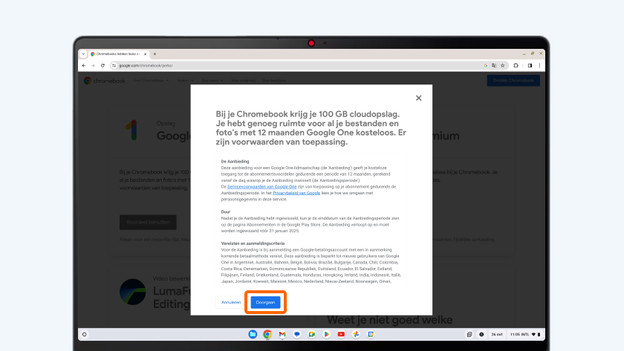
- Accept the conditions.
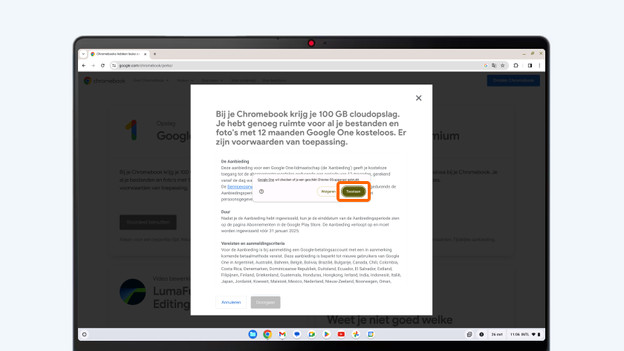
- Let the browser check whether you device has a ChromeOS operating system.
Go to Chrome.
Select 'get perk'.
Accept the conditions
Allow the browser to check your device.


Step 2: activate your Google One storage
You'll now be redirected to a new window.
- Select 'Register' and agree with the terms of service of Google One.
- Add a payment method and go through all the steps. These steps differ per payment method.
- You've now activated 1 year of 100GB of Google Drive storage for free.
Register and accept the conditions.
Choose a payment method and go through the steps.
Enjoy your free 100GB storage now.