
Written by Giorgos
Edited on
30 August 2024
·
07:30
How do you connect a Windows laptop to a WiFi network?
You bought a new laptop and want to connect it to the wireless WiFi network. You can easily do this in 3 steps. In this advice article, we'll explain how you can connect your laptop to your WiFi.
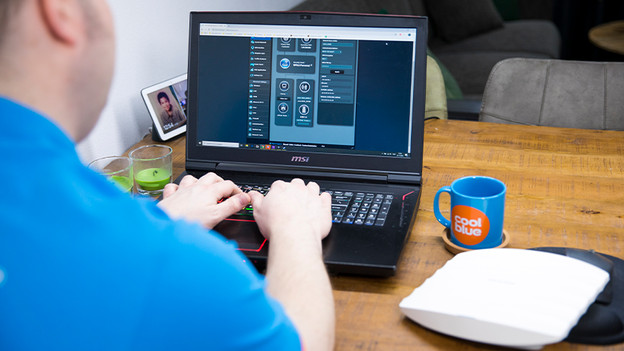
Connect your laptop to WiFi in 3 steps
Connecting your laptop to the WiFi network doesn't take much time. We've listed all steps for you below:
- Step 1. Open the WiFi menu
- Step 2. Select the network
- Step 3. Connect your laptop to the network
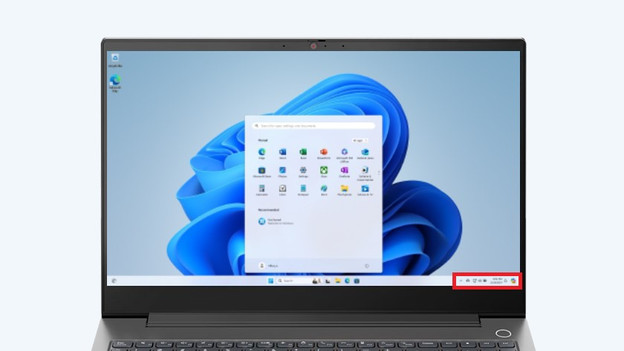
Step 1: open the WiFi menu
Click on the WiFi icon at the bottom right of your taskbar. You can almost always find this next to the icon for the sound settings. The WiFi icon looks like a dot with 3 bent stripes above it. If you don't see this, click on the arrow on the left of all the icons. This is the hidden drop-down menu of your taskbar. Look for the WiFi icon there and click on it. You now open the WiFi menu of your computer.

Step 2: select the network
You now see a list of all available WiFi networks. The strongest network or the network you select by default will be at the top of the list. The lower the network is on the list, the weaker the signal. Click on the WiFi network you want to use. Don't know the name? Take a look on the modem. There, you'll also find the password for your WiFi network. Note: the password is case sensitive. Enter the password and click on 'Connect'.

Step 3: connect your laptop to the network
When you click 'Connect', the laptop connects to the WiFi network. Does the WiFi icon at the bottom right turn white? You're connected to the network. If this doesn't work, you'll see an error in your WiFi menu. One of the most common notifications is that you entered the wrong password. Because the capital O looked like a 0, for example. Type the password again and click 'Connect'.
**Note: the password is case sensitive. Are you getting an error? You maybe switched the number '0' and the letter 'O'.
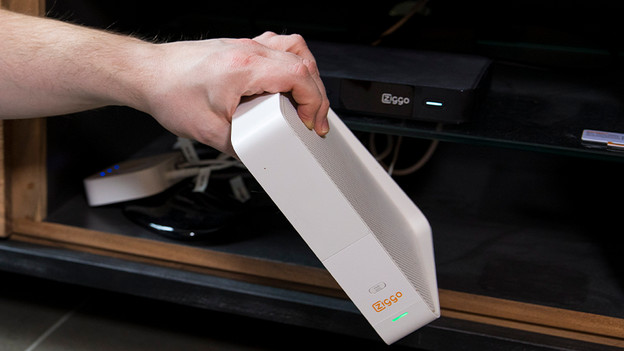
Do you have problems with connecting?
Unfortunately, entering a password again after you filled in the wrong one isn't always the solution. It's also possible that your WiFi and modem aren't connecting or that your laptop is too far away from the router. In the following advice article, we'll give various tips to solve these problems.
Article by Giorgos
Laptop Expert.