
Written by Kayleigh
Edited on
21 March 2025
·
16:32
How do you reset a Canon printer?
Does your printer indicate an error, but you can't find out what's wrong? Or is your printer stuck? You can sometimes solve the problem with a hard reset. There are 3 ways to reset a Canon printer. We'll explain them for you.
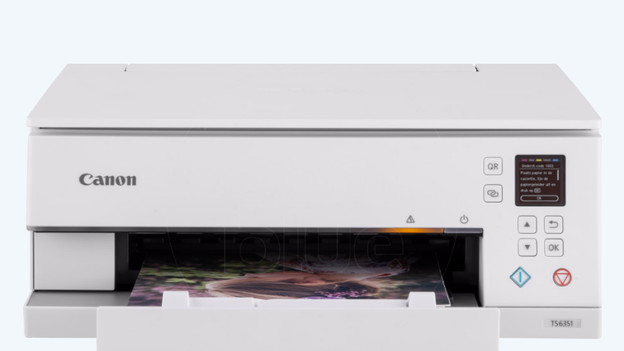
Reset Canon printer
You can reset your Canon printer in 3 different ways. We'll tell you how to reset your printer step-by-step.
- Tip 1: perform a power reset
- Tip 2: reset via the display
- Tip 3: reset with the printer buttons
Do you want to reset your Canon printer because the display shows an error code? Check the table in the article below first so see if you can solve the problem with one of the solutions.

Tip 1: perform a power reset
With this reset, you take the Canon printer from the power supply. This might already solve the problem. You can do so like this:
- Turn off the printer.
- Take the connector from the socket. Is your printer connected to your computer or laptop with a cable. Also remove this.
- Wait a minute.
- Plug the connector of the printer into the socket and turn on the printer.
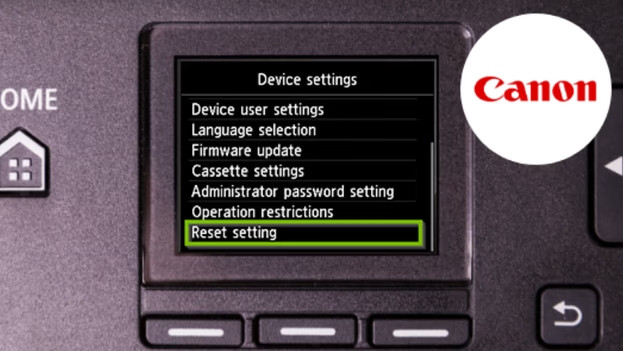
Tip 2: reset via the display
Did you turn your Canon printer off and on, but didn't that solve the problem? Reset the system of your printer.
- Press Setup.
- Go to Device settings and press OK.
- Go to Reset and press OK.
- Go to Reset all and press OK.
- Select Yes.
- Press OK. Your printer is now reset
Doesn't your Canon printer have a display? Read how to reset your printer in the next paragraph.
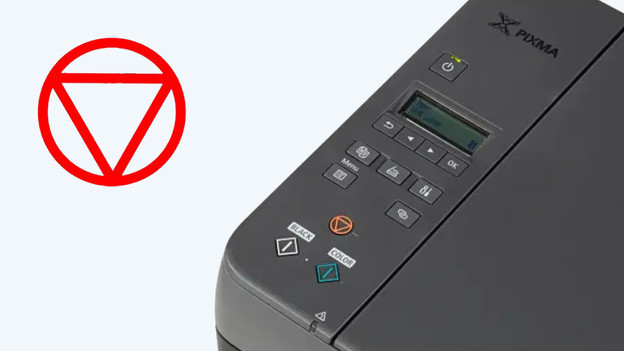
Tip 3: reset with the buttons
Don't you have a display on your Canon printer or doesn't your display respond anymore? You can perform a reset with the steps below:
- Turn off your printer.
- Press and hold the stop button for about 2 seconds. You can recognize the stop button by the red upside-down triangle.
- Keep holding the stop button and also press and hold the on/off button for 2 seconds.
- Release the stop button but hold the on/off button.
- Hold the on/off button and press the stop button 5 times.
- Release the on/off button.
- The printer resets itself and restarts automatically afterwards.
