
Written by Mark
Edited on
14 October 2025
·
11:12
How do you solve sound problems with your SteelSeries Arctis Pro on PC?
Does the sound of your Arctis Pro only come from 1 ear cup or do you hear a crackling sound? Checking your connectors solves most problems. It might also help to update your driver. We'll explain how exactly you can solve sound problems with your SteelSeries Arctis Pro in this article. This way, you can soon continue gaming with the sound you're used to.
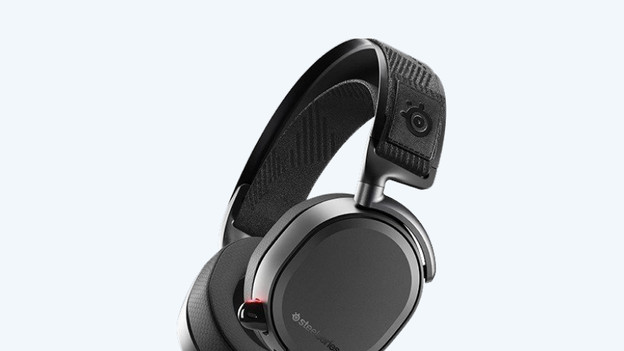
Solve sound problems with your Arctis Pro
Follow the 3 steps below to solve sound problems with your Arctis Pro.
- Check your volume button
- Check your connector
- Update your driver
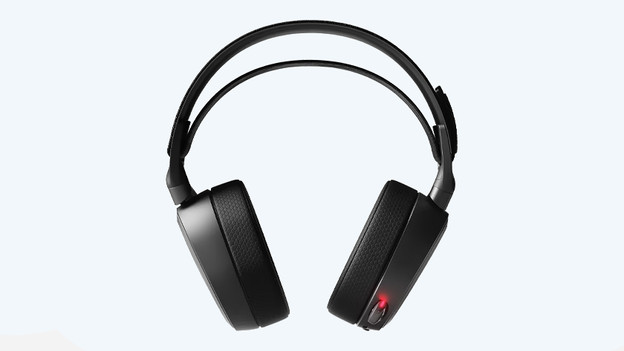
Step 1: check your volume button
If you don't hear any sound, the easiest solution is to check the volume button. If it's set too low, you can easily raise the volume. Doesn't that work? Your volume button is stuck and has to be replaced. Please contact the customer service for that.
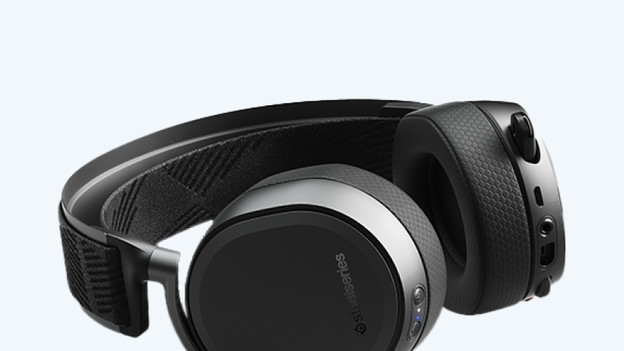
Step 2: check your connector
It's important that the connector of the Arctis Pro isn't damaged and your cable is connected properly. Take the 3.5mm cable from your headset and check the 3.5mm connector for damages. Plug the cable back into the connector. Do you find any damage to the connector? Please contact the customer service.
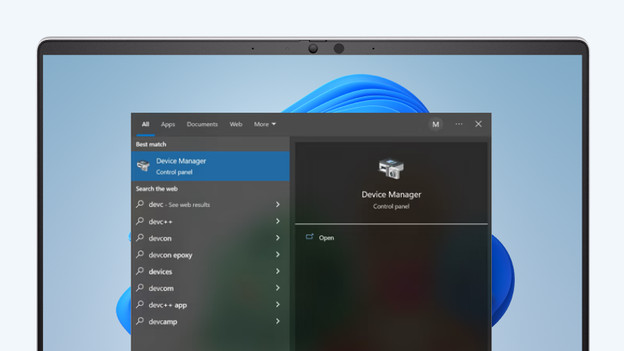
Step 3: update your audio driver
It's important that the audio drivers of your PC are up to date. Go through the following steps to update your drivers.
- Click the search bar at the bottom left next to the 'Windows' logo and search for 'Device Manager'.
- Click 'Audio inputs and outputs' and select the Arctis 7 or 7+.
- Click the 'Driver' tab and select 'Update driver'.
- Choose 'Search automatically for updated driver software'.
Restart your PC and check the sound again.