Written by Tobias
Edited on
30 December 2024
·
08:50
How do you put back a rotated laptop screen?
Did your laptop screen suddenly rotate? Your colleague might be trying to prank you, or you might have accidentally changed a setting. We'll tell you how to return your screen to normal again.
The solutions to rotate your screen
There are 2 ways to place your screen back the right way:
- Rotate via the desktop.
- Rotate via the taskbar.

Tip 1: rotate via the desktop
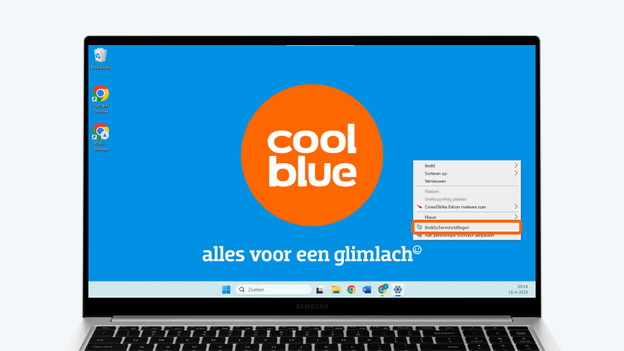
- Go to the desktop and right-click with your mouse.
- Select Display settings.
- If you use multiple monitors, select the screen of which the orientation is wrong.
- Scroll to the option Display orientation and adjust it to Landscape.
- The content on the screen should be straight now.
Select Display settings.
Select the screen you want to adjust.
Change the screen orientation to landscape.


Tip 2: rotate via the taskbar
Aren't you able to rotate the screen via the desktop? Try it via the taskbar at the bottom of your screen.
- Select the Windows Start icon to go to the Settings. You can recognize it by the gearwheel icon.
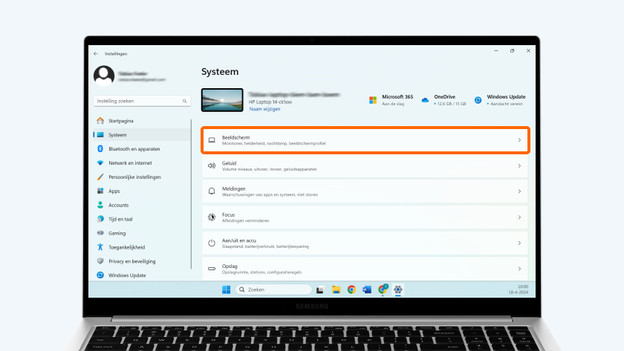
- Select System and then Display.
- If you use multiple monitors, select the screen with the wrong orientation.
- Scroll to the option Display orientation and adjust it to Landscape.
- The content on the screen should be straight now.
Select the Windows Start icon.
Select Settings.
Select System.
Select Display.
Select the screen you want to adjust.
Change the screen orientation to landscape.


Frequently asked questions
Why isn't my screen rotating with shortcuts anymore?
Previously, the key combinations Ctrl + Alt + arrow keys or Ctrl + Alt + 2/4/6/8* could be used to rotate your screen faster. As of 2018, this shortcut doesn't work anymore for Windows.
Can I also rotate my screen 45 degrees?
Yes, you can use monitors with a pivot function for this. With a vertical screen, you can read long texts without scrolling, like when you're browsing or reading PDFs.