
Written by Donato
Edited on
14 September 2022
·
07:35
How do you install your HEOS by Denon speaker?
You purchased a new HEOS WiFi speaker. To be able to play music wirelessly, you have to connect the speaker to your wireless network and configure it. In the next steps, I'll explain you can go about this so that you'll be ready to listen to music in just a few minutes.
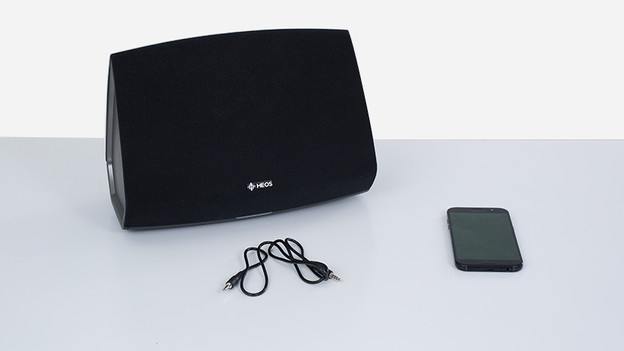
Set up your HEOS by Denon speaker
In this article, we'll help you set up your new speaker. Make sure you have your speaker, the audio cable, your smartphone or tablet, and your WiFi password on hand.
Step 1: place your speaker.
Step 2: open the app.
Step 3: set up the speaker.
Step 4: plug in the audio cable.
Step 5: push the CONNECT button.
Step 6: check the connection.
Step 7: enter your password.
Step 8: name the speaker.
Step 9: unplug the audio cable.
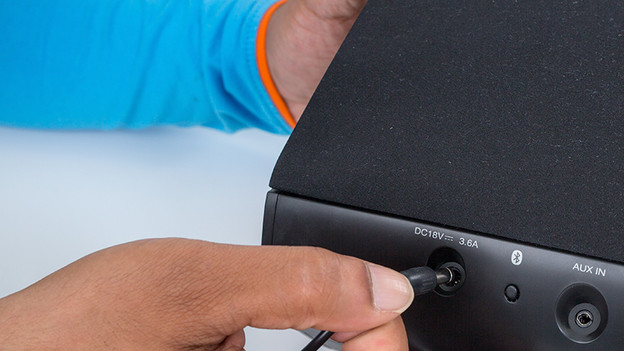
Step 1: place your speaker and turn it on
Place the speaker in the desired spot. Plug the power cable into the connector at the back of the speaker and into socket. Check if a light starts blinking on the speaker. If it doesn't, check if the cable is plugged in properly on both sides.
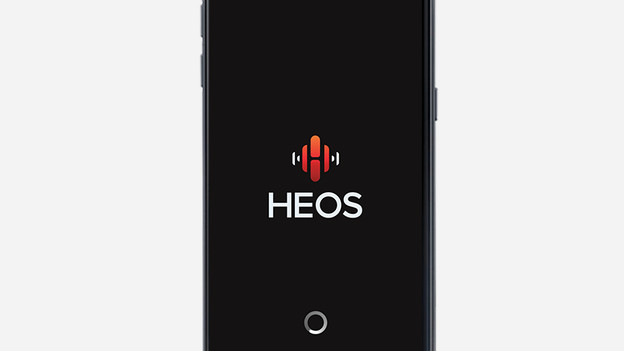
Step 2: open the HEOS app
Open the HEOS app on your smartphone or tablet. You can recognize this app by the icon with the HEOS logo.
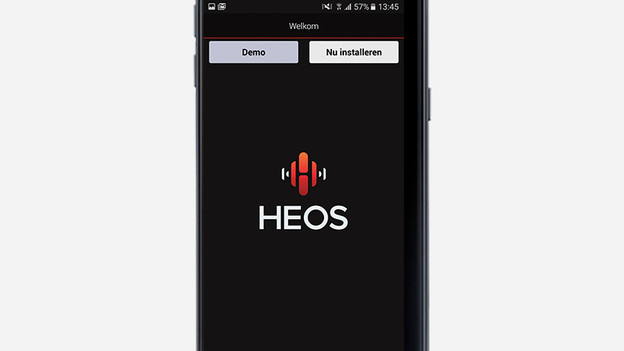
Step 3: tap 'Download now'
Tap 'Install Now' to start the installation. If the app asks for permission to record audio, tap 'Allow'.
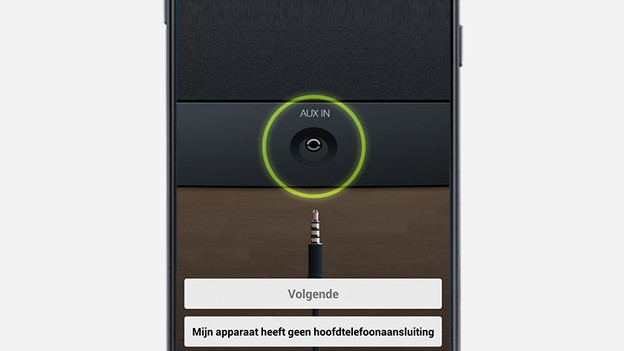
Step 4: connect the audio cable
The app indicates you have to connect the audio cable. Connect this cable to the AUX IN input of your HEOS speaker and to the headphone jack of your smartphone or tablet. Tap 'Next'.
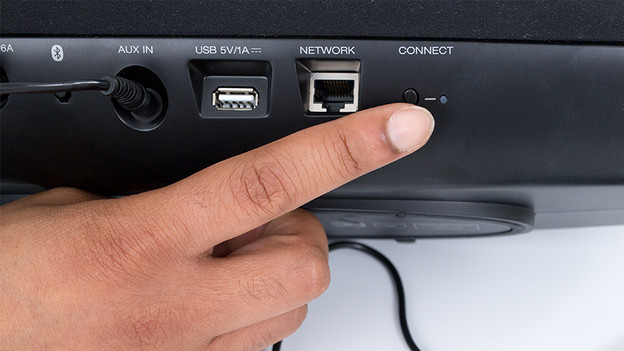
Step 5: press the 'Connect' button
The HEOS speaker light turns yellow in less than a minute. Press the CONNECT button on the back of the HEOS speaker. The light turns green and starts to blink. Tap 'Next' in the app.
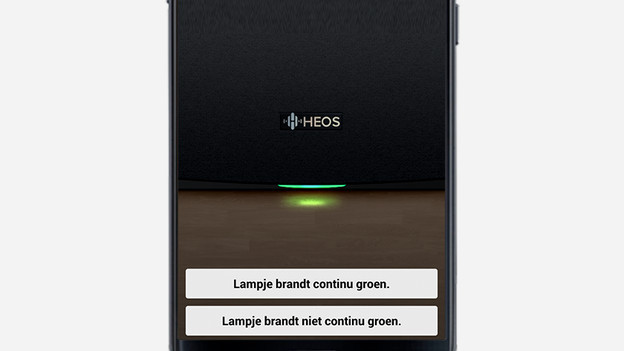
Step 6: confirm the connection
The speaker light will become a solid green light in less than a minute. Tap 'Light is solid green.'

Step 7: enter the password of your network
Enter the password of your network and tap 'Connect'. Your speaker connects to your network. This will take less than a minute.
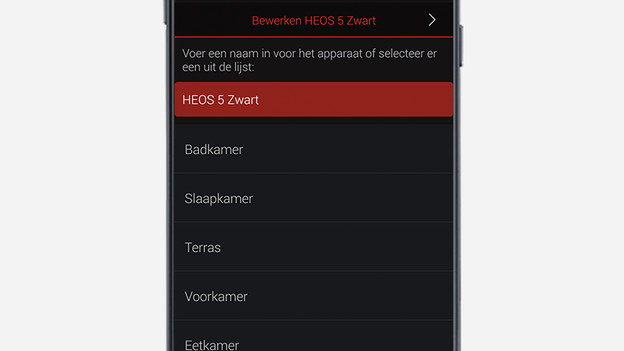
Step 8: give the speaker a name
Give the speaker a name. For example, use the name of the room where the speaker is located.

Step 9: disconnect the audio cable
Unplug the audio cable from your phone and speaker. Tap 'Finish'.
You're done
The app now opens in the standard screen. From this screen you play music on your HEOS speaker. The speaker will now also be visible within the appropriate apps with which you play music on your HEOS speaker.
