Welcome to your environment! You can order everything from your assortment with your personal budget here.

You can always return to the normal Coolblue website by clicking here.

Your outstanding budget (incl. VAT) is always visible here, so you know exactly how much you can spend.

Coolblue home

Help with your product

Home Office Store Pack - Coffee Light
0 reviews

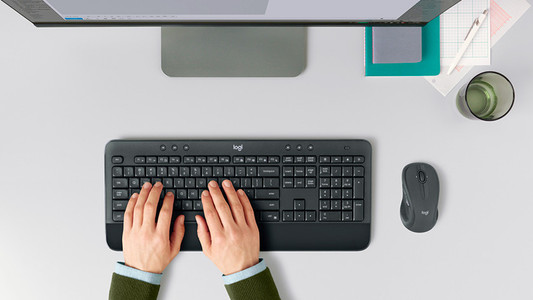
Surprise your employee with your very own Home Office Store pack! In this pack, you'll find a laptop riser, a keyboard and mouse set, and a coffee grinder with a bag of coffee beans. With this pack, your employee will have everything they need to start the workday with a fresh start. With the Logitech MK270 Wireless Keyboard and Mouse QWERTY, you have up to 10m range thanks to the USB nano receiver. This means you no longer have messy cables. The combo has a compact and flat design and normal sized keys. The MK270 is plug and play, so you can use it without installation on any desktop and laptop. The 8 shortcuts give you fast and direct access to music, e-mail, and other programs, which makes your work easier. The Veripart VPLS101 Laptop Stand allows you to work with your laptop at eye level. You can easily fold this laptop stand and take it with you in the included travel pouch. The open design allows for good ventilation of the laptop and the silicone anti-slip pads keep the stand in place while you work. This stand is suitable for laptops from 10 to 25 inches and tablets. With the Krups F203 Coffee Grinder, you can grind enough coffee beans to make about 7 cups of coffee. That way, you're working on your laptop on Monday morning from now on with delicious coffee from freshly ground beans. The coffee grinder has 1 grind setting. By pressing the lid, you activate the grinding. The longer you do this, the finer you grind the beans. Thanks to the transparent lid, you can see the beans change into grains and you know when they're good for your perfect cup of coffee.

Read all tips here

How do I solve problems with my wireless keyboard and mouse?

Is the connection of your wireless keyboard or mouse poor? Or does your peripheral not have any connection at all? Then you can try out a couple of things. You can switch USB ports or put in new batteries, for example. In this article, you can read what you can do to solve problems with your wireless peripherals yourself.

How do I solve problems with my wireless keyboard and mouse?

Is the connection of your wireless keyboard or mouse poor? Or does your peripheral not have any connection at all? Then you can try out a couple of things. You can switch USB ports or put in new batteries, for example. In this article, you can read what you can do to solve problems with your wireless peripherals yourself.

How do I solve problems with my wireless keyboard and mouse?

Is the connection of your wireless keyboard or mouse poor? Or does your peripheral not have any connection at all? Then you can try out a couple of things. You can switch USB ports or put in new batteries, for example. In this article, you can read what you can do to solve problems with your wireless peripherals yourself.

How do I solve problems with my wireless keyboard and mouse?

Is the connection of your wireless keyboard or mouse poor? Or does your peripheral not have any connection at all? Then you can try out a couple of things. You can switch USB ports or put in new batteries, for example. In this article, you can read what you can do to solve problems with your wireless peripherals yourself.

How do I solve problems with my wireless keyboard and mouse?

Is the connection of your wireless keyboard or mouse poor? Or does your peripheral not have any connection at all? Then you can try out a couple of things. You can switch USB ports or put in new batteries, for example. In this article, you can read what you can do to solve problems with your wireless peripherals yourself.

How do I solve problems with my wireless keyboard and mouse?

Is the connection of your wireless keyboard or mouse poor? Or does your peripheral not have any connection at all? Then you can try out a couple of things. You can switch USB ports or put in new batteries, for example. In this article, you can read what you can do to solve problems with your wireless peripherals yourself.

Didn't find your answer?

Find an answer to your question quickly and easily via our customer service.

Coolblue specialist
Personal chat Digitalk.
You're now chatting with Coolblue customer service
This chat is closed
foo
Oeps File size is larger than 5MB. Upload a smaller file.