Welcome to your environment! You can order everything from your assortment with your personal budget here.

You can always return to the normal Coolblue website by clicking here.

Your outstanding budget (incl. VAT) is always visible here, so you know exactly how much you can spend.

Coolblue home

Help with your product

HP 480 keyboard QWERTY + mouse
0 reviews

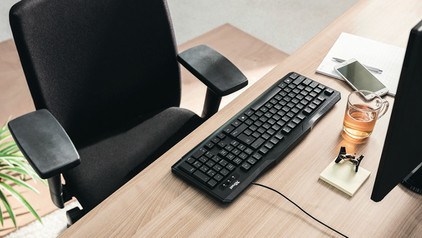
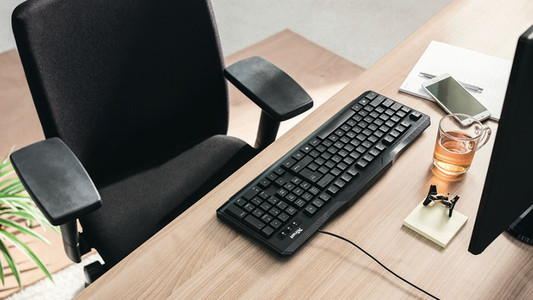
With the HP 480 keyboard + mouse bundle you can get to work ergonomically and comfortably. You can use the mouse on any surface thanks to the Multi-Surface Sensor. This way, you can switch work spaces without problems. Thanks to the wavy design and the wrist rest, you keep your hands and wrists in a natural position. You can adjust the keyboard in height at the wrist rest and at the top of the keyboard. This way, you can decide which is the most comfortable for you. You won't get distracted while typing, because the keyboard has silent keys. Want to work even more productively? Press the Copilot key and use useful AI functions right away. That way, you can quickly get answers to your questions, personalize your apps, or get started creatively with your texts and images. Since the keyboard is wired, you can easily connect it to your laptop or desktop via USB-A and get started right away. In addition, the HP 480 is made of at least 55% recycled materials.

Read all tips here

Which product do you want to see articles about?

How do you solve a slow responding HP keyboard?

Your keyboard is working, but letters and characters appear on your screen slower than usual. Luckily, there's something you can do about this. It's a matter of setting up the keyboard again via Devices. We'll tell you how to do this exactly.
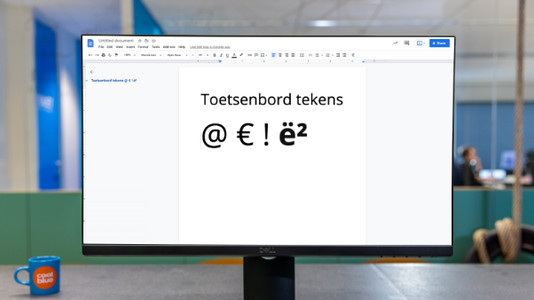
How do I use keyboard characters in Windows?

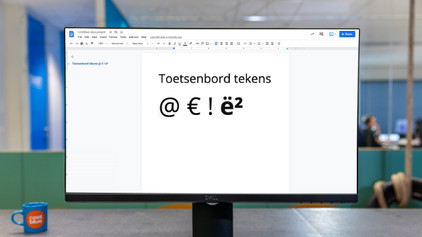
You can try to avoid words with special characters as much as possible, but sometimes you just can't. In this article, we'll explain how to use the characters above the numbers on your keyboard in Windows. In addition, you'll literally learn exactly how to dot your 'i's.

How do I use keyboard characters in Windows?

You can try to avoid words with special characters as much as possible, but sometimes you just can't. In this article, we'll explain how to use the characters above the numbers on your keyboard in Windows. In addition, you'll literally learn exactly how to dot your 'i's.

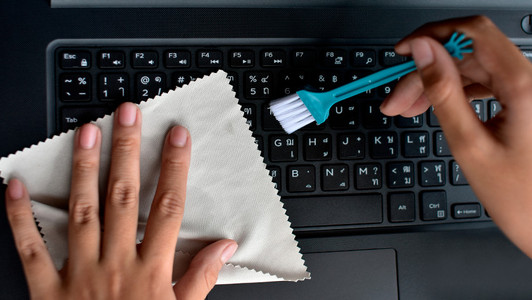
How do I clean my keyboard?

Cleaning your keyboard isn't one of the most fun chores, but if your fingers stick to your keyboard, you'll have to face the music. In this article, I'll explain how to clean a separate keyboard, and you'll read how to clean the keyboard of your laptop.

How do you solve a slow responding HP keyboard?

Your keyboard is working, but letters and characters appear on your screen slower than usual. Luckily, there's something you can do about this. It's a matter of setting up the keyboard again via Devices. We'll tell you how to do this exactly.
How do you solve a slow responding HP keyboard?

Your keyboard is working, but letters and characters appear on your screen slower than usual. Luckily, there's something you can do about this. It's a matter of setting up the keyboard again via Devices. We'll tell you how to do this exactly.
How do I use keyboard characters in Windows?

You can try to avoid words with special characters as much as possible, but sometimes you just can't. In this article, we'll explain how to use the characters above the numbers on your keyboard in Windows. In addition, you'll literally learn exactly how to dot your 'i's.

How do I use keyboard characters in Windows?

You can try to avoid words with special characters as much as possible, but sometimes you just can't. In this article, we'll explain how to use the characters above the numbers on your keyboard in Windows. In addition, you'll literally learn exactly how to dot your 'i's.

How do I clean my keyboard?

Cleaning your keyboard isn't one of the most fun chores, but if your fingers stick to your keyboard, you'll have to face the music. In this article, I'll explain how to clean a separate keyboard, and you'll read how to clean the keyboard of your laptop.

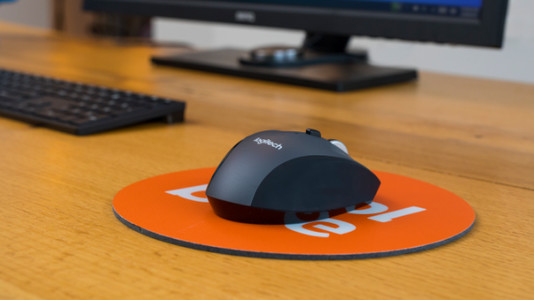
How do I connect my wireless mouse?

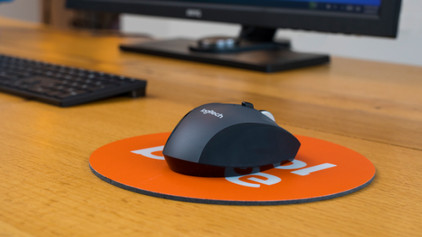
With a wireless mouse, your desk stays tidy and you have more freedom of movement than with a wired mouse. But how do you connect a wireless mouse? In this article, you can read step by step what you need to do to connect a wireless mouse to your laptop or PC. These steps apply to wireless mouses from any brand.

Didn't find your answer?

Find an answer to your question quickly and easily via our customer service.

Coolblue specialist
Personal chat Digitalk.
You're now chatting with Coolblue customer service
This chat is closed
foo
Oeps File size is larger than 5MB. Upload a smaller file.