Written by Mark
Edited on
13 October 2025
·
14:47
How do you connect the Astro A50 to your PlayStation?
You have the Astro A50 and a PlayStation and you want to connect them. You can read how to exactly connect your Astro A50 to your PlayStation in this article. You can read why you need an HDMI converter for your PlayStation 5 and how to use it. This way, you can quickly game with good audio.
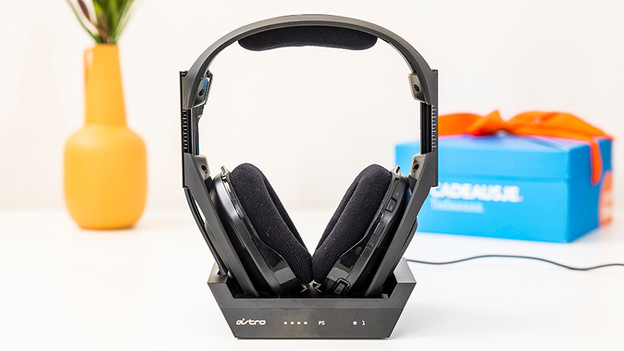
Connect the Astro A50
Follow the steps below to connect your Astro A50 to your PlayStation.
PlayStation 4
Step 1. Connect to PlayStation 4
Step 2. Check your PlayStation 4 settings
PlayStation 5
Connect to PlayStation 5
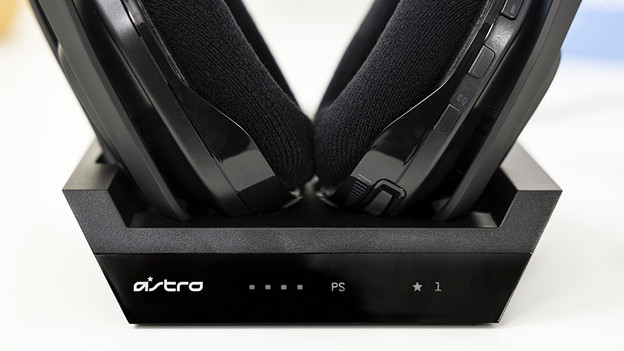
Step 1: connect to PlayStation 4
You can connect the Astro A50 to the PlayStation 4 with the base station. Go through the following steps and connect your headset.
- Set the switch on the back of the base station to 'PlayStation 4'.
- Plug the micro USB cable and the optical cable into the base station.
- Plug the end of the micro USB cable into the front of your PlayStation 4 in the USB-A port.
- Plug the end of the optical cable in the back of your PlayStation 4 in the optical input.
Your Astro A50 is now connected to your PlayStation 4.

Step 2: check your PlayStation 4 settings
You can connect most gaming headsets with a USB dongle. Go through the settings for an optical connection. Follow the steps below to properly set up your PlayStation 4.
- Select 'Settings' on your PlayStation 4.
- Go to 'Sound and display' and select 'Audio settings - output'.
- Change the output to 'Digital output (optical)'.
- Go back to 'Audio settings - output', select 'Audio format', and change it to 'Bitstream'.
- Go back to 'Settings' and select 'Devices'.
- Choose 'Audio devices' and change the input to 'USB headset'.
- Select 'Output to headset' and change this to 'Chat audio'.
You PlayStation 4 is now set up for your Astro A50.
Astro Gaming HDMI adapter
- The adapter is suitable for the Astro A50, A40, and A20.
- You can set the voice balance yourself with this adapter.
- The adapter isn't suitable for all Astro headsets.

39,99
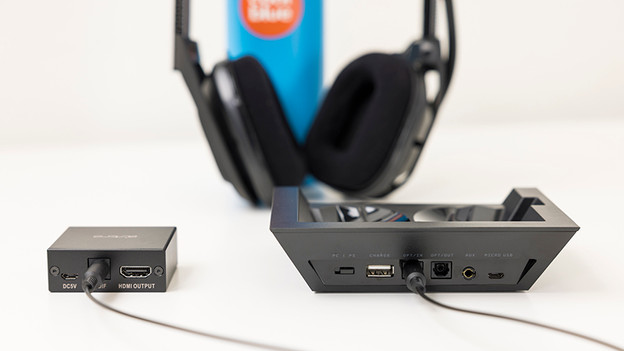
Connect to the PlayStation 5
Do you want to connect the headset to the PlayStation 5? You need an HDMI converter. Follow the steps below to connect your headset to your PlayStation 5.
- Set the switch on the back of the base station to 'PS4'.
- Plug the optical cable into the back of the base station.
- Plug the end of the optical cable in the front of the converter.
- Plug the HDMI cable into the back of the converter.
- Plug the end of the HDMI cable into your PlayStation 5.
Your Astro A50 is now connected to your PlayStation 5.