Written by Bram
Edited on
24 March 2026
·
14:06
How do you install WiZ smart lights?
Before you can use WiZ lights, you have to set them up via the app. After you connect them to your WiFi network, you can control them everywhere. In this article, we'll take you through the setup of the WiZ smart lights step by step. We'll also explain what to do if the setup wasn't successful.
Set up WiZ smart lights in 5 steps
With the steps below, it's easy to set up WiZ lights. Follow the steps to enjoy your smart lighting.
- Step 1. Download the WiZ app.
- Step 2. Connect to the right WiFi network.
- Step 3. Connect the lights with Smart Pairing.
- Step 4. Connect the lights manually.
- Step 5. Get started with the app.

Step 1: download the WiZ app
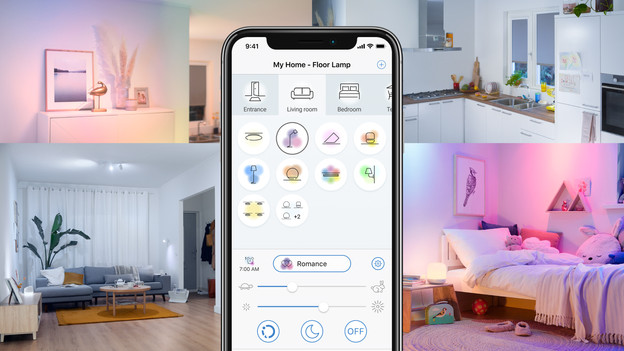
Find the WiZ app in the App Store or Google Play Store on your smartphone or tablet. This app guides you through the setup. In the app, you can also set the lights completely to your liking after the setup. Did you install the app? Twist the WiZ smart lights into the fixtures and turn on the power.
Step 2: connect to the right WiFi network
Place the lights within the range of your WiFi network. Then, connect your smartphone or tablet to your WiFi network. It should be a 2.4GHz network, not a 5/5GHz/5G network. If you have a 5HGz network, you have to connect the lights in a different way. Go to step 4 for this.
Step 3: connect the lights to Smart Pairing
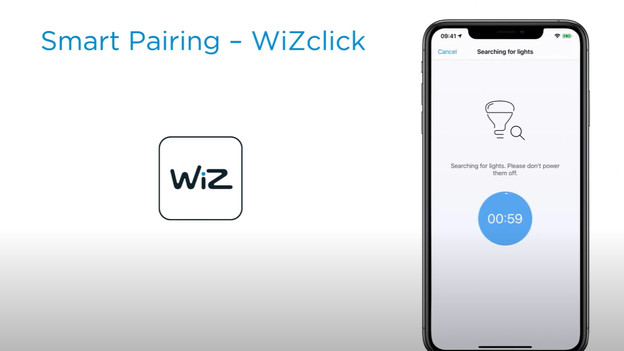
Create a new house in the app and add a room. Then, add a device and tap 'Lamp'. You can now enter the password of your 2.4GHz WiFi network. Tap 'Smart Pairing'. Smart Pairing links all of the lights within your WiFi network. So make sure that the lights are getting power. Can't make it work? Turn the light off and on again 3 times in a row. If the light flashes, repeat this step
Step 4: connect the lights manually
Doesn't the app find the light automatically? Select 'Connect manually'. This way, you can also connect the lights while connected to a 5GHz network. Go to your WiFi settings and connect to WiZConfig_XXXX. Go back to the WiZ app, wait for a bit, and then tap 'Join' in the pop-up menu. Repeat these steps for every light that's not connected.
Step 5: set the WiZ app to your liking
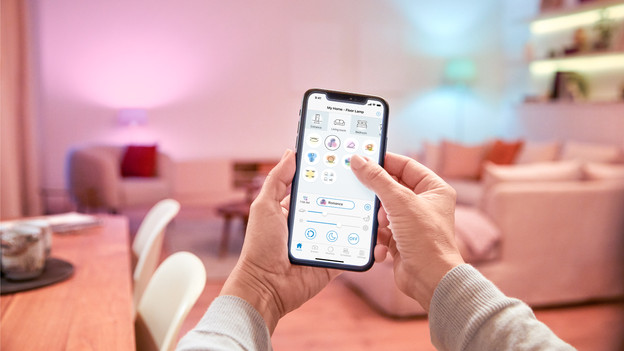
Once you've set up your lights, you can adjust them in the WiZ app. Choose lighting scenes or create personal profiles, for example. You can also set certain routines. That way, you never have to come home to a dark house and you can use the lights as a wake-up light, for example. In the article below, you can read everything about the various functions in the WiZ app.
Article by Bram
Smart Lights Expert.