
Written by Joël
Edited on
6 October 2025
·
10:43
How do you set up your TCL television?
The big beautiful box of your TCL is finally in your living room. The leg stand is already attached. But what now? In this article, we'll explain the steps you need to follow to enjoy your TV within 15 minutes.

Set up your TCL TV in 7 steps
- Step 1. Before you start
- Step 2. Choose a language and your region
- Step 3. Connect via the QR code or set up the TV manually
- Step 4. Wait for updates and sign in to Google
- Step 5. Accept your terms and choose your services
- Step 6. Connect your remote and choose automatic updates

Step 1: before you get started
- Make sure you have a working WiFi signal or run a cable from your modem.
- Place your TV in the desired spot.
- Put the batteries in the remote.
- Connect your TV to a TV signal via your provider box, Coax cable, or CI+ module.
- Plug your TV into a socket and switch it on.
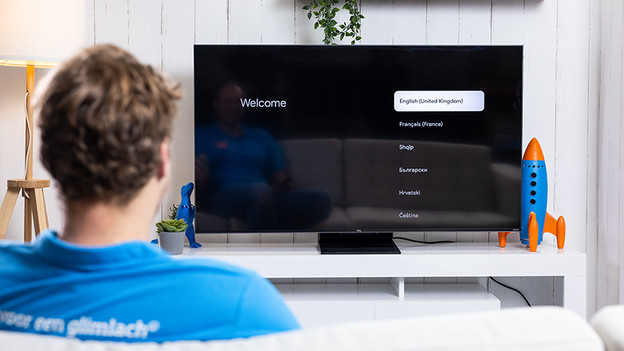
Step 2: select a language and region
Choose the language you speak and the region where you live.
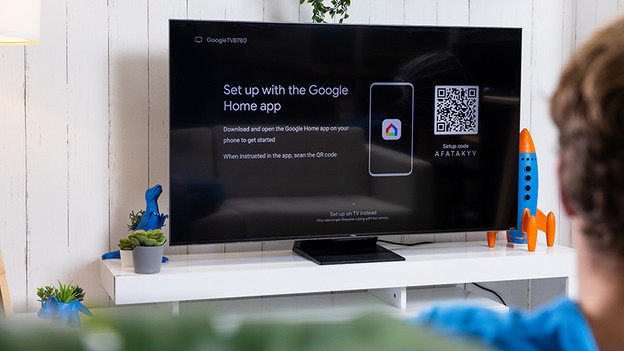
Step 3: connect your phone or set up your TV manually
You can set up the TV with your mobile phone via the QR code. The advantage of this is that it's easier to type on your phone than on the remote. The disadvantage is that you're dependent on your phone and that these steps differ between Android and iPhone. The steps below are for setting up the TV with the remote. To do this, select the option at the bottom and set everything on the TV.
Step 4: wait for updates and sign in to Google
You have to wait for the updates and log in to Google with your Google account. To do this, enter your email address and password.
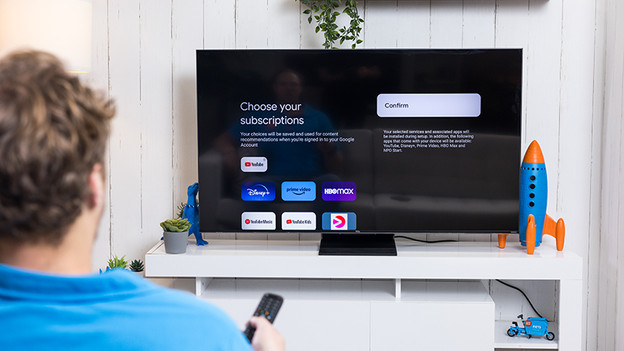
Step 5: accept the terms and choose your services
After you accept the terms, you can choose the services. The services are the apps you use on the TV, such as Disney+ and Prime Video. Don't worry, you can add apps later if you change your mind.

Step 6: connect your remote and choose automatic updates
Now, you can connect your remote. To do this, press the 'Home' and 'OK' buttons at the same time and hold them for a moment. The 'OK' button is in the middle of your round navigation key. The 'Home' button looks like a house. Then, choose automatic updates.
Article by Joël
Television Expert.
