Written by Dewy
Edited on
23 November 2023
·
08:13
5 Apple iPhone life hacks for advanced users
The Apple iPhone is a smart device. You may already have had an iPhone before. You're not a beginner and you have mastered the basic functions. Maybe there are still a number of things that even you don't know. I wonder if you're already aware of these 5 tips for advanced users.

1. Typo? Just shake it!
While typing, you sometimes make typos. In this case, you usually look for the undo button. There's something that works much faster. Apple has come up with something. Shake! If you shake the iPhone vigorously, you can undo your last action. Think of errors such as a wrongly typed word or an unintended line in a drawing. After shaking the iPhone, you do have to click 'Recover'. This undoes the error.
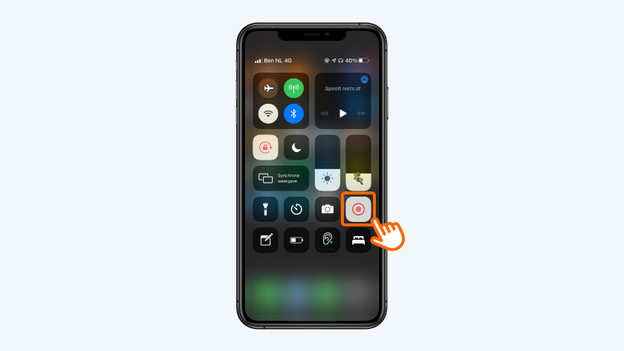
2. Film your screen
You've probably made a screenshot before. But did you know you can also make screen recordings? You'll find the option to make a screen recording in the control panel. Tap it to start the recording and tap it again to stop. Don't see the button in the control panel? Add it in 2 steps.
- Go to 'Settings' and tap 'Control panel'.
- Find 'Screen recording' and tap the green plus sign. You can now find the record button in the control panel.
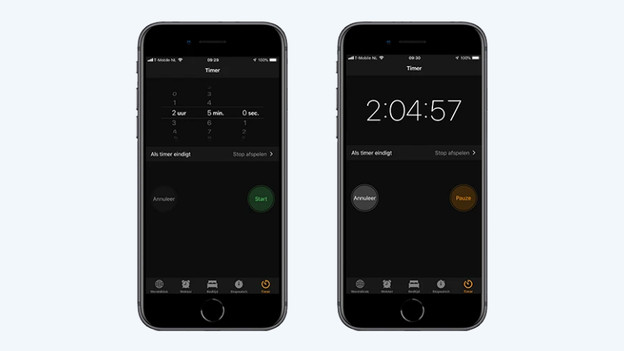
3. Set music on the timer
Do you like falling asleep to a calm playlist? Set a timer for your music. After a while, the music stops playing. This is easy to set up.
- Open the 'Clock' app and tap 'Timer' in the bottom right corner.
- At the top, set how long you want to play music for.
- Tap 'When timer ends'.
- Scroll down and tap 'Stop playing'.
- Choose 'Set up' in the top right corner and tap the green 'Start' button. The time you set now starts ticking. When it's at 0, the music stops playing.
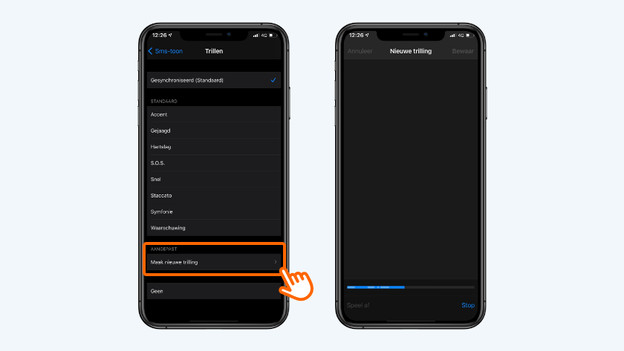
4. Create your own vibration for notifications
Is your iPhone usually on vibrate? You can set different vibrations per notification in 4 steps. This way, you know exactly what kind of notification you receive.
- Open 'Settings' and tap 'Hear and feel'.
- Choose the sound option you want to adjust, such as 'Ringtone'.
- Tap 'Vibrate' at the top.
- Select the vibration pattern you want. You can also create one yourself via the 'Create new vibration' option.

5. Search for words in Safari
When you read an article on your iPhone via Safari, you can use the search function to look for keywords. Tap the icon with the upward arrow when you're on a page. Scroll down and select 'Find on page'. Enter your search term here. All search results have now been marked. Tap the arrows to switch to the previous or next result.
Article by Dewy
Apple Expert.