Written by Mark
Edited on
19 August 2026
·
07:31
3 tips for when you have audio problems with your Turtle Beach headset
You want to play a nice game of Call of Duty, but your Turtle Beach headset doesn't produce any sound and doesn't respond to anything. Luckily, there are multiple solutions for these problems. In this article, we'll explain how to restore the factory settings on your Turtle Beach headset and how to update or reconnect your headset.
Get started to solve audio problems with your headset
You can solve problems with your Turtle Beach headset in multiple ways. You can find a number of steps to help you with your Turtle Beach headset here:
Tip 1: reset your headset
Tip 2: update your headset
Tip 3: reconnect your headset
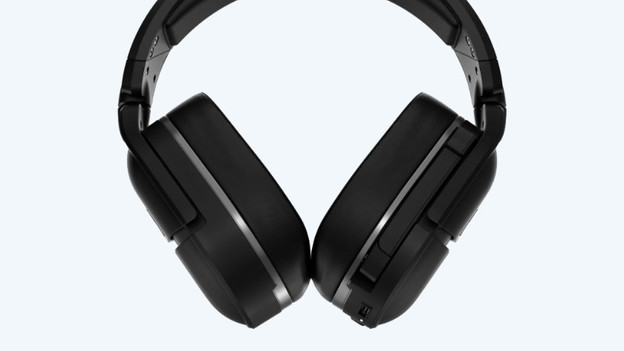
Reset your headset
When your Turtle Beach headset doesn't respond to anything and shows a red light, you need to do a 'hard reset'. Press and hold the 'Connect' and 'Mode' buttons for 20 seconds. That way, you'll restore the factory settings on the headset. This solves most problems. Turn the headset on again and check if you're still experiencing the same problem.
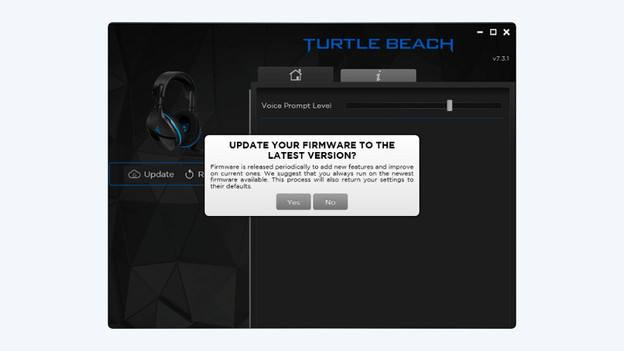
Update your headset
Your headset has problems because it hasn't been updated. Don't you know how to install an update? Go through the following steps to update your Turtle Beach headset.
- Download the Turtle Beach Audio Hub onto your PC.
- Connect your headphones to your PC via a USB input.
- Check the Turtle Beach Audio Hub for an update and install if available.
Check if you still experience the same problems with your headset after these steps.
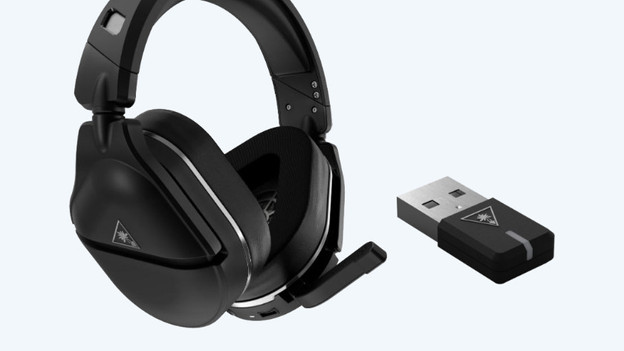
Reconnect your headset
Reconnecting your headset solves a lot of problems. Here, you read how to do this:
- Turn off your headset and your console or PC.
- Reboot appliances and reconnect them.
Check if you still experience the same problems with your headset after these steps.
Article by Mark
Gaming Expert.