
Written by Siebe
Edited on
19 August 2026
·
07:32
5 tips for the novice Chromebook user
You might need some time to get used to a Chromebook, especially if you're used to a laptop or MacBook. Once you're used to your Chromebook, you can benefit from a long battery life, integrated security, and a fast boot time. Read the 5 tips on this page, so you can get the most out of your new Chromebook.
1. create a Google account
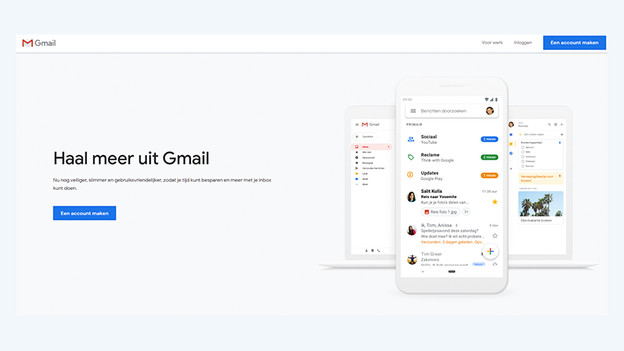
On a Chromebook, you log in with a free Google account. You can already create an account, you don't have to wait until your Chromebook has arrived. Follow the following steps:
- Open an internet browser and go to www.gmail.com
- Click 'Create an account'.
- Enter your personal information.
You now have an account with a Google email address. Later, you can use this to log in to ChromeOS, the operating system on the Chromebook. You can't log in with other email addresses.
2. store files on Google Drive
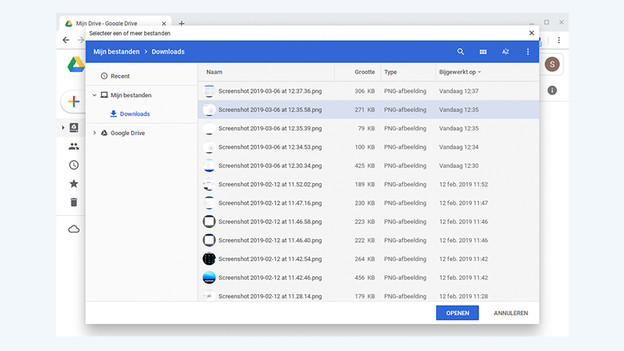
All your files are stored on the internet via Google Drive, which is also called in the cloud. That way, you won't lose any files when your Chromebook gets damaged or stolen. You can also access your files on your Chromebook.
- Open an internet browser and go to www.drive.google.com
- Click New
- Click File upload
- Select the files you want to upload and click OK.
- Your files are now on Google Drive and you can find them on Chrome later.

3. work with Google Docs
Via the Play Store, you can download Microsoft Office 365 and get started with Excel and Word. Or you can use Google Docs, the Office version by Google. This one is free and you can use it in the browser. Go to docs.google.com and get started right away. Documents are stored on Google Drive, so you'll also have your administration at hand on your Chromebook.
4. learn the shortcuts
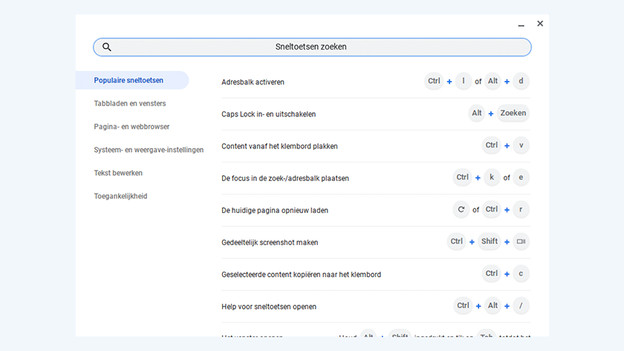
The operating system ChromeOS is something different, especially if you're used to Windows or macOS. Luckily, there are many shortcuts to quickly find what you need. Use the following combinations:
- Ctrl and Alt and ? (display a list with all shortcuts)
- Ctrl and Shift and L (locks the Chromebook)
- Ctrl and Alt and ? (log off on Chrome OS)
- Ctrl and Shift and + (zoom in on the screen)
- Ctrl and Shift and - (zoom out on the screen)
5. use Google promotions
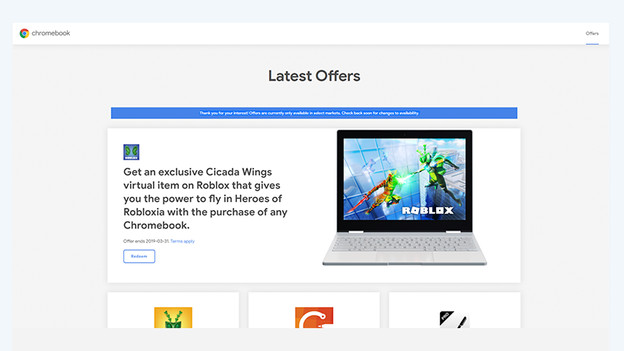
Once you purchase a new Chromebook, Google has a couple of useful promotions. For example, 1 year of 100GB Google Drive storage for free. Go to https://www.google.nl/chromebook/offers/. Select a promotion and click Get perk. Note: this can only be done via the Chrome browser on your new Chromebook.
Article by Siebe
Chromebook Expert.
