Written by Jesper
Edited on
18 November 2024
·
14:08
Get the most out of your Samsung Galaxy S21 smartphone
The smartphones from the Samsung Galaxy S21 series are versatile. There's a great chance you don't know all the options of this smartphone. In this article, we'll give you a number of useful tips for using this device. That way, you can get the most out of your Samsung S21, S21 Plus, or S21 Ultra.
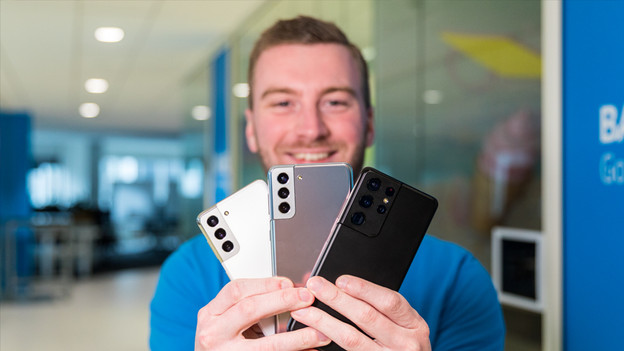
Get started with the Samsung S21
We've listed a number of useful tips for you. That way, you can enjoy your versatile Samsung S21 smartphone even more.
- Tip 1. take sharp photos and videos.
- Tip 2. operate your S21 with 1 hand.
- Tip 3. adjust the navigation bar or gestures.
- Tip 4. use the highest refresh rate.
- Tip 5. use widgets.
- Tip 6. adjust the standby button.
Tip 1: take sharp photos and videos
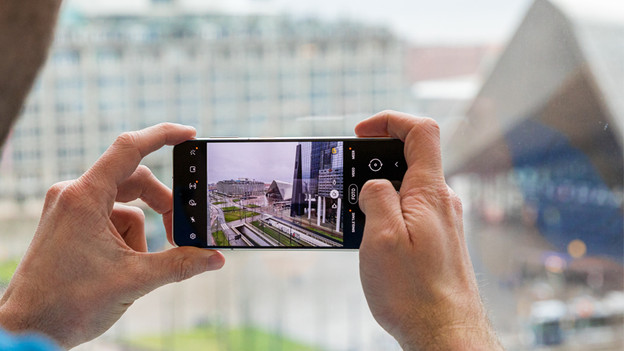
The Samsung S21 models have advanced cameras. You can take razor-sharp photos with the S21 and S21 Plus, but the S21 Ultra has even more options. With this device, you can zoom in up to 10 times without your photos and videos becoming less sharp. With the wide-angle lens, large buildings or groups of people entirely fit into 1 photo. The devices have a mode for both portraits and night photos. In our advice article, we'll explain how to use all these camera functions from A to Z.
Tip 2: control with 1 hand
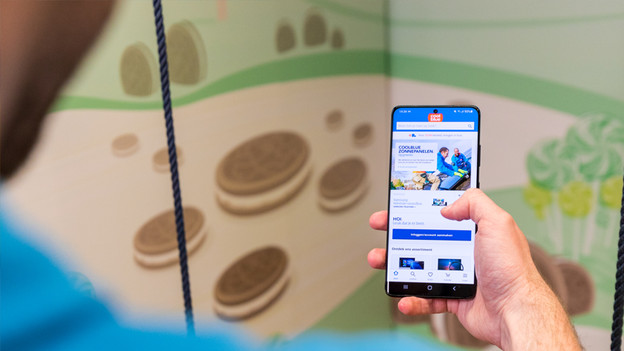
The Samsung Galaxy S21 is compact, but the S21 Plus and Ultra have a large screen that's difficult to control with 1 hand. That's why all S21 devices have a feature to make the window smaller. This allows you to easily reach everything with 1 hand. You can adjust this the following way:
- Go to Settings.
- Tap Display and wallpaper.
- Tap One-handed mode.
- Turn on the one-handed mode.
- Tap One-handed mode.
- Choose if you want to activate this function with a gesture or with a button.
Tip 3: adjust the navigation bar or gestures
Before, smartphones all had physical buttons to return to the home screen or previous page. Nowadays, these buttons are displayed in the navigation bar at the bottom of the touchscreen. Do you want to change the order of these buttons? Or do you prefer to navigate with swipe movements, so you can remove the bar from your sight? You can adjust this the following way:
- Go to Settings.
- Choose Display.
- Tap Navigation bar.
- Adjust the navigation bar or the gestures as you like.
Tip 4: use the highest refresh rate
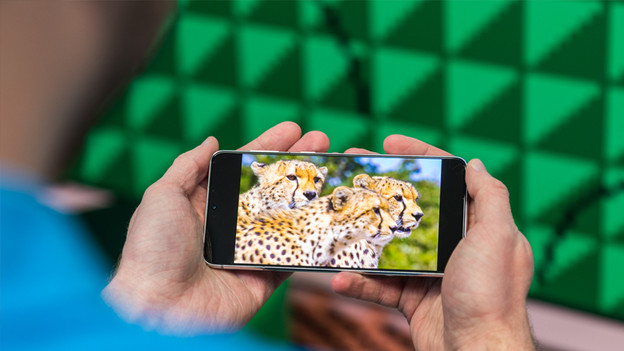
The screens of all Samsung S21 models can refresh 120 times per second. This makes images look during scrolling or gaming look smooth. Because this high refresh rate of 120Hz causes the battery to drain quickly, the screen is set to the energy-efficient 60Hz by default. Do you want to turn on the high refresh rate? Go through the following steps:
- Go to Settings.
- Tap Display.
- Go to Motion smoothness.
- Choose Adaptive (120Hz).
Tip 5: use widgets
A widget is a simplified, small version of an app on your home screen. You can see the most important information of that app at the glance of an eye. For example, you can see when the next train will leave with the widget of your public transportation app or view your calendar for today.
- Tap and hold your finger in a random place on your background for a couple of seconds.
- At the bottom of the screen, tap Widgets.
- Tap and hold the widget you want and drag it to one of your screens.

Tip 6: adjust the standby button
On the side of your Samsung S21, you'll find a standby button in addition to the volume buttons. When you press it once, the S21 will go in standby mode. If you press it twice, the camera opens. If you press and hold the button, Bixby opens. Do you prefer your S21 to open an app or show the power menu? Adjust the settings for the standby button:
- Go to Settings.
- Tap Advanced features.
- Choose Side key.
Article by Jesper
Smartphone Expert.