Written by Lucas
Edited on
23 August 2022
·
12:42
How do you solve Sennheiser Momentum True Wireless II connection problems?
With the Sennheiser Momentum True Wireless II, you have a lot of freedom of movement when you listen to music. You'll want to enjoy this freedom of movement completely, without any connection problems. That's why we'll explain how you can ensure the best connection with the Sennheiser Momentum True Wireless II in this article.
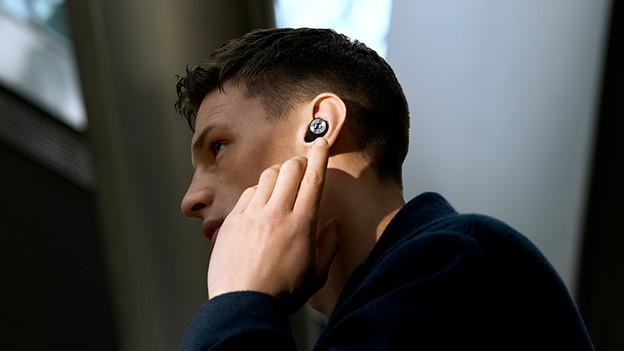
Solve connection problems
In 3 steps, you can solve connection problems with the Sennheiser Momentum True Wireless II.
Step 1: turn the earbuds off and on again.
Step 2: update the earbuds.
Step 3: reset the earbuds.

Step 1: turn the earbuds off and on again
The first step to a good connection is to turn the earbuds off and on. You can do so by putting the earbuds back in the charging case and taking them out again. Now, put the earbuds in your ears, connect them to your phone, and check whether the connection has improved.
Step 2: update the earbuds.
Products are regularly the updated, so is the Sennheiser Momentum True Wireless II. When you download the Sennheiser Smart Sound app on your phone, you'll see whether you need to update your earbuds. This often affects the quality of the connection and other aspects. This way, you improve your listening experience.

Step 3: reset the earbuds
If turning them off and on again or downloading an update doesn't result in a better connection, it's time to reset the earbuds. Do this by connecting the charging case to a power source via the included USB-C charging cable. After that, you put the earbuds in and and place your fingers on the side of both the left and right side.