Written by Lucas
Edited on
21 March 2025
·
16:32
How do you connect your headphones or earbuds via Bluetooth?
You can listen to your favorite music from your smartphone with your new wireless headphones or earbuds. To listen to music, you still have to connect the 2 devices via Bluetooth. In this article, we'll explain how you wirelessly connect your headphones or earbuds to your smartphone via Bluetooth.
Summary tutorial
In the first part of this article we'll explain how to connect your headphones or earbuds to your iPhone. After you read the second part you know how to connect them to an Android device. Before you follow the steps, read a few tips below to make linking easier.
Tip 1: make sure your smartphone is equipped with the latest updates.
Tip 2: charge your smartphone up to at least 60%.
Tip 3: fully charge your Bluetooth headphones or earbuds.

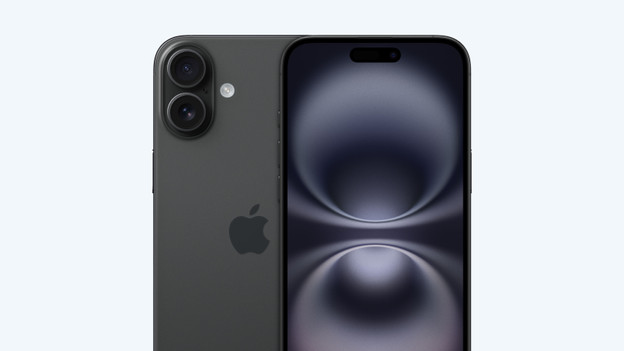
How do I pair an iPhone with my Bluetooth headphones or earbuds?
The following steps explain how to connect an iPhone to your Bluetooth headphones or earbuds.

Step 1: open Settings
Go to your smartphone's Settings menu. Tap the gray gear icon to access Settings.
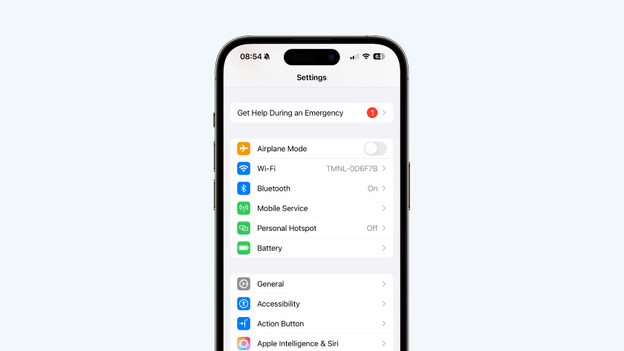
Step 2: tap Bluetooth
Bluetooth is one of the first options that you see when you open the settings menu. Tap the option to continue.

Step 3: turn on Bluetooth
At the top of the Bluetooth menu, you'll see whether Bluetooth is active on your iPhone. If the switch is green, that means Bluetooth is on. If it isn't, tap the switch.
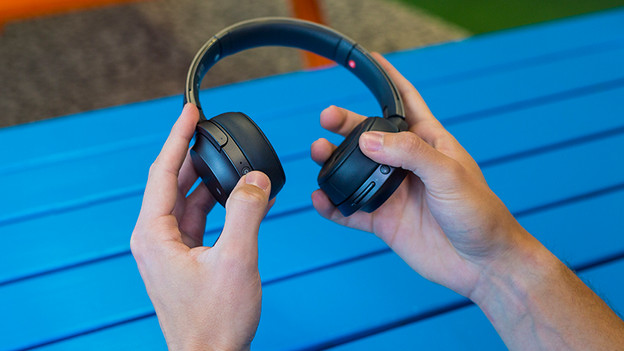
Step 4: turn on your headphones/earbuds
Turn on your headphones / earphones. Usually you have to hold the on / off button longer to switch on the headphones or earbuds. Check the manual if you cannot find exactly how to turn it on.

Step 5: set your headphones/earbuds to discoverable mode
If your headphones or earbuds are new, you can skip this step and go to step 6. If you've connected the headphones or earbuds to another device before, you'll need to manually set them to discoverable mode. In this mode, they can be detected. In many cases, you can turn on this mode by pressing and holding the power button. If this doesn't work, look in the manual for your headphones or earbuds.

Step 6: hold your iPhone close to your headphones
After a while, you'll notice the headphones or earbuds have appeared on screen. This is displayed under 'Other devices'. In most cases, it'll show your headphones' or earbuds' model or brand. Tap the name and your iPhone will establish a connection to the headphones.
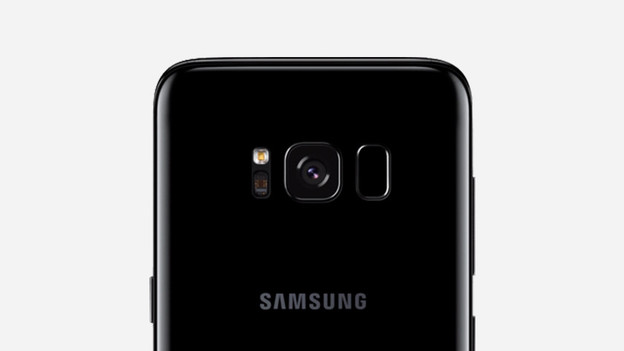
How do I pair my Android device with bluetooth headphones / earbuds?
The following steps explain how to connect an Android smartphone to your Bluetooth headphones/earbuds.

Step 1: open All Apps
Connecting Bluetooth devices is done in the Settings menu. This menu can be found in the list of all apps. Tap the icon with the dots on the bottom of your screen to open the list of all apps.

Step 2: open 'Settings'
Tap the gear icon to access the Settings menu.
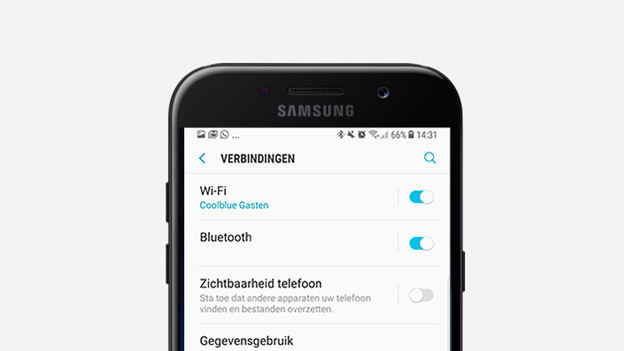
Step 3: tap Bluetooth
Bluetooth is one of the first options that you see when you open the settings menu. Tap the option to continue.
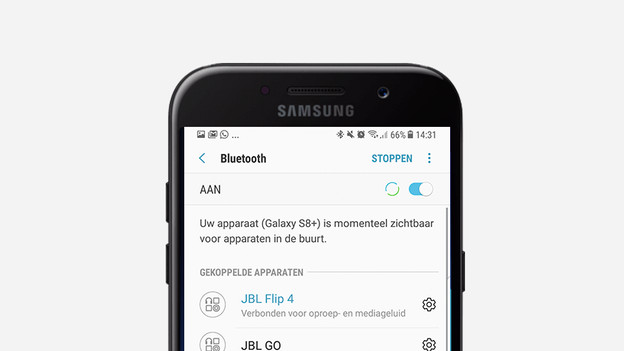
Step 4: turn on Bluetooth
At the top of the Bluetooth menu, you'll see whether Bluetooth is active on your smartphone. If the switch is green, that means Bluetooth is on. If it isn't, tap the switch.
Step 5: turn on your headphones/earbuds
Turn on your headphones/earbuds. Check the manual if you're not sure how to turn them on.
Step 6: set your headphones/earbuds to discoverable mode
If your headphones or earbuds are new, you can skip this step and go to step 7. If you've connected the headphones or earbuds to another device before, you'll need to manually set them to discoverable mode. In this mode, they can be detected. In many cases, you can turn on this mode by pressing and holding the power button. If this doesn't work, look in the manual for your headphones or earbuds.
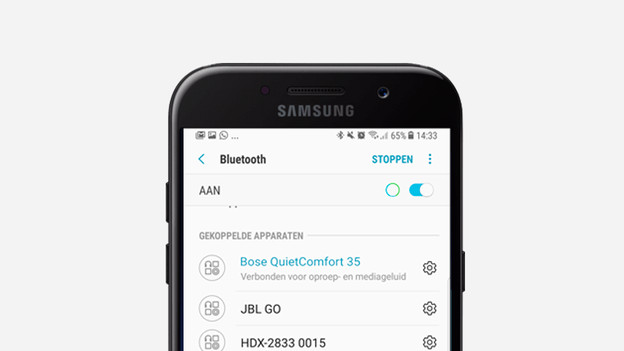
Step 7: hold your smartphone close to your headphones
After a while, you'll notice the headphones or earbuds have appeared on screen. This is displayed under 'Available devices'. In most cases, it'll show your headphones' or earbuds' model or brand. Tap the name and your smartphone will establish a connection to the headphones.
You're done!
Both devices are now connected to each other. The next time you turn on your headset, it will automatically connect to your phone. Check whether the link is properly made by playing a music track on your smartphone. The sound will now come from your headphones or earbuds.
Article by Lucas
Audio Expert.