Written by Lucas
Edited on
3 September 2025
·
09:01
How do you reduce the energy consumption of your Philips TV?
If you want to save money on your energy costs and contribute to a better environment, it's useful to reduce the energy consumption of your television. Some Philips TVs have a special option for this. In this article, we explain how to set these eco settings.
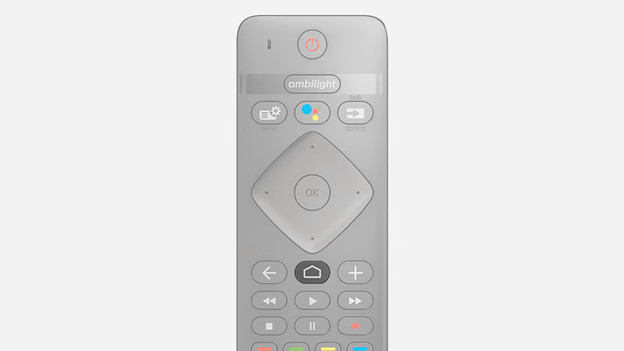
Step 1: go to the home screen
Go to the home screen of the TV. You can do this by pressing the home button on your remote. You can recognize this button by the icon that looks like a house.
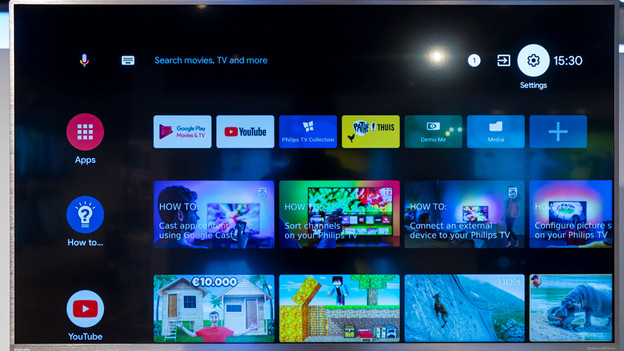
Step 2: find he gearwheel at the top right
In the home screen, you can see your downloaded apps and recently used services. At the top right of the screen, you'll see 3 icons, 1 of which is a gearwheel. Go to the gearwheel and press it. This is how you open the settings.
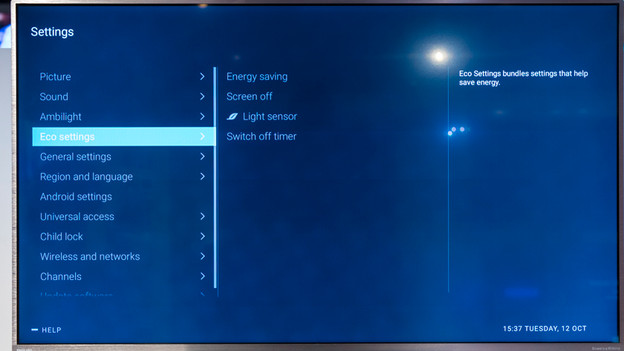
Step 3: go to Eco settings
You'll see different types of settings on the screen. When you go 3 steps down from the top, you'll see Eco settings. When you select this, several energy consumption settings will appear. You can read which institution does what in the table below.
Reduce energy consumption
| Function | Explanation |
|---|---|
| Energy-efficient | Here, you can choose from 4 settings to limit energy consumption: off, minimum, medium, and maximum. The more economically you set the television, the less bright the screen is. |
| Screen off | When you listen to music via the television, this mode turns the screen off. This way, the TV stays on but hardly uses any energy. |
| Light sensor | When you switch on the light sensor, a sensor measures the amount of light in the room. When it's dark, the TV consumes less energy than in a bright room. |
| Switch off timer | After 240 minutes of use, the television switches itself off by default. If you don't want this, set the timer to 0. This is useful if you use the TV as a computer screen, for example. |
Article by Lucas
Television Expert.