Written by Lucas
Edited on
27 January 2025
·
13:10
How do you set up the game mode of your Philips TV?
When you play a lot of games on your Philips television, it's useful to change the image settings. Philips has the game mode that allows you to lower the input lag of a game, for example. This makes the television react faster to the actions you perform with your controller. In this article, you can read how to switch on the game mode.
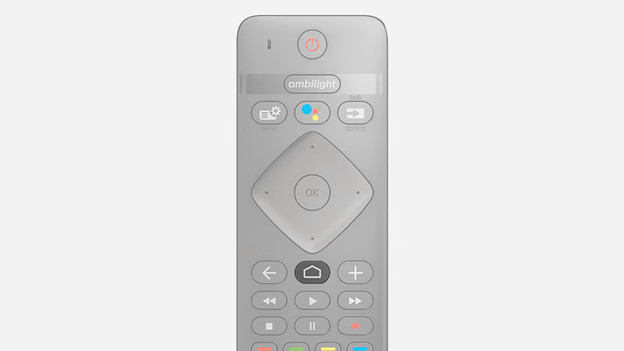
Step 1: go to the home screen
Go to the home screen of the TV. You can do this by pressing the home button on your remote. You can recognize this button by the icon that looks like a house.
Step 2: go to settings
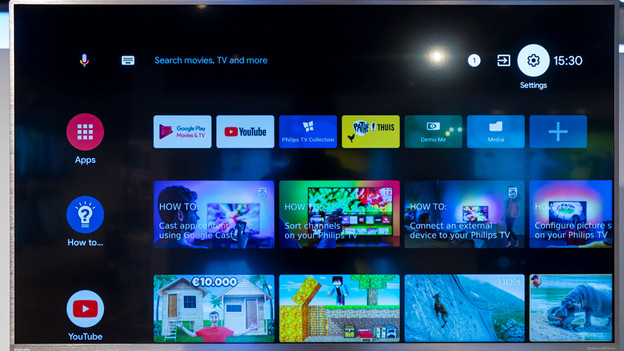
In the home screen, you can see your downloaded apps and recently used services. At the top right of the screen, you'll see 3 icons, 1 of which is a cogwheel. Go to the cogwheel and click it. This is how you open the settings. With Philips TVs with a basic smart platform, you can find the settings menu in the list of options at the bottom of the screen.
Go to the settings via the cogwheel.

Step 3: Go to Picture Style
Here are all the settings for the image. The first option is Picture Style. Select this option and different picture styles will appear, including the Game Mode.

Step 4: Select the Game mode
From the list of options, choose the game mode, called Game on the TV. You have less input lag while gaming in this mode. The television will respond faster to the actions you perform with the controller. Press OK and the picture style of your Philips television is in game mode.
Article by Lucas
Television Expert.