Written by Giorgos
Edited on
24 March 2023
·
15:17
How do you check if your RAM is properly installed in Windows 10?
If your RAM module isn't installed properly, it can affect the lifespan of your PC. Think of crashes, errors, or programs that don't start. You can have these issues if your RAM isn't installed properly in Windows 10. In this article, you can read how to check if everything is in place.

Check your RAM in 5 steps
To help you get started, we've listed all steps here:
- Step 1: turn on your computer and see if it starts
- Step 2: go to the Task Manager
- Step 3: check the amount of RAM
- Step 4: gently push in your RAM
- Step 5: use Windows Memory Diagnostic

Step 1: turn on your computer and see if it starts
If you don't place a RAM module in the PC, it won't boot. Without RAM, the motherboard doesn't have memory to start itself. If this is the case, you have to buy a new RAM module. At that point, the old module is too damaged for your PC to start.
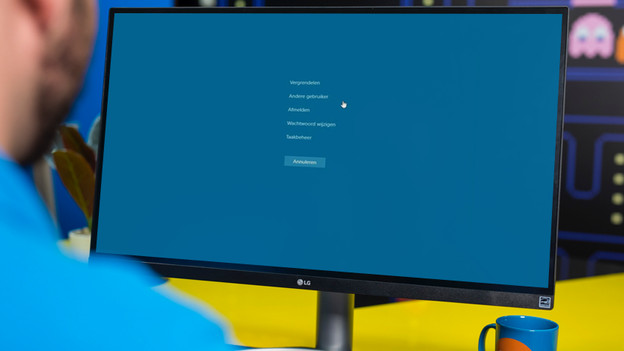
Step 2: go to the Task Manager
If the computer has started, you can press the Control, Alt, and Delete keys at the same time. On the blue screen, you select the 'Task Manager' option, at the bottom. After you click it, you'll see a window on your screen with different tabs. These show performance, processes, and more information about your computer. Select 'Performance', the second tab.

Check the amount of RAM
In the 'Performance' tab, you can see an overview of all the running components in your computer. To see the status of your RAM, you can go to 'Memory'. Above the performance graph, you can see how much RAM the computer has in GB. Is this a different number than what you've placed in the PC? Go to step 4.

Step 4: gently push in your RAM
If you don't see the right amount of RAM appear, your RAM might not be installed properly in the motherboard. In that case, gently push in the RAM into the motherboard. Make sure you're earthed before you touch the RAM module. Touch your radiator or use an antistatic wrist strap, and push in the RAM module firmly but gently. If you hear a click, you know the module is in place.

Step 5: use Windows Memory Diagnostic
Does your RAM still not work well? Go to 'Windows Memory Diagnostic'. The computer will restart itself and check the RAM module for errors. After the check, you can see a report on your screen about the status of your RAM. If the check has found a problem, the report will tell you what to do. For example, you have to buy a new RAM module, or contact the manufacturer.