Written by Jorn
Edited on
27 January 2025
·
13:10
How does the smart remote of your Sony TV work?
The smart remote of a Sony TV has many different buttons. There are different abbreviations and icons on each button, and these aren't always very clear. On this page, you'll learn the functions of these buttons, so you're sure you can get the most out of your Sony remote.
Different Sony remotes
The remote that we discuss in this article is included with most Sony TVs from 2021. Your remote might look slightly different. But don't worry, the buttons and functions are the same for most Sony remotes. They might be in a different place on the remote. So, look at the image carefully to find the right button or function.
On/off, teletext, streaming services

On/off
With this button, you turn the television on or off.

Teletext
When you press here, you open teletext of the channel you're watching.
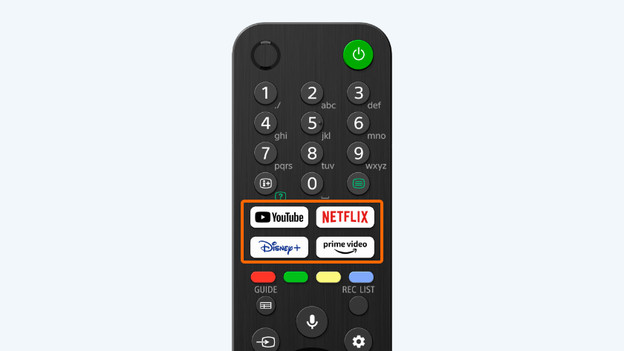
Streaming services
With these buttons, you have fast access to the streaming services YouTube, Netflix, Disney+, or Prime Video. That way, you can quickly stream movies and series on your smart TV.
Colored buttons, guide, REC list
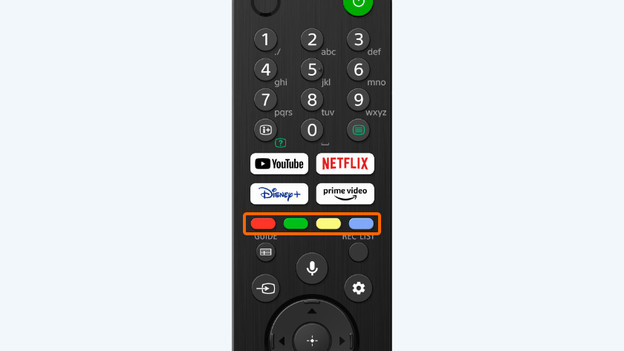
Colored buttons
With this button, you can choose between various options. Which options these are differs per menu.

Guide
With this, you can open the guide with channels. You can quickly check the broadcast schedule and find programs that you want to watch later on. You can also use the guide to easily switch channels.

REC list
When you press here, you open an overview of all the recorded programs, series, or movies.
Voice control, input, settings
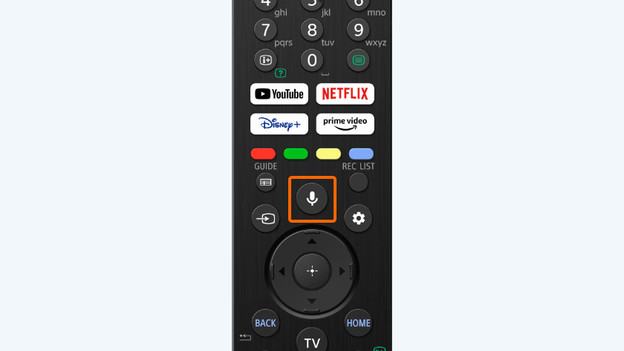
Voice control
With this button, you activate the microphone of the remote. Press and hold the button, speak into the remote, and the television will execute the command.

Input
With this, you switch from source to source. This allows you to easily choose between 2 HDMI appliances, such as a console and a media box, for example.

Settings
When you press here, it brings you to the settings menu. You can adjust the sound and image settings in this menu, for example.
Navigation, TV, video functions

Navigation
With these buttons, you can navigate through the different options. Press the round button in the middle to confirm your choice.
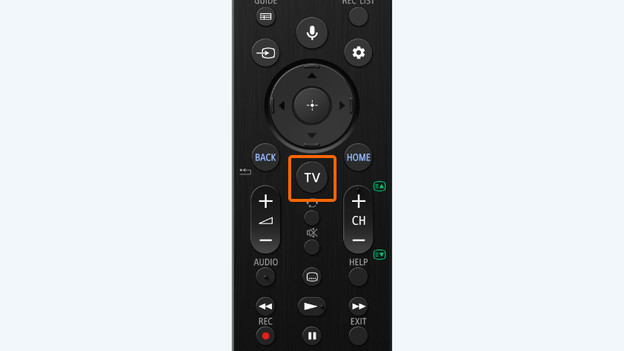
TV
If you want to switch from Netflix or some other app and go back to regular television, press this button.

Video functions
With these buttons, you can operate the video functions. These let you play, pause, record, and rewind or fast forward. The exit button will bring you back to the home screen, where you can directly watch live TV.
Article by Jorn
Television Expert.