Written by Jesper
Edited on
21 April 2023
·
14:42
4 tips when Bluetooth on your OnePlus smartphone doesn't work
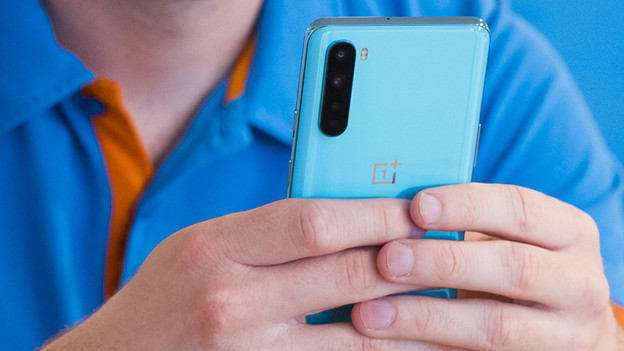
If the Bluetooth of your OnePlus smartphone doesn't work well, it's hard to connect the phone to other devices like a speaker or earbuds. In this article, we'll give different solution to Bluetooth problems with your OnePlus smartphone.
Tips for if your Bluetooth doesn't work
There are different solutions to this problem. Go through these tips from top to bottom.
- Tip 1: test with a different device.
- Tip 2: restart
- Tip 3: update smartphone
- Tip 4: hard reset
Tip 1: test with a different device
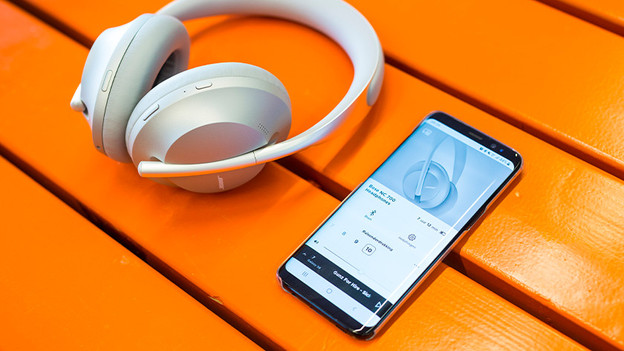
It's possible that your smartphone is still working, but the device you want to connect to no longer works. Perform the following steps to make sure that the other Bluetooth device isn't the cause of the problem.
- Switch off Bluetooth on your own smartphone.
- Get another phone with Bluetooth. For example, use your old smartphone or the device of your partner, friend, or colleague.
- Turn on the Bluetooth on this other phone.
- Try to connect to the same Bluetooth device that didn't connect to your own smartphone.
- Are you unable to make a Bluetooth connection again? That means the Bluetooth device is probably broken. If you're able to connect, perform one or more of the solutions below on your smartphone.
Tip 2: restart
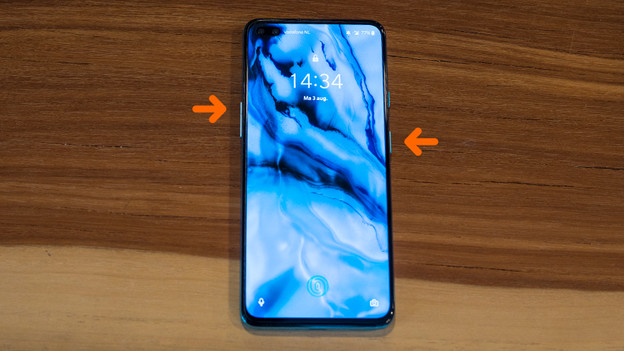
Sometimes, it helps if you restart your OnePlus smartphone. Follow these steps:
- Press and hold the standby button and volume button at the same time.
- Let them go when the device turns off.
- Press and hold the standby button to turn the device on again.
Tip 3: update your smartphone
Sometimes, the Bluetooth doesn't work because your phone doesn't have the latest software. Go through these steps to update your device.
- Make sure the device is at least charged for 60%. Otherwise, put the device on the charger.
- Check if your smartphone is still connected to WiFi.
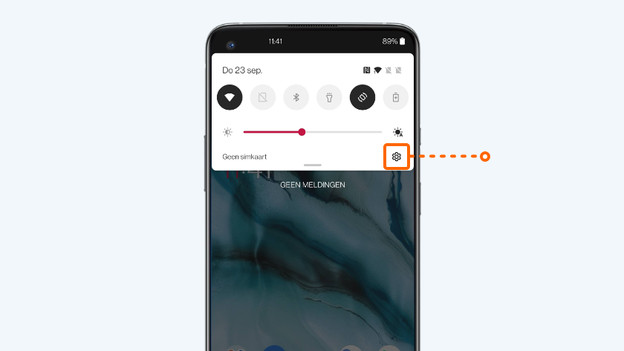
- Go to Settings. That's the icon with the cogwheel.
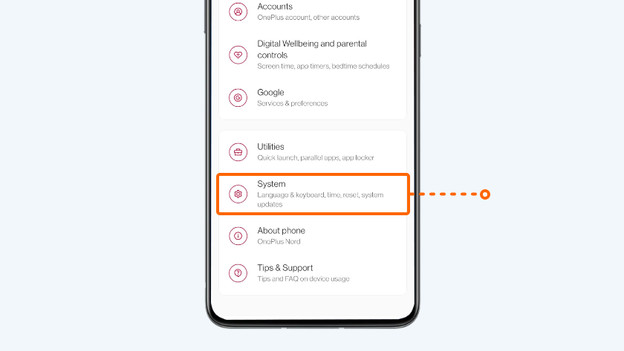
- Scroll down and choose System.
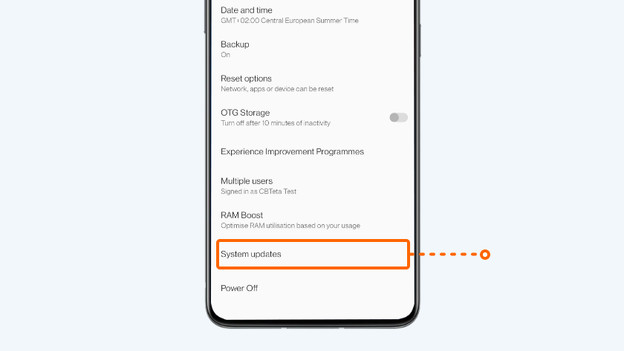
- Tap System updates.
- Is there an update? Choose Download & install now.
3. Go to Settings
4. Choose System
5. Tap System updates

Tip 4: hard reset
With a hard reset, you revert your smartphone to factory settings. Make a backup first, otherwise you lose your apps, photos, and files.
- Go to Settings.
- Choose System.
- Go to Reset options.
- Tap Erase all data (factory reset).
- Choose Erase all data.
Check our advice page for an extensive step-by-step guide.
Article by Jesper
Smartphone Expert.