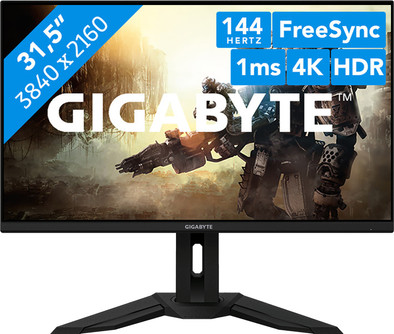
Gigabyte Aorus M32U
Never available again
View alternatives in the sidebar
View alternatives in the sidebar
Product number | 891546 | |
|---|---|---|
Manufacturer code | M32U | |
Brand | Gigabyte | |
Processing of your defect | Via Coolblue | |
Old product returned for free |
Screen size | 31,5 inches | |
|---|---|---|
Recommended display resolution | 3840x2160 | |
Sharpness | 4K (UHD) | |
Aspect ratio | Standard (16:9) | |
Refresh rate | 144 Hz | |
Response time | 1 ms | |
Panel type | IPS panel | |
Brightness | 350 cd/m2 | |
Local dimming | ||
HDR support | ||
Contrast ratio | 1000 | |
Touchscreen | ||
Type of HDR | DisplayHDR 400 | |
Screen reflection | Anti-glare | |
Blue light filter | ||
Flicker-free technology | ||
Color space | DCI-P3 | |
Color depth | HDR (10 bit) | |
Adaptive Sync | ||
Type of adaptive sync | FreeSync, FreeSync 2, FreeSync Premium, Freesync Premium Pro | |
Resolution width | 3840 pixels | |
Resolution height | 2160 pixels | |
Anti-reflection type | Anti glare | |
Horizontal viewing angle | 178 ° |
Height | 58,53 cm | |
|---|---|---|
Width | 71,51 cm | |
Depth | 24,43 cm | |
Weight | 10,35 kg | |
Color | Black | |
Including stand | ||
Material | Plastic | |
Cable management | ||
Appearance | Business, Gaming, Neutral | |
Curved |
Number of HDMI connectors | 2 | |
|---|---|---|
Number of Female HDMI type A 2.1 ports | 2 | |
Number of headphone jacks | 1 | |
Type of headphone connection | 3.5mm (TRS) | |
Number of USB-C ports | 1 | |
Number of USB 3.0 Female USB-C ports | 1 | |
Number of Female Standard DisplayPort 1.4 ports | 1 | |
Number of female standard USB-A ports | 3 | |
Female standard USB-A port version | 3.0 | |
Number of female 3.5mm TRS Audio Jack ports | 1 | |
Number of female standard USB-B (3.0 form) ports | 1 | |
Type of USB port | Standard USB-A, Standard USB-B (3.0 form), USB-C | |
Number of USB ports | 5 | |
Type of USB cable included | USB-A to USB-B |
Included by default | DisplayPort cable, HDMI cable, USB cable | |
|---|---|---|
Not included by default | USB-C cable |
Adjustable in height | ||
|---|---|---|
Tiltable | ||
Pivotable stand | ||
Pivot function | ||
VESA mount option | ||
VESA mount | 100x100mm |
Energy label | G | |
|---|---|---|
Energy consumption standby | 0,3 W | |
Energy consumption active | 140 W | |
Energy consumption per 1000h | 50 kWh | |
Annual energy consumption | 185 kWh | |
Annual energy costs | 39,4 euros |
Built-in speakers | ||
|---|---|---|
Sound system | Stereo | |
Webcam | ||
Split screen | ||
Kensington lock |
Sharpness | 4K (UHD) | |
|---|---|---|
Curved | ||
Aspect ratio | Standard (16:9) | |
Refresh rate | 144 Hz | |
Response time | 1 ms | |
Panel type | IPS panel | |
Color depth | HDR (10 bit) | |
Built-in speakers |
According to our monitor expert
Experience lively colors and images thanks to the DisplayHDR 400 support and high coverage of the DCI-P3 and sRGB color profiles.
In addition to PC gaming, this monitor is also suitable for console gaming at 120Hz in 4K.
Connect your external device via the USB-C port and switch between devices via the KVM Switch.
A 32-inch monitor takes up a lot of space on your desk, so make sure you have enough room.
Take the lead in the online leader boards with the Gigabyte Aorus M32U 32-inch 4K 144Hz gaming monitor. Thanks to the 4K resolution, you experience images 2 times sharper than in QHD and 4 times sharper than in Full HD. Details really stand out in any type of game and you can see them extra sharply on the SS IPS panel. In addition to the 4K resolution, the monitor also has DisplayHDR 400 support and a coverage of 90% in the DCI-P3 and 123% in the sRGB color profiles. As a result, colors pop off the screen. Are you more into consoles? That's fine. The monitor supports the PlayStation 5 and Xbox Series X/S up to 120Hz in 4K. Do you want to use the monitor for work or your studies as well? Connect your external device via the USB-C port and easily switch between devices via the KWM Switch at the back of the monitor. This lets you easily switch to a connected appliance, which you control from the monitor. In addition to transmitting the image signal, the USB-C port also charges your device while you use it. That way, your battery will always be full.
Note: for 4K gaming, you need a powerful video card like a NVIDIA GeForce RTX 3090, AMD Radeon RX 6000 series GPU, PlayStation 5, or Xbox Series X/S.
I faced a special challenge given that my monitor had to meet two requirements:
For the optimal gaming experience with the Next-Gen consoles, your monitor must be able to handle 120fps, which means that anything above 120hz will suffice. Normally you could go for a QHD, but so far Sony (PS5) does not support this. Most likely because they want to avoid buying monitors instead of their new 120fps@4k TVs. Do you want QHD: go for Xbox! It currently supports 1440p.
Then of course the phenomenon hdmi 2.1. There are very few monitors that support this. With 2.0 the max achievable is 4k@60hz. You can get 120fps@QHD with 2.0, but it doesn't work on the PS5. It then downscales to FHD.
Then the next question: what size screen do you want? 4k is nice, but if you have it on a too small screen you can hardly see the difference with QHD. Samsung has a competing model (G70A) of 28 inches, but that is just too small to see the real 4k details. So it had to be 32 inches, the next option with the 16:9 resolution. Note that ultrawides with a console are of no use!
Then the colors. Since I also want to be able to edit videos (in 4k) from my GoPro and Drone, the color space DCI-P3 is more than sufficient. The screen displays the colors beautifully and it is a pleasure to edit on 32 inches.
All in all: The Gigabyte M32U is by far the best monitor if you want to get the best out of your next-gen console, and is perfect for editing 4k content. Do you also work with a Macbook Pro and are you a fan of USB-C? THIS IS M!
Dennis
8 October 2021
Automatically translated from Nederlands
I was looking for a replacement for my ultrawide LG 27" screen, and I wanted 4K for some more real-estate screen. I'm into creative design stuff and gaming, so I wanted to color cleanly for one (and 4k) and for the other. like gaming at 144hz/1ms, and this screen had both for a great price (800).
The box it came in was very large! Once unpacked and set up (USB cable MUST be plugged in for firmware updates), I connected it with the displayport cable.
I didn't get the desired result at all and found it quite red. Topics on the internet indicate that you should look at the color balance and set it: R88, G89, B100 and that indeed makes the image a lot better.
The firmware you get is called "F02" and "F06" is already out on the gigabyte site. You have to install the OSD_Sidekick app first (seems to be a hassle, but luckily I had the least problems with this), and then the firmware, which you have to install via ODS_Sidekick (at the 'about' section). I kept getting update fail, my screen remained black (until I turned it on/off with the switch on the back) and my PC restarted. What turned out; you have to unplug all other screens and USB devices (except a simple mouse, can't be a gaming mouse apparently) and connect this screen with the supplied USB and display cable, and then you can update, it takes 9 minutes (longer than what the app does can indicate, which is 5 minutes). The supplied software is really mediocre, with spelling errors and it hangs all the time. Unfortunately I'm used to this from Gigabyte (my motherboard has the same problems with bad software). Finally able to update to F06. This seems to fix an input-lag issue, so it's recommended (even if it's a lot of effort.) I do miss the plug-and-play of the past now..
All in all, I fell in love with 4k very quickly and I hope I can enjoy it for a long time to come. After all, the image is very beautiful and I will be able to use it well for what I want to use it for: the beautiful hybrid between art/design and gaming.
M.
29 November 2021
Automatically translated from Nederlands
Fantastic screen, came home the next day
Nicolas
26 November 2021
Automatically translated from Nederlands