Written by Lucas
Edited on
19 May 2025
·
14:41
How do I pair my headphones or earbuds with my laptop?
With your Bluetooth headphones or earbuds, you can enjoy high sound quality anytime, anywhere. Since your headphones and earbuds work via Bluetooth, you have to pair them with all your devices first. You can read how to pair them to a laptop in this article. Select whether you have a Mac or Windows laptop below:
How do I pair my Bluetooth headphones or earbuds with a Windows laptop?
The following steps explain how you can pair your Bluetooth headphones or earbuds with your Windows laptop.
Step 1: Open Settings
Step 2: Go to Devices
Step 3: Switch on Bluetooth
Step 4: Click the plus
Step 5: Select Bluetooth
Step 6: Put your headphones or earbuds in pairing mode
Step 7: Pair your headphones or earbuds

Enter PIN code?
Note: does your laptop or MacBook request a PIN code? Enter 0000.

Step 1: open Settings
Open the settings on your laptop by clicking the gear icon in the taskbar at the bottom. If it's not in your taskbar, press the Windows icon at the bottom left. You'll see the gear icon appear slightly above it.
Step 2: go to Devices
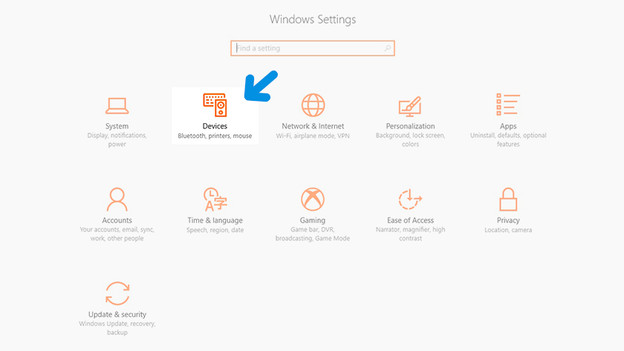
When you click the gear icon, different settings appear. Click the second icon, named Devices.
Step 3: turn on Bluetooth
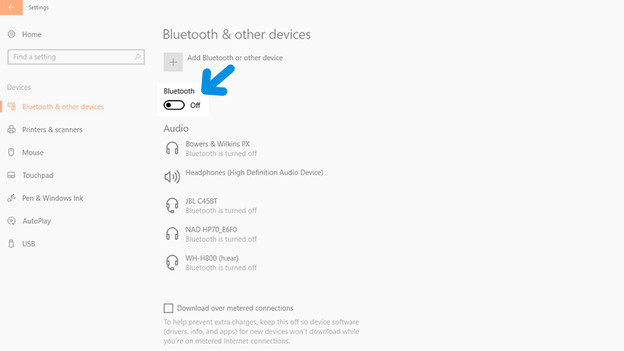
The option to turn on Bluetooth will now appear. You can do this by clicking he slider under the header Bluetooth.
Step 4: click the plus
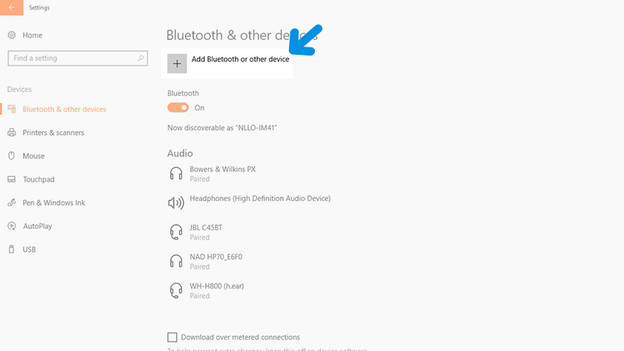
Now that Bluetooth is switched on, you can add your headphones or earbuds. Move your mouse to the plus at the top and click it.
Step 5: select Bluetooth
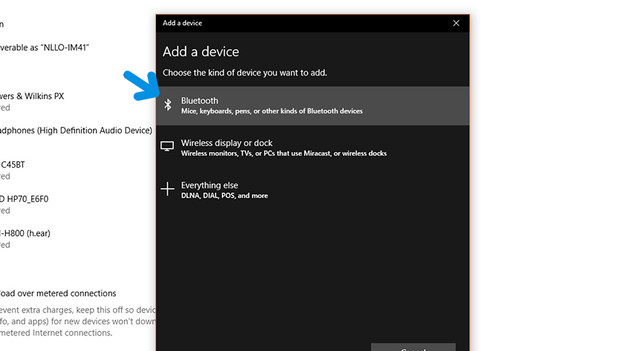
In this window, you can add various devices. Since your headphones or earbuds work via Bluetooth, you need to add a device via Bluetooth.
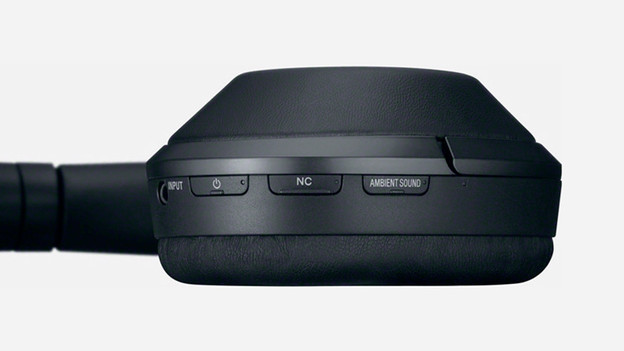
Step 6: put your headphones or earbuds in pairing mode
Your laptop will now search for Bluetooth devices. To make sure your headphones or earbuds are found, set them to pairing mode. You usually do this by holding the 'on' button longer. If this doesn't work, check the manual of your headphones or earbuds.
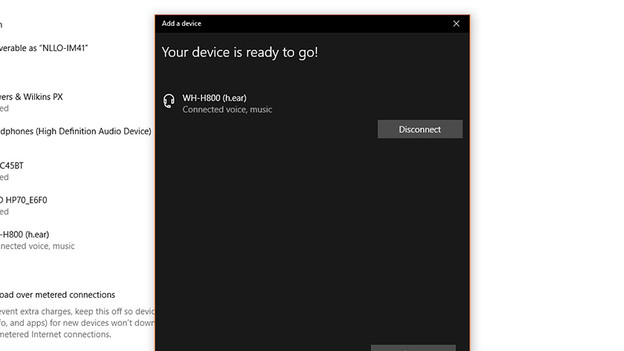
Step 7: pair your headphones or earbuds
Your headphones or earbuds will now be in the list of available devices. Click the name of your device and the laptop will automatically connect.
How do I pair my Bluetooth headphones or earbuds with a Macbook?
The following steps explain how to pair Bluetooth headphones or earbuds to your MacBook.
Step 1: Open System Preferences
Step 2: Go to Bluetooth
Step 3: Turn on Bluetooth
Step 4: Put your headphones or earbuds in pairing mode
Step 5: Pair your headphones or earbuds

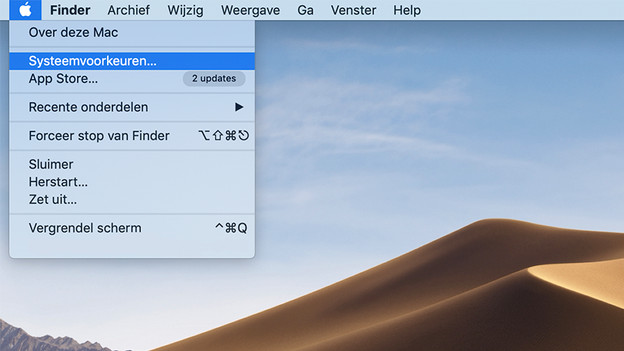
Step 1: open System Preferences
When you're on the desktop of your MacBook, move your mouse to the Apple logo at the top left of the screen. When you click it, a menu will appear. Select the second option here and click System Preferences.
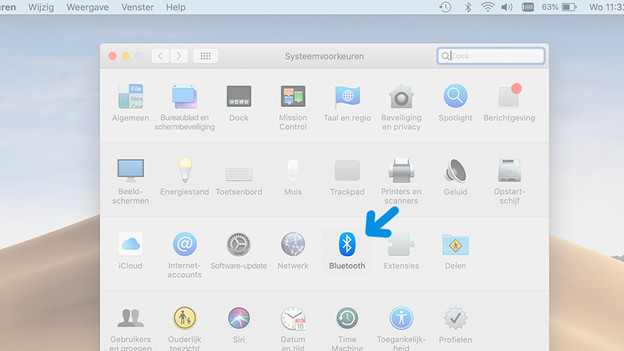
Step 2: go to Bluetooth
Now that the System Preferences are open, you'll see a list of various settings. Choose Bluetooth from all these settings.
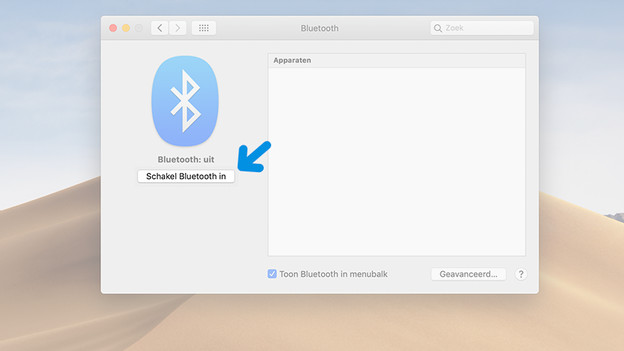
Step 3: turn on Bluetooth
In the Bluetooth window, you see the button to switch on Bluetooth. When you click it, your MacBook will start searching for available Bluetooth devices right away.
Step 4: put your headphones or earbuds in pairing mode
To ensure that your headphones or earbuds are found by the MacBook, set them to pairing mode. You usually do this by holding the 'on' button longer. If this doesn't work, check the manual of your headphones or earbuds.
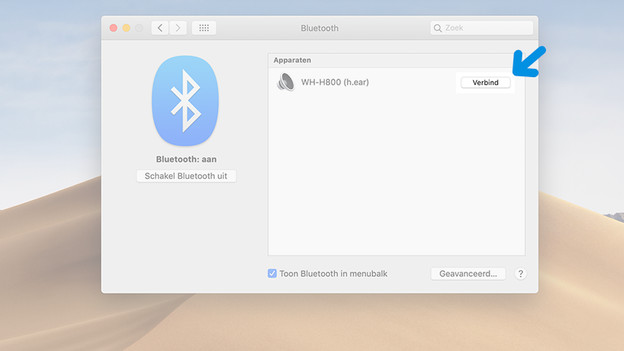
Step 5: pair your headphones or earbuds
The name of your headphones or earbuds will now appear on the screen. Click the name and the MacBook will automatically connect.
Article by Lucas
Audio Expert.