
Written by Nina
Edited on
23 June 2023
·
18:45
How do you connect a DJI drone to a controller?
If you have a new DJI drone, you probably still have to connect it to the controller. You can use the remote to control the drone. In this article, we'll explain how to connect your drone to a drone controller in 5 steps.
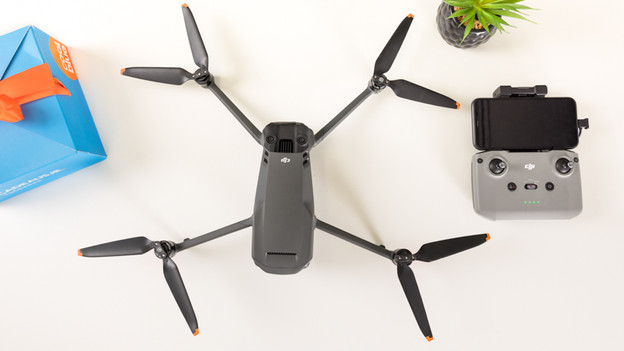
Get started with connecting your controller
You can connect the drone to the DJI remote in 5 steps.
Step 1: turn on the controller and drone.
Step 2: put your phone in the holder.
Step 3: log in to the DJI app.
Step 4: open the Connection Guide.
Step 5: connect the drone.

Step 1: switch on the controller and drone
Press the ON/OFF button of your drone shortly and press and hold it again for a couple of seconds. Once the remote is beeping, it's turning on. Both the drone and remote have lights on when they're on.
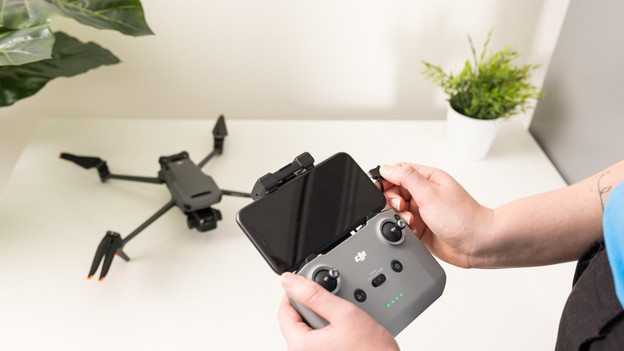
Step 2: place your phone in the controller
Do you have the DJI Remote Controller? You can use your phone as a screen. If you use a Smart Controller with built-in screen, you can skip this step. Slide out the phone holder at the top of the Remote Controller. You'll find the connection cable here. DJI provides different types of cables, so you can choose the cable that's suitable for your phone. Place your phone in the holder at the top of the remote horizontally. Make sure the charging port of your phone is pointing to the right. Plug the cable into the charging port of your phone.
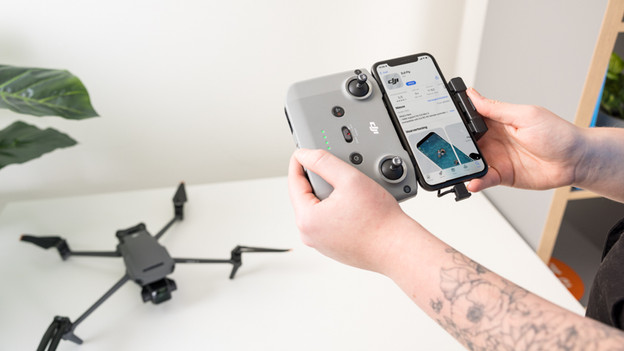
Step 3: create an account in the DJI app or log in
If you use the DJI Remote Controller, you can connect to the drone via the DJI Fly app. On your iPhone, you can download the DJI Fly app via the App Store. On phones by other brands, you can install the DJI Fly app via the DJI website. Once the app has been installed, you can create an account. If you already have one, you can log in. Are you using the DJI Smart Controller? You can create a DJI account on the built-in screen or log in.

Step 4: open the Connection Guide
Choose 'Connection Guide' on the screen of your phone or controller. This button is on the bottom right of the home screen of the app. You'll see an overview of different DJI drones. Select the model drone you're using.
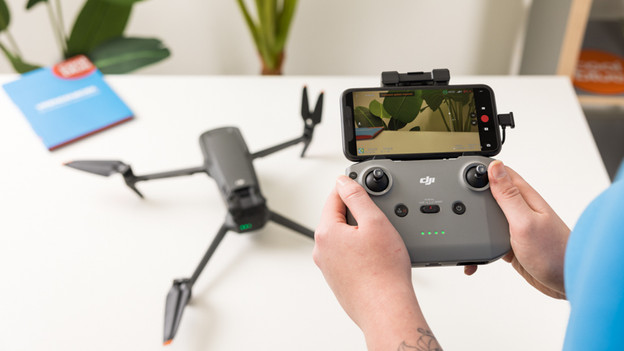
Step 5: connect the drone
Once you've selected the right type of drone, the remote will look for your drone and set up a connection. This may take some time. When you see the live image of the camera of the drone on your screen, the remote has been connected successfully and you can take off. The next time you start the drone and remote, they'll be connected automatically.
