
Written by Rowan
Edited on
20 August 2026
·
14:35
How do you connect your Wisberg washing machine to the app?
You have a Wisberg washing machine that you can control via an app. This way, you can choose a cycle remotely and see when your laundry is clean. Before you do this, download the Wisberg app and connect your Wisberg washing machine. Read how to do this here.
Connecting Wisberg washing machine to app in 4 steps
To connect your Wisberg washing machine remotely, easily follow these 4 steps:
- Step 1: download the Wisberg app
- Step 2: setting up your washing machine
- Step 3: create an account
- Step 4: connect your washing machine to WiFi
Step 1: download the Wisberg app
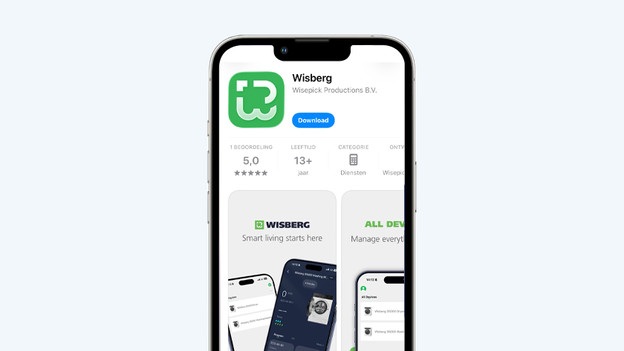
First, download the Wisberg app on your smartphone. You can do this via the App Store or Play Store and find Wisberg. Turn on Bluetooth on your phone.
Step 2: set your washing machine
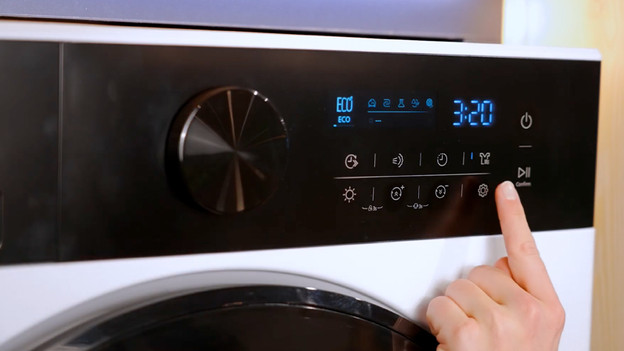
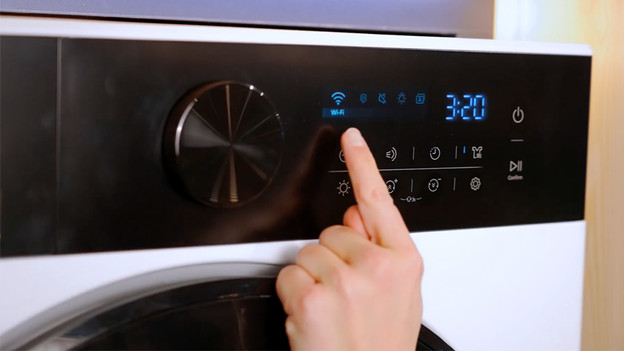
Turn on your Wisberg washing machine now. Twist the dial and unlock the display this way. For the settings, tap the symbol of the gearwheel. You can find this icon at the bottom right. Find the WiFi symbol with the dial. Confirm this via the on/off button.
For the settings, tap the gearwheel.
Find the WiFi symbol with the dial.
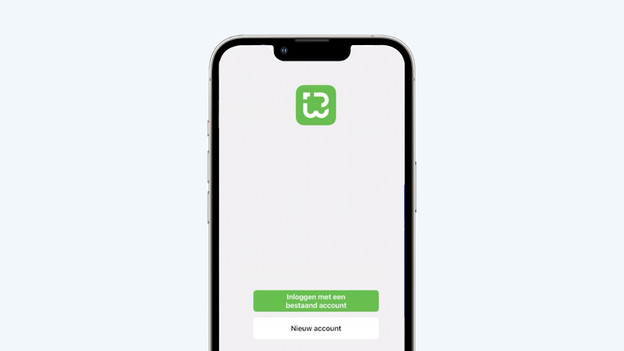
Step 3: create an account in the Wisberg app
Open the Wisberg app on your smartphone and create an account. Enter your email address and check your email. You'll receive a verification code with 6 numbers. Enter this code and choose a strong password. Your account is ready now.
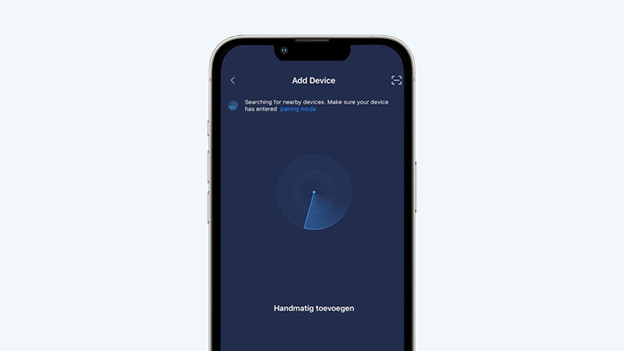
Step 4: connect your washing machine to WiFi
Now that you have an account, add your Wisberg washing machine. Tap the plus at the top right in the app and choose 'Add Device'. In a few seconds, you'll see the Wisberg washing machine. Sometimes, it takes a little longer. Tap your washing machine and choose your WiFi network. The app now asks if you can press 2 buttons on the display of your washing machine at the same time for 3 seconds. These are the buttons 'Tijd+' and 'Tijd-'. Your Wisberg washing machine is now ready to control it remotely.
Article by Rowan
Washing Machine Expert.
