Written by Lodi
Edited on
13 December 2023
·
08:38
How do you update your Fitbit?
If you want your Fitbit to work optimally, always install the latest updates. That way, you'll always have the latest functions on your Fitbit. In this article, we'll explain how to do this.

Get started with installing updates on your Fitbit
Follow these 3 steps to update your Fitbit:
- Step 1: charge your Fitbit
- Step 2: update your Fitbit app
- Step 3: keep your Fitbit updated
Note: it can take longer than an hour to complete the update. Make sure you have enough time. It's possible that your Fitbit displays the wrong number of steps the following 24 hours. It'll resolve that by itself.
Can't you update your Fitbit or do you have other problems? Contact the Fitbit customer service. They'll help you to solve the problem.
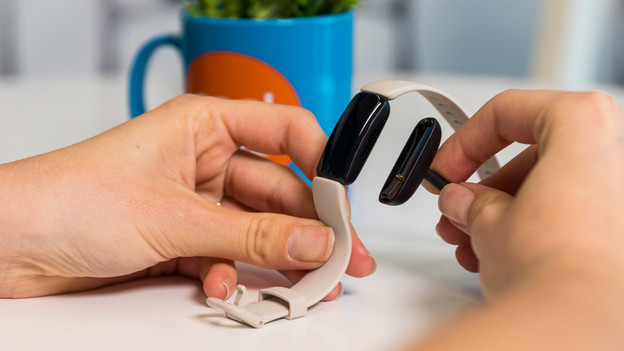
Step 1: charge your Fitbit
It requires a lot of energy from your Fitbit to install updates. Fully charge your Fitbit or connect a charger when you update the smartwatch.

Step 2: update the Fitbit app
To install the most recent updates for your Fitbit, you need the latest version of the Fitbit app.
- Find the app in the app store of your smartphone or tablet.
- If there's an update available, click update. You'll now install the Fitbit app.
Step 3: update your Fitbit
You can install Fitbit updates via the Fitbit app on your smartphone.
- Open the Fitbit app and keep your Fitbit nearby.
- Tap your profile photo in the top left corner.
- Tap your Fitbit device.
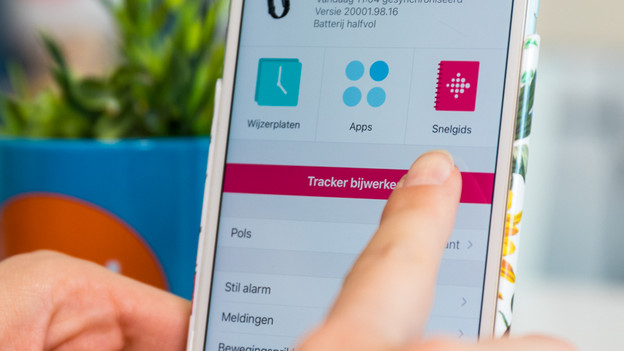
- If there's an available update, you'll see a pink button that says Update. Tap it.
- Follow the instructions on the screen and keep your Fitbit nearby during the updating process.
Can't figure it out? Contact the Fitbit customer service.
1. Open the Fitbit app on your smartphone
2. Go to your account by tapping your profile photo in the top left corner
3. Tap your Fitbit
4. If there's an available update, you'll see a pink button in the next screen
5. Tap the button and follow the instructions on your smartphone screen




Article by Lodi
Smartwatch Expert.