
Written by Megan
Edited on
30 August 2022
·
12:16
How do you put e-books from an online library on your e-reader?
With an Online Bibliotheek subscription, you can borrow countless e-books. You can read these books via the app, but you can also easily copy them to your e-reader. In this article, we'll explain how to do that. That way, you'll soon be able to read all your favorite borrowed e-books on your e-reader.

Get started with your e-reader and the Online Bibliotheek
Add the borrowed book to your e-reader with the following steps:
- Install Adobe Digital Editions
- Authorize your computer
- Authorize your e-reader
- Choose an e-book
- Add the e-book to your e-reader
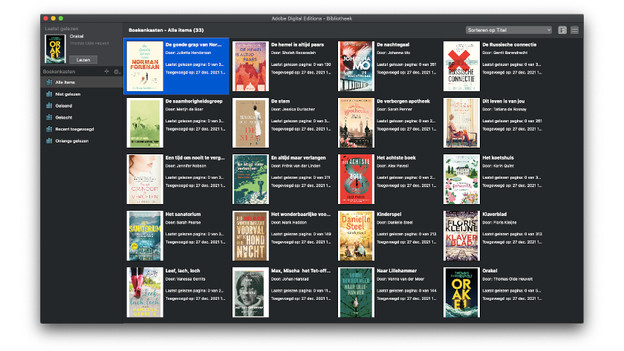
Step 1: install Adobe Digital Editions
E-books you borrow via the Online Bibliotheek are encypted. That's why you use the free program Adobe Digital Editions (ADE).
- Go to the Adobe website. Click 'Sign in' at the top right. Create an Adobe ID.
- Download Adobe Digital Editions via this page.
- Install the program on your computer.
Note: most e-readers are suitable for reading borrowed books, but not all. Check the manual of your e-reader to see whether it supports Adobe Digital Rights Management.
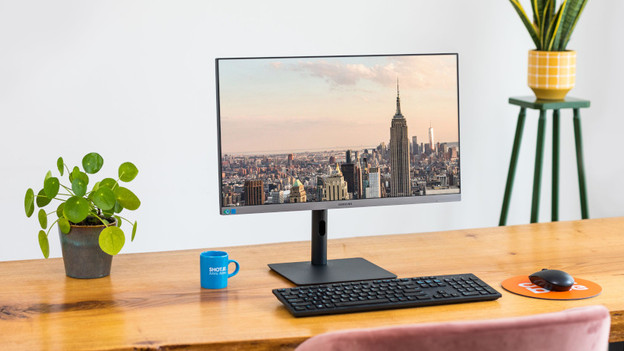
Step 2: authorize your computer
When the installation is complete, open the program on your computer.
- Then, go to 'Help' and select 'Authorize Computer'.
- Enter your Adobe ID and click 'Authorize'.
- Your computer is now authorized.
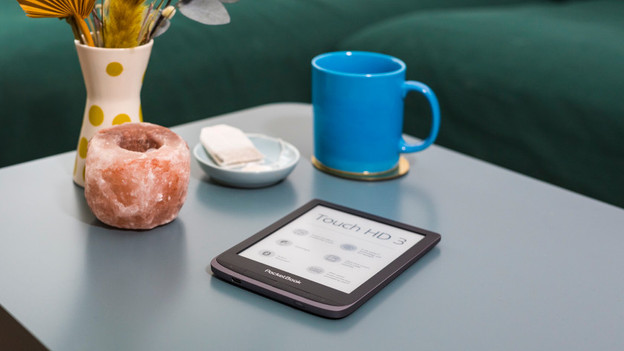
Step 3: authorize your e-reader
Now, you have to authorize your e-reader. Connect your e-reader to your computer with a cable. You may have to click 'Connect' on the screen of your e-reader.
- Your e-reader will appear in the left row in Adobe Digital Editions under 'Devices'. Click on the name of your e-reader.
- Then, click on the gearwheel and 'Authorize Device'. You'll see your Adobe ID on the next screen. Click 'Authorize'.
- Your computer and e-reader are now both authorized.
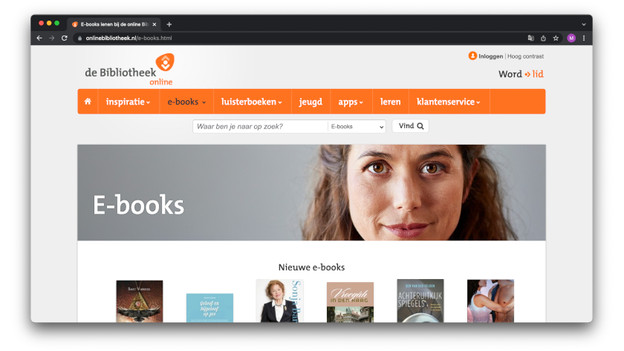
Step 4: choose an e-book
Go to the Online Bibliotheek website and sign in. You need an account with a subscription to borrow e-books.
- Check out the entire collection or find a specific book. Click on the book you've chosen.
- On the page that appears, click 'Lenen'. You've now borrowed the e-book.
- After that, click 'Download voor e-reader'. The file will be saved on your computer.

Step 5: add the borrowed e-book to your e-reader
- Open the borrowed e-book with Adobe Digital Editions.
- Connect your e-reader to the computer.
- In ADE, go to 'Library' and right-click on the e-book.
- Click 'Copy to computer/device' and choose your e-reader. The book is now on your e-reader.
- Disconnect the device to your computer. You're done. Enjoy your borrowed e-book!
Article by Megan
E-reader Expert.
