
Written by Prescious
Edited on
21 May 2025
·
07:22
How do you solve blurry images with your Meta Quest VR headset?
Are you experiencing blurry images on your Meta Quest VR headset during gaming? We'll give you tips on how to properly clean your VR headset in this article. We'll also tell you how to possibly solve blurry images via certain settings. That way, you can enjoy razor-sharp images again with your Oculus Quest VR headset. Meta replaces the Oculus name and the VR headset is now part of Facebook.
Solve blurry images on your Meta Quest VR headset:
We have a few tips to help solve blurry images:
-
Tip 1. Allow the Meta to warm up
-
Tip 2. Set up the lenses correctly
-
Tip 3. Clean the Meta and adjust it
-
Tip 4. Reset the Meta Quest VR headset to its factory settings

Tip 1: allow the Meta to warm up
We understand you want to get started with your Meta right away. But it's important that your VR headset warms up properly. That way, you prevent the lenses from fogging up.
- Turn on the Meta Quest VR headset.
- Allow the headset to warm up for 2 minutes.
- Put the VR headset on.

Tip 2. Set up the lenses correctly
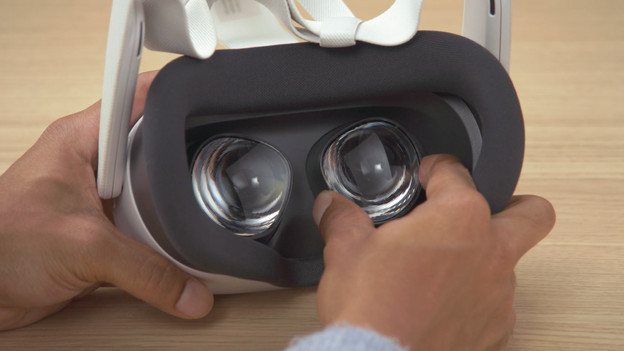
It's important that the lenses of your Quest VR headset are correctly adjusted. You have to measure your pupil distance and move the lenses for this.
On the Meta Quest 3, you can move the lenses with the dial on the bottom of the VR headset. On the Meta Quest 2 and Quest 3S, you can click the lenses apart.
Tip 3: clean the Meta and adjust it
Clean lenses are important for an optimal VR experience. We recommend you to clean the lenses with a microfiber cloth regularly. Proper adjustment of the VR headset helps against blurriness. Make sure to pull the headband backwards when you put the headset on. Determine which of the 3 settings is the most comfortable for you. The headset needs to be tight while you play, but comfort is also important.

Tip 4: reset the Meta Quest VR headset to its factory settings
If the tips above haven't helped, you can reset the VR headset to its factory settings. Only do this when nothing else works, because all data will be deleted from your VR headset.
You can reset the Quest VR headset to its factory settings in 2 ways:
- Via the settings in the Quest App on your phone
- Via the buttons on the Meta Quest VR headset
