Written by Laszlo
Edited on
5 October 2022
·
11:32
How do you print photos in good quality?
You have an Inkjet printer and want to print a photo for in your frame. The print just doesn't look like you expected. This can have various causes, like a small file size or not printing properly from your smartphone. We're happy to explain how to print photos in the best quality.
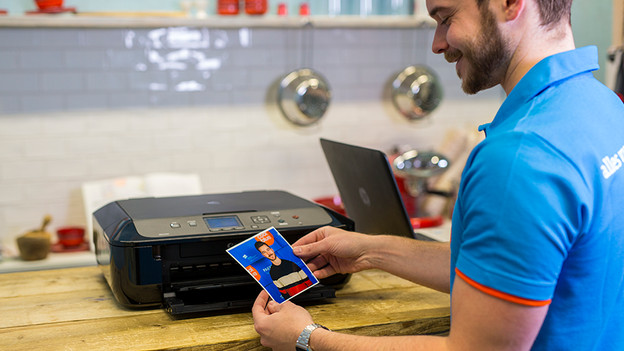
Tips to print photos in good quality
A bad print of a photo can have various causes. We'll list the problems and solutions. The 4 tips are:
- Tip 1. Place photo paper in the paper tray
- Tip 2. Use the original file size
- Tip 3. Print with at least 5 cartridges
- Tip 4. Send the print job via an app

Tip 1: place photo paper in the paper tray
You can use photo paper to print nice photos. This paper has a special coating, so photo get a better quality. There are 2 types of photo paper. There's matte and glossy. The difference between photo paper and regular paper is big. With regular printing paper, the colors and details don't look great, while they look bright an realistic on photo paper.
*Note: when you use photo paper, put the paper in the tray with the logo face up.

Tip 2: use the original file size
The file size says a lot about the quality of a photo. There are 3 factors that affect the file size:
- Always use the original file: photos from apps like Facebook and WhatsApp have a smaller file size.
- Always send your photos in the original size via email, or upload them to a cloud service.
- Adjust the highest resolution: with cameras and smartphones, this is different. Check the instructions for your brand and device.

Tip 3: print with at least 5 cartridges
For text documents, the standard cartridges are good enough. The standard colors are black, magenta, cyan, and yellow. When you print photos, the quality is better if you have a printer with more than 4 cartridges. These special photo printers have photo black and/or light magenta and light cyan cartridges in addition to the regular cartridges. When you print photos, keep in mind that the more cartridges you use, the nicer the print of the photo will be.
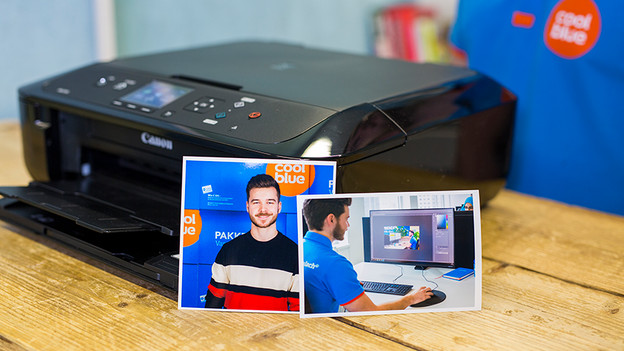
Tip 4: send the print job via an app
Some printers support WiFi and apps of their own brand, which allow you to print from your smartphone or tablet. In those apps, you can adjust the settings or edit your photo. The settings in the app synchronize with your printer, so the print is always right. When you print an image from the photo gallery of your smartphone, there's a chance it won't print properly.
Article by Laszlo
Printer Expert.