Welcome to your environment! You can order everything from your assortment with your personal budget here.

You can always return to the normal Coolblue website by clicking here.

Your outstanding budget (incl. VAT) is always visible here, so you know exactly how much you can spend.

Coolblue home

Help with your product
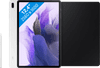
Samsung Galaxy Tab S7 FE 128GB WiFi Silver + Book Case Black

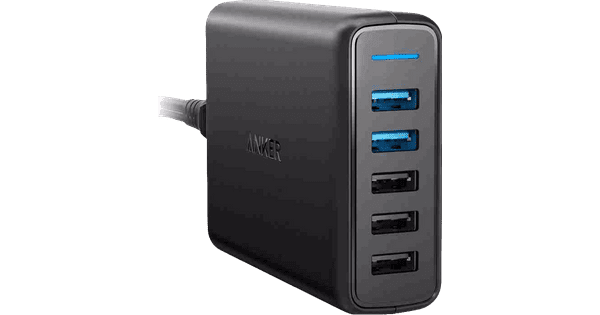
The Samsung Galaxy Tab S7 FE 128GB WiFi Silver stays as new for as long as possible with the Samsung Book Case Black. With the book case, you can protect your tablet from bumps and scratches. The Tab S7 FE is a mid-range Android tablet with a large 12.4-inch screen. This 'Fan Edition' tablet is the starter model from the Galaxy Tab S7 series. With a powerful Octa-Core processor and 6GB RAM, the Tab S7 FE is suitable for demanding apps and games, but not at the highest settings. A stylus is included by default so you can control the tablet, take notes, or edit photos, for example. On the large screen, you can easily multitask. For example, you can take notes and browse the internet while you're in a video call. The Tab S7 FE supports fast charging up to 45W, so you fully charge the battery within 90 minutes. You do need a separate charger for this, since the included charger only provides 15W.

Read all tips here

Which Samsung tablet do you have?

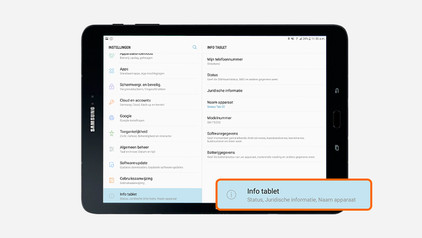
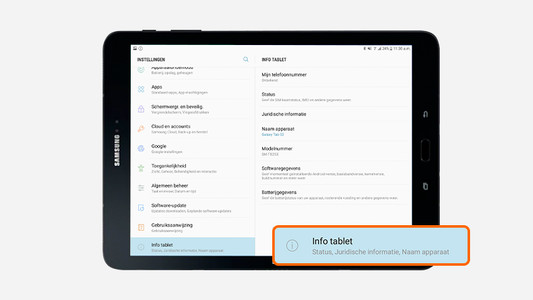
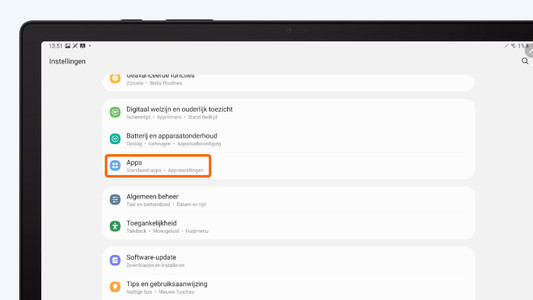
Samsung tablets are very similar, both in terms of looks and name. Check the model number of you Samsung tablet to be sure which tablet you have. That way, you make sure you buy the correct cover. You can find the model number on the back of your tablet and in the menu.
How do you connect your Android tablet to a screen?

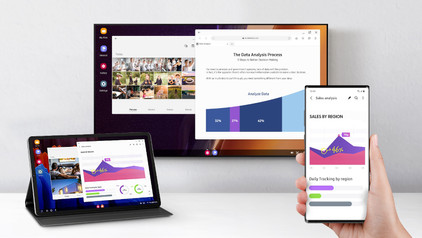
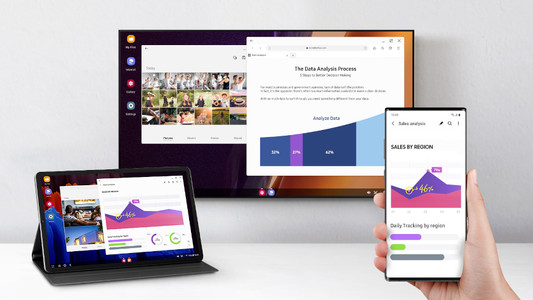
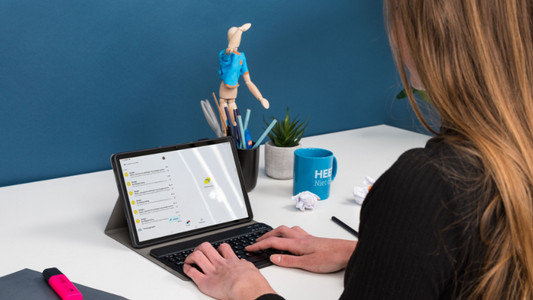
You can connect your Android tablet to various devices. That way, you can watch something on a large screen or use your tablet as a desktop. You can show your holiday photos on a large screen or work on a document with a keyboard and mouse, for example. In this article, we'll give you some tips on how to do that.

How do you install Google Kids Mode on your tablet?

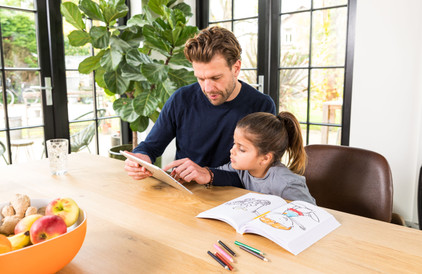
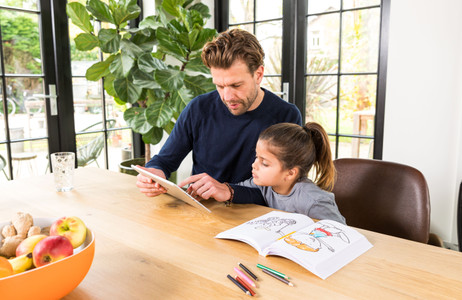
With the Google Kids Space child mode, your child can safely explore the digital world with fun and educational apps. You can set up this mode yourself. In this article, we'll explain how you can do that.

3 tips to use your Samsung tablet with your Galaxy Book laptop

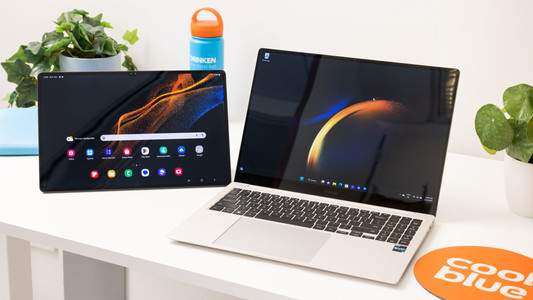
Your Samsung Galaxy tablet and Samsung Galaxy Book laptop work well together. You can use your Samsung tablet as a second screen or easily transfer your photos to your Galaxy Book laptop without cables. It's also possible to quickly switch between your tablet and laptop. We'll give 3 tips to use your Samsung tablet with your Samsung laptop.

How do you solve problems with a slow Android tablet?

Is your tablet slow or do apps crash all of a sudden? It's probably caused by an outdated app or Android version. Sometimes, it also helps to restart your tablet. In this article, you can read how to solve common problems with slow tablets.

How do you set up email on your Android tablet?

You can set up your email on your Android tablet via the Google Gmail app. In the app, simply log in with your Hotmail, Gmail, or Yahoo email address. In this article, we'll explain step by step how to set up your email on your Android tablet.

How do you solve charging problems with your tablet?

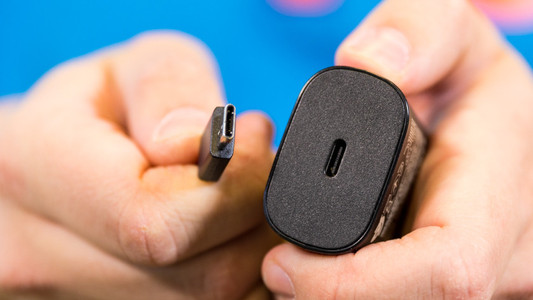
It can be very annoying if your Android tablet won't charge or charges slowly. The problem could be a dirty charging port, or maybe it's the charger you're using. Sometimes, restarting your tablet solves the problem. In this article, we'll give you 4 tips so you can charge your tablet without any problems again.

How do you prepare your tablet for trade-in in the store?

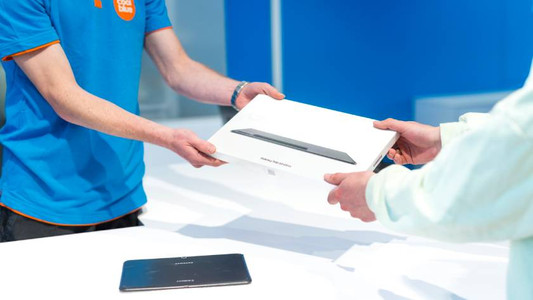
Thanks to Tablet Upgrade, you get a discount on your new tablet when you trade in your old one. If you prepare for the trade-in properly, it'll be a lot easier and faster. Make sure you transfer your data beforehand. In this article, we'll explain all of the steps.

Which Samsung tablet do you have?

Samsung tablets are very similar, both in terms of looks and name. Check the model number of you Samsung tablet to be sure which tablet you have. That way, you make sure you buy the correct cover. You can find the model number on the back of your tablet and in the menu.

How do you connect your Android tablet to a screen?

You can connect your Android tablet to various devices. That way, you can watch something on a large screen or use your tablet as a desktop. You can show your holiday photos on a large screen or work on a document with a keyboard and mouse, for example. In this article, we'll give you some tips on how to do that.

How do you install Google Kids Mode on your tablet?

With the Google Kids Space child mode, your child can safely explore the digital world with fun and educational apps. You can set up this mode yourself. In this article, we'll explain how you can do that.

3 tips to use your Samsung tablet with your Galaxy Book laptop

Your Samsung Galaxy tablet and Samsung Galaxy Book laptop work well together. You can use your Samsung tablet as a second screen or easily transfer your photos to your Galaxy Book laptop without cables. It's also possible to quickly switch between your tablet and laptop. We'll give 3 tips to use your Samsung tablet with your Samsung laptop.

How do you solve problems with a slow Android tablet?

Is your tablet slow or do apps crash all of a sudden? It's probably caused by an outdated app or Android version. Sometimes, it also helps to restart your tablet. In this article, you can read how to solve common problems with slow tablets.

How do you set up email on your Android tablet?

You can set up your email on your Android tablet via the Google Gmail app. In the app, simply log in with your Hotmail, Gmail, or Yahoo email address. In this article, we'll explain step by step how to set up your email on your Android tablet.

How do you solve charging problems with your tablet?

It can be very annoying if your Android tablet won't charge or charges slowly. The problem could be a dirty charging port, or maybe it's the charger you're using. Sometimes, restarting your tablet solves the problem. In this article, we'll give you 4 tips so you can charge your tablet without any problems again.

How do you prepare your tablet for trade-in in the store?

Thanks to Tablet Upgrade, you get a discount on your new tablet when you trade in your old one. If you prepare for the trade-in properly, it'll be a lot easier and faster. Make sure you transfer your data beforehand. In this article, we'll explain all of the steps.

Subjects

Didn't find your answer?

Find an answer to your question quickly and easily via our customer service.

Coolblue specialist
Personal chat Digitalk.
You're now chatting with Coolblue customer service
This chat is closed
foo
Oeps File size is larger than 5MB. Upload a smaller file.