Welcome to your environment! You can order everything from your assortment with your personal budget here.

You can always return to the normal Coolblue website by clicking here.

Your outstanding budget (incl. VAT) is always visible here, so you know exactly how much you can spend.

Coolblue home

Help with your product

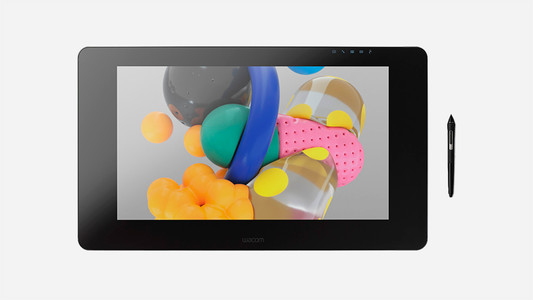
Wacom Cintiq Pro 22 + Adjustable Stand
0 reviews

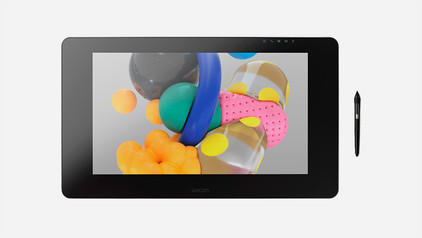
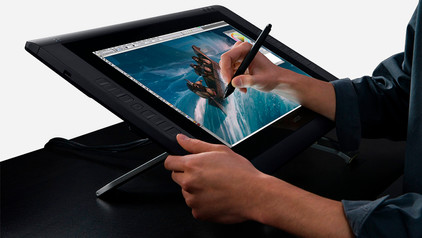
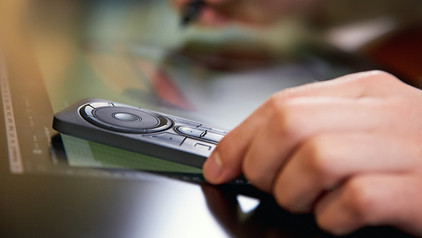
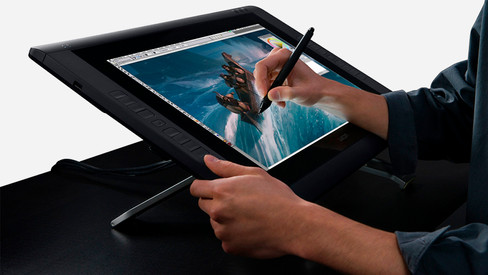
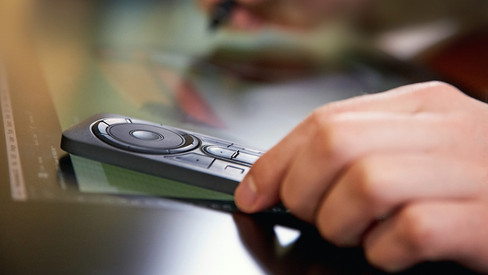
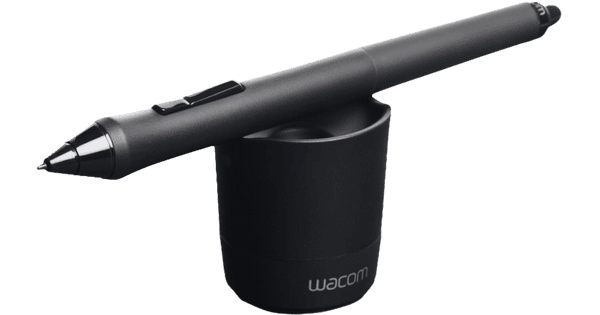
With the Wacom Cintiq Pro 22 + Stand, you can draw in a comfortable position. You can place the drawing tablet in various positions, so you can work ergonomically and prevent physical problems. With the Wacom Cintiq Pro 22 inches, you have a lot of screen space and you can see what you're drawing in detail. The 4K UHD resolution allows you to view your drawings in high quality. You can control your lines thanks to the 8192 pressure levels in the Wacom Pro Pen 3. With a 5080 LPI resolution, you can work very accurately. You can touch the screen with multiple fingers at the same time with multi-touch. This way, you can easily scroll or zoom. You can set up to 3 shortcuts on the Pro Pen 3, and up to 8 on the drawing tablet itself. This helps you improve your workflow. You can connect the Cintiq Pro 22 to your computer with a USB-C, USB-A, HDMI, or DisplayPort cable. Note: this drawing tablet is not a standalone model. You need to connect it to a PC or laptop.

Read all tips here

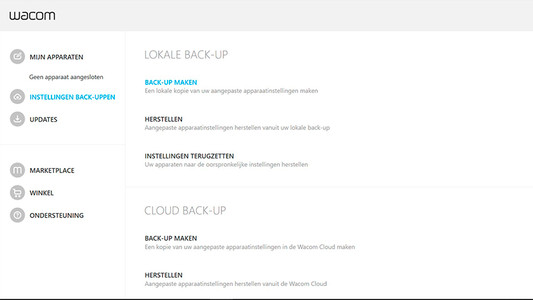
How do I update the Wacom driver?

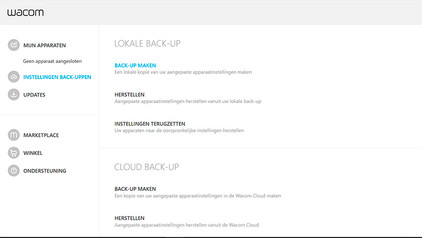
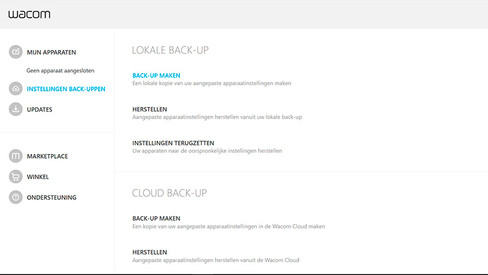
Is your Wacom drawing tablet or pen no longer working the way it should. The Wacom driver might not be up-to-date, or it's set up incorrectly, or the operating system was updated. In this article, you'll read how to update the driver, so you can quickly get back to working with your Wacom drawing tablet.
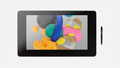
How do I update the Wacom driver?

Is your Wacom drawing tablet or pen no longer working the way it should. The Wacom driver might not be up-to-date, or it's set up incorrectly, or the operating system was updated. In this article, you'll read how to update the driver, so you can quickly get back to working with your Wacom drawing tablet.
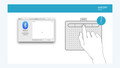
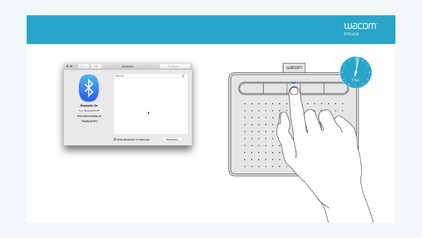
How do I sync my Wacom pen?

Is your cursor appearing in a different spot than the Wacom pen on your tablet? Most of the time this can be solved by readjusting the pen (calibrating). In this article, I'll explain how to do that. If the calibration didn't solve the problem, it probably lies with the Wacom driver.

How do I update the Wacom driver?

Is your Wacom drawing tablet or pen no longer working the way it should. The Wacom driver might not be up-to-date, or it's set up incorrectly, or the operating system was updated. In this article, you'll read how to update the driver, so you can quickly get back to working with your Wacom drawing tablet.
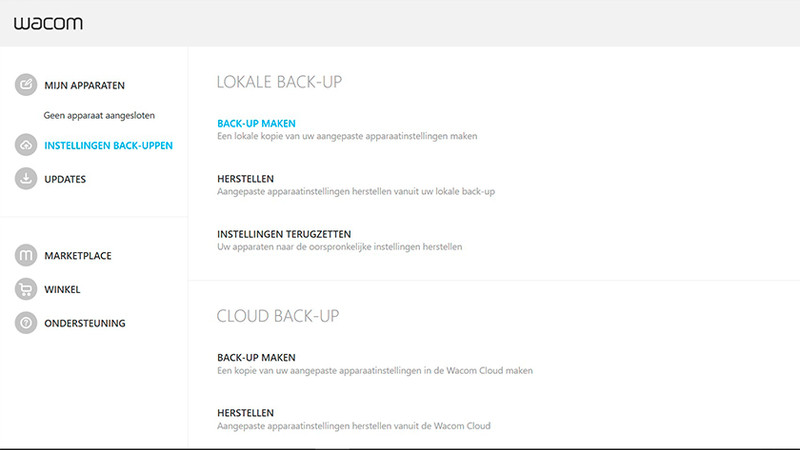
How do I update the Wacom driver?

Is your Wacom drawing tablet or pen no longer working the way it should. The Wacom driver might not be up-to-date, or it's set up incorrectly, or the operating system was updated. In this article, you'll read how to update the driver, so you can quickly get back to working with your Wacom drawing tablet.
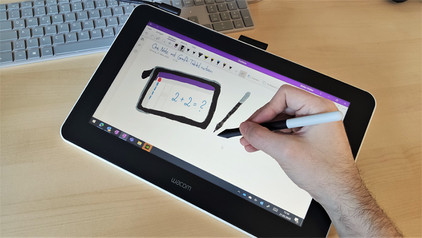
How do I sync my Wacom pen?

Is your cursor appearing in a different spot than the Wacom pen on your tablet? Most of the time this can be solved by readjusting the pen (calibrating). In this article, I'll explain how to do that. If the calibration didn't solve the problem, it probably lies with the Wacom driver.

Subjects

Didn't find your answer?

Find an answer to your question quickly and easily via our customer service.

Coolblue specialist
Personal chat Digitalk.
You're now chatting with Coolblue customer service
This chat is closed
foo
Oeps File size is larger than 5MB. Upload a smaller file.