Written by Robyn
Edited on
16 June 2026
·
12:29
How do you fix your Apple Watch in case of problems?
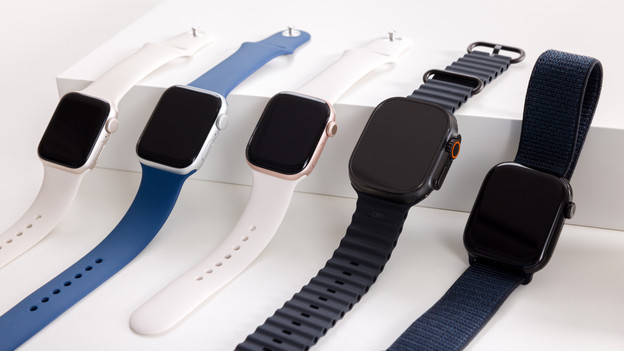
Sometimes your Apple Watch doesn't respond well or it completely freezes. You can restart your Apple Watch, fix it via your iPhone, or reset it to factory settings. In this article, we can give you 4 tips to fix problems with your Apple Watch.
Get started with solving Apple Watch problems
If your Apple Watch no longer works the way it should, there are different ways to restore it.
- Step 1: restart your Apple Watch
- Step 2: restore your Apple Watch via your iPhone
- Step 3: perform a hard reset
- Step 4: return your Apple Watch to factory settings
Step 1: restart your Apple Watch
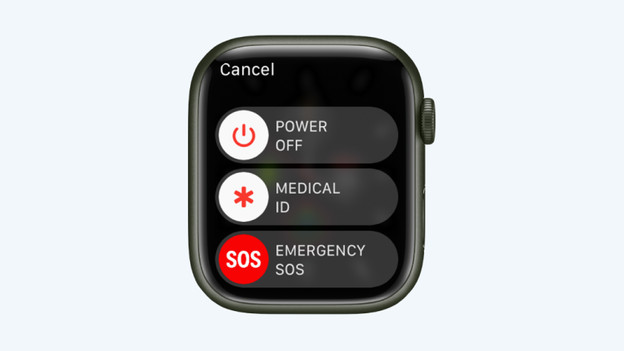
Sometimes, you can solve problems with your Apple Watch by restarting your Apple Watch.
- Press and hold the side button until the screen changes. With the side button, we mean the button below the Digital Crown.
- Swipe over the option Turn off.
- The screen will go dark and your Apple Watch is now turned off.
- Wait for a few seconds and push the side button to turn the Apple Watch back on.

Step 2: restore your Apple Watch with your iPhone
Restarting it didn't work? Or does your Apple Watch not respond at all? Try to fix your Apple Watch via your iPhone.
- Open the Apple Watch app on your iPhone.
- Go to All Apple Watches.
- Tap your watch at the top.
- Next, tap the info button or the 'i' symbol.
- Choose the option Disconnect Apple Watch.
- It takes a while to disconnect your Apple Watch. Once the processed is finished, you can reconnect your Watch to your iPhone.
Step 3: do a hard reset
Restarting and disconnecting your Apple Watch didn't work. The next possible solution is a hard reset. A hard reset might also work if your Apple Watch has stopped responding. Don't worry: your data stays stored.
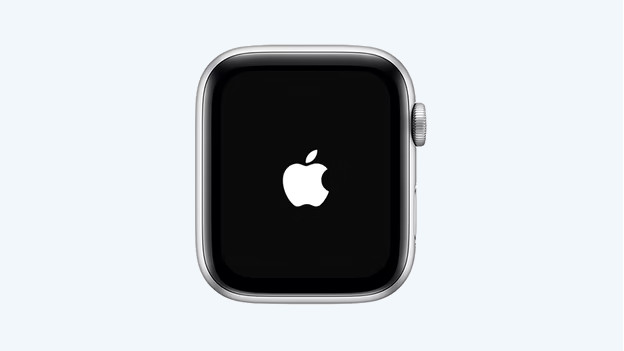
- Press the Digital Crown and side button at the same time.
- Hold down the buttons until the Apple logo appears.
- Your Apple Watch will now forcibly restart. You've performed a hard reset on your watch.
Step 4: return your Apple Watch to factory settings
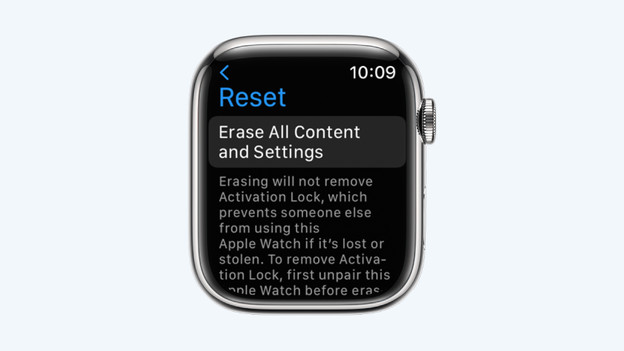
If nothing has helped so far, returning your Apple Watch to factory settings is your final option. This way, you erase your data, settings, and apps from your Apple Watch and return the watch to the basics.
- Go to Settings on your Apple Watch.
- Go to General → Reset.
- Confirm your choice. Your Apple Watch will now be returned to factory settings. After, you can reconnect your Apple Watch to your iPhone.
Did returning it to factory settings not help either? You can have your Apple Watch repaired by CoolblueRepairs.
Article by Robyn
Smartwatch Expert.