Written by Lodi
Edited on
10 July 2025
·
07:47
How do you receive smartphone notifications on your Fitbit?
With a Fitbit on your wrist, you can easily and quickly see all your smartphone notifications. But you have to adjust your settings before you can read them on your Fitbit. In this article, you can read what you have to do to receive notifications on your Fitbit.

Get started with smartphone notifications on your Fitbit
You can easily set up notifications on your Fitbit in 3 steps:
- Step 1: update your Fitbit and smartphone
- Step 2: check the settings of your smartphone.
- Step 3: set up notifications.
Can't connect your Fitbit to your smartphone? Or do you have a different problem with your Fitbit? Contact the Fitbit customer service. They'll help you further to solve the problem.

Step 1: update your Fitbit and smartphone
Your Fitbit and the Fitbit app on your smartphone have to be updated to the latest version. Update the Fitbit app in the app store on your smartphone. Do you want to know how to update your Fitbit? We'll explain how to do that in the article below.
Step 2: check your smartphone settings
There are different settings on your smartphone that can influence the notifications you receive on your Fitbit. Check the following smartphone settings before you set up notifications:
- Go to the settings on your smartphone and then Bluetooth. Turn on Bluetooth on your smartphone.
- Check if the notifications on your smartphone are turned on in the settings.
- Turn off Do Not Disturb on your smartphone if it's turned on.
Go to 'Connection'.
Make sure 'Bluetooth' is checked.


Step 3: set up notifications in the Fitbit app
Finally, you can set up the notifications in the Fitbit app. Keep your Fitbit nearby while you set it up.
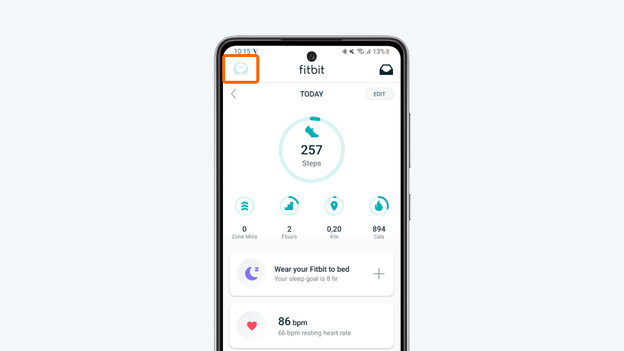
- Open the Fitbit app and tap your profile photo.
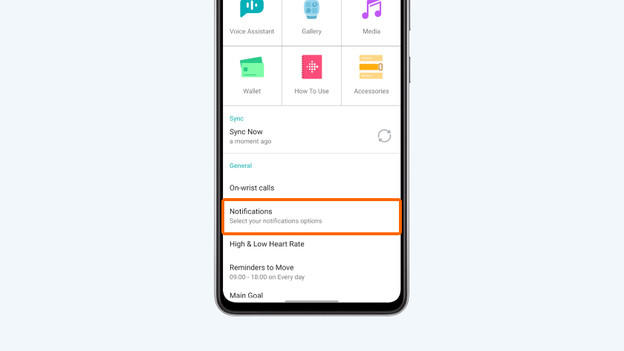
- Tap your device and go to 'Notifications'.
- Go to Notifications.
- Allow the Fitbit app access to your notifications and contacts.
- Synchronize your Fitbit when you're done.
Open your profile in the Fitbit app
Tap your device.
Go to 'Notifications'.
Tap 'Allow'


Article by Lodi
Smartwatch Expert.