Written by Jorn
Edited on
27 November 2025
·
15:29
How do you set up surround sound on Apple TV?
In addition to stereo sound, Apple TV also supports surround sound. This way, the audio comes from different channels, so it sounds much more spatial. You can easily turn on surround sound on the Apple TV. The Apple TV 4K also allows you to turn on Dolby Atmos. In this article, we'll explain how you set up these audio formats.
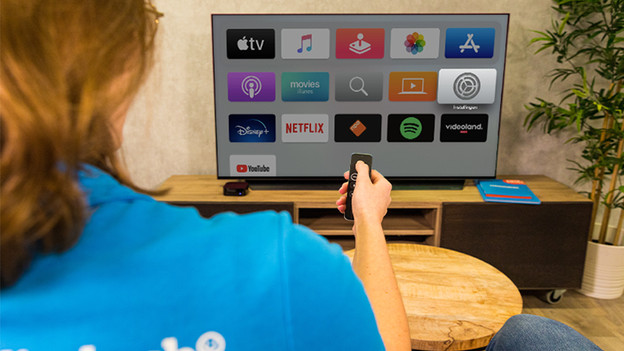
Get started with surround sound on your Apple TV
Apple TV supports different audio formats. We'll explain 2 ways to set up surround sound on your Apple TV:
1: set up surround sound. 2: set up Dolby Atmos sound.
Set up surround sound
Usually, the Apple TV automatically selects the best audio format that your devices support. If surround sound hasn't been set up automatically while your TV, soundbar, or sound system does support it, you can follow these steps:
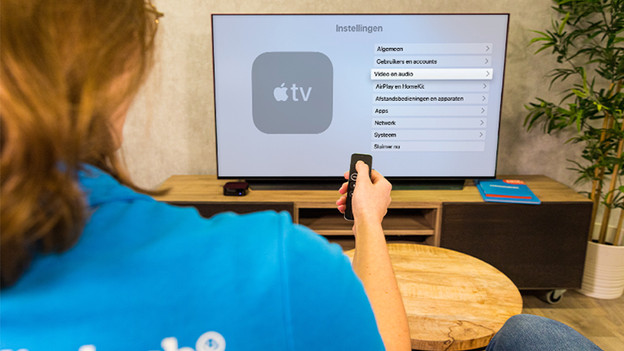
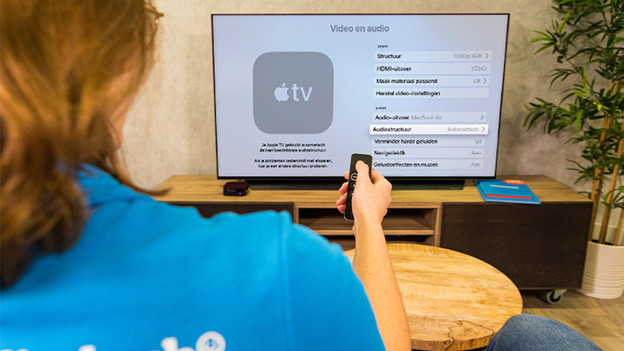
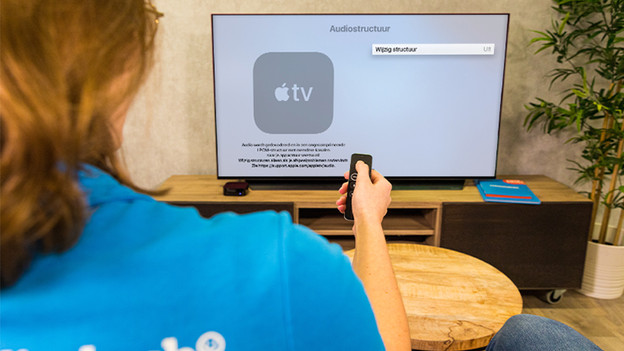
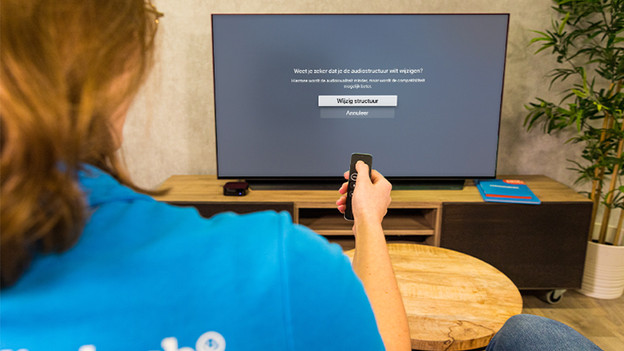
1: go to Video and Audio in Settings. 2: go to Audio Format. 3: click Change Format. 4: click Change Format again. 5: select the audio format you want here. For surround sound, you select Dolby Digital 5.1.
Step 1: go to Video and Audio in Settings
Step 2: go to Audio Format
Step 3: click Change Format
Step 4: click Change Format again
Step 5: select the audio format you want

Set up Dolby Atmos sound
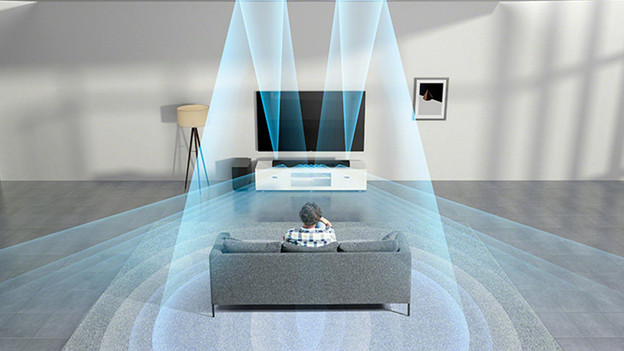
Dolby Atmos is a surround sound audio format that makes it seem like the sound comes from above. That way, the sound becomes more spatial and realistic. You can use Dolby Atmos with your Apple TV 4K, in combination with devices and HDMI cables that support the format. To check if Dolby Atmos is set up on your Apple TV, you follow these steps:
1: open the Settings app on the Apple TV. 2: go to Video and Audio and then Audio Format. 3: check if Dolby Atmos is turned on under Immersive Audio.