Written by Giovanni
Edited on
20 April 2026
·
11:43
What do you do if your docking station doesn't work with your MacBook?
If your docking station no longer works well with your MacBook, chances are something's wrong on the software-side of things. When you reset a System Manager Controller (SMC), you can solve a number of software problems. It also solves a lot of problems with your dock, so your docking station works with your MacBook without issues once again.
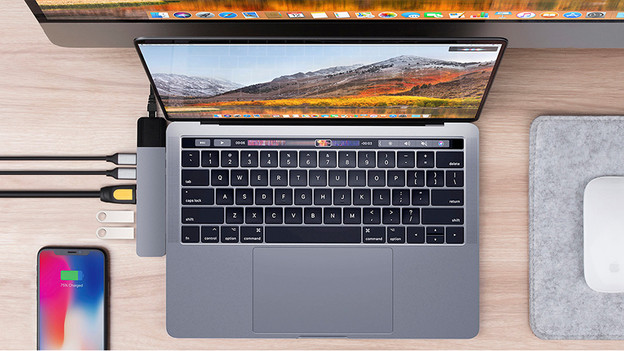
Short reset MacBook
Try a short reset first, before you reset the SMC of your MacBook. Go through these steps to perform a short reset:
- Step 1. Turn off the MacBook
- Step 2. Hold down the on/off button for 10 seconds and release it
- Step 3. Wait for 5 seconds and press the on/off button to turn on your MacBook
Reset SMC
Did the short reset not solve the problem? Reset the SMC. How you can do this depends on the type of MacBook you use. Does your MacBook have an M1 chip? Restarting is should be enough to reset the SMC.
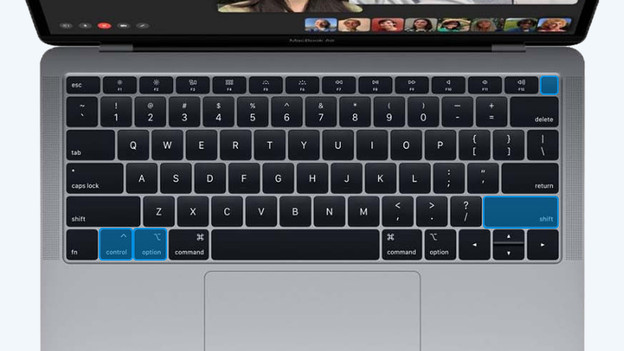
Reset SMC on Apple MacBook with Touch ID
- Press and hold down the following keys at the same time:
- Control on the left side of the keyboard
- Option on the left side of the keyboard
- Shift on the right side of the keyboard
- Count to 7 while you hold down the 3 keys.
- Now press and hold the on/off button as well.
- Count to 7 while you hold down the 4 buttons.
- Release the keys and wait for 10 seconds.
- Press the on/off button to turn on your MacBook.
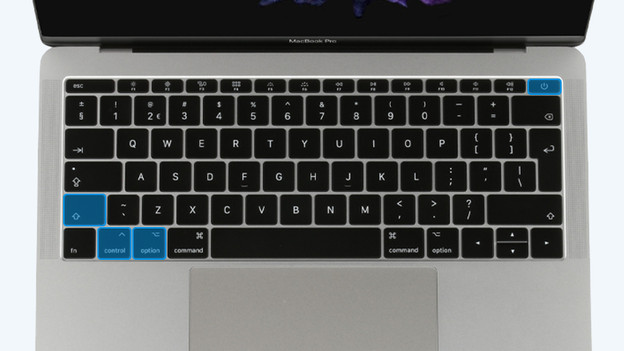
Reset SMC on Apple MacBook without Touch ID
- Press and hold the following keys at the same time:
- Shift on the left side of the keyboard
- Control on the left side of the keyboard
- Option on the left side of the keyboard
- Count to 7 while you hold down the 3 keys
- Press and hold the on/off button.
- Count to 10 while you hold down the 4 keys.
- Release the keys and wait for 10 seconds.
- Press the on/off button to turn your MacBook on.
Article by Giovanni
Software Expert.