Written by Maurits
Edited on
28 January 2025
·
08:54
How do you get your Sonos speaker ready for use?
You only have to go through the setup process to make your Sonos speaker work. On this page, you'll read how you can plug the speaker into a socket and connect it to your smartphone or tablet via your WiFi network. Follow these steps, and you'll be ready to listen to music wirelessly.
Set up Sonos speaker in 10 steps
You can read how to set up your Sonos speaker in 10 steps below.
- Step 1: connect the speaker
- Step 2: open the app
- Step 3: click Set up a new system
- Step 4: allow automatic detection
- Step 5* choose the speaker
- Step 6* connect the speaker to your home network
- Step 7: connection to your home network
- Step 8: press the correct button on the speaker
- Step 9: choose where you want to use the speaker
- Step 10: the speaker is added to your system
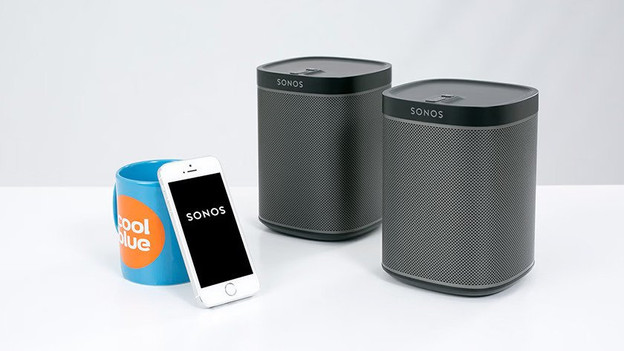
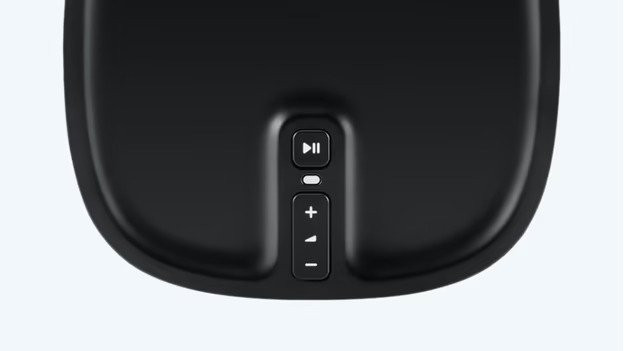
Step 1: connect the speaker to a socket
Connect your Sonos speaker to a socket. Use the included power cable. You can find the input for the cable on the back of the speaker. In the case of the One, the input is on the bottom of the device. Within 30 seconds, the LED on the speaker will flash green. Not the case? Reset the speaker to factory settings. Click the link below if you're not sure how.

Step 2: open the Sonos app
You can find the icon of the app in the min menu of your smartphone or tablet. Click or tap the app to open it.
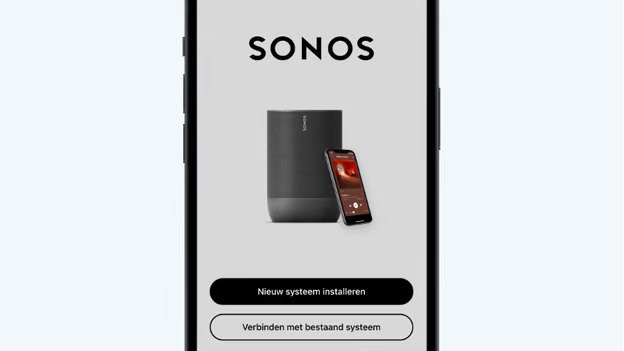
Step 3: click on Set up a new system
Click on Set up a new system on your screen to start the setup of your speakers.

Step 4: allow automatic detection
Click to allow to set up the location data of the app. If you share your location via the app, the app will automatically find the speakers you want to set up.

Step 5: choose the speaker you want to set up
The app will now show which speakers are ready for setup. Tap on Add to start the setup of the speaker.
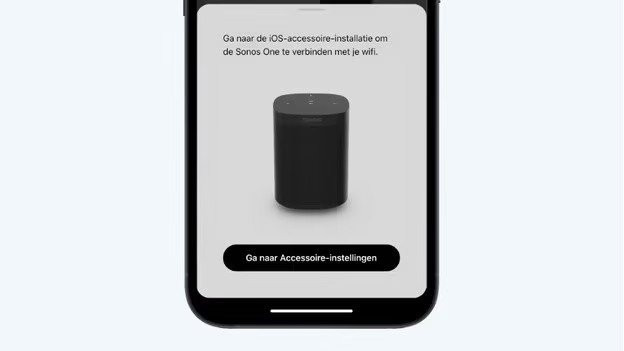
Step 6: connect the speaker to your home network
Click on Go to accessory setup to connect the speaker to your home network. This opens a separate window that shows your network. Click Connect.
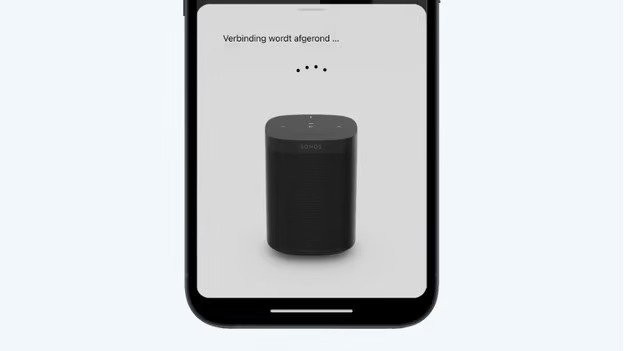
Step 7: connection to the home network
After you want through the steps in the separate window, you'll go to the next window. The speaker no connects to the home network.
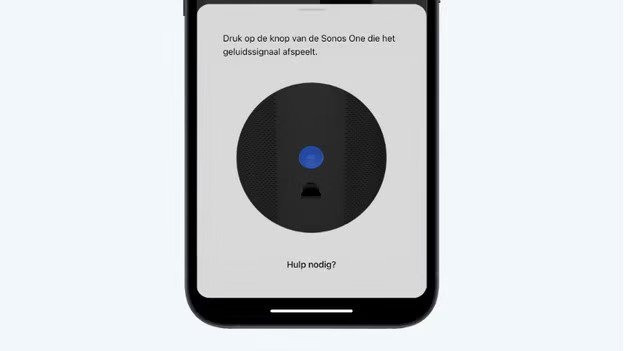
Step 8: press the correct button on the speaker
The speaker plays a sound. Press the Join button at the back of the speaker. You can recognize this button by the horizontal 8. The speaker is added to your system.
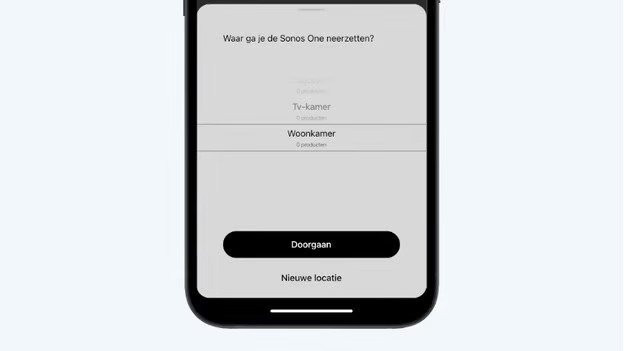
Step 9: choose where you want to use the speaker
Select where you want to use the speaker in the menu and click continue.

Step 10: the speaker is added to your system
The speaker is now added to your system. You can customize the speaker in the settings of the speaker. Click ready to Finish the setup.

Last step: add a music service if you want
The setup is no finished, so you can start listening. Click on the settings in the main menu. Go to Services and Voice and add a streaming service to the app.
Do you want to know in which ways you can send music to the speaker? Click the link below.
You're done
You can now stream music from your smartphone or tablet to your Sonos speaker. Do you want to add more Sonos speakers to the system? Then click the button below.
Article by Maurits
Audio Expert.